
| This article explains how to save a version of your world in SchoolSpace as a “scene,” so you can return to it or use it again later. You’ll learn who can save a scene, what gets saved (and what doesn’t), and how to organize and find your saved scenes. |
Keep reading to learn about:
 What's Included in a Saved Scene
Best Practices for Saving Scenes
What is a Scene?
A scene is a design of a virtual space in SchoolSpace. A scene can be a full layout of a world (like a campus) or smaller portions of a design (like a group of desks to place throughout a classroom) that can be used as building blocks to create a world.
Saving a Scene
Designers, Managers, or world Owners can save the design of a world by creating a scene. When you save a scene, all of the assets currently placed in the world and any changes you made to assets (i.e. transformations like resizing or flipping assets and any configuration like attaching websites or creating Landmark Zones) are included in the saved scene. Users with these permissions can also drop a scene or replace the entire world with a scene, either from the SchoolSpace Scene Library or from their saved scenes.
You can choose to save a new scene or overwrite a previously saved scene to update it with a new version.
To Save a Scene:
-
Click Builder Mode
 in the left sidebar or press B on your keyboard to enter Builder Mode.
 -
Click Scenes
 in the left sidebar.
 -
Click the purple plus
 button at the top of the Scenes page.
-
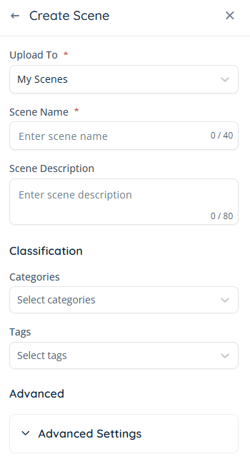
Type a name in the Scene Name field. You may want to use a version number for easy identification in the future, such as:
-
“STEM Fair V1 - 2025.06.27”
-
“Wellness Garden V2.1 - May updates”
-
-
[Optional] Add a description under the Scene Description field, categories (maximum of 3) and tags under Classification.
-
Click the Create Scene button.
-
Your scene is now saved and available in your Scene Library.
Pro-tip: You may want to save small configurations of assets that you plan to use in the future (e.g. rows of desks for a classroom). Your scenes can be the building blocks to designing a whole world!
You can organize your scenes with up to 3 categories and unlimited tags.
To Overwrite a Saved Scene:
If you've made changes to a scene and want to save it again, you can use Overwrite Scene to save your updates without creating a new version.
-
Click Builder Mode
in the left sidebar or press B on your keyboard to enter Builder Mode. -
Click Scenes
in the left sidebar. -
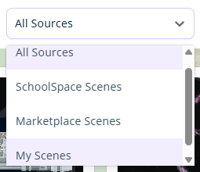
On the right side, click All Sources and select My Scenes.
-
Scroll down or use
 Filter Results to find your previously saved scene.
 -
Click the
 more actions button, click Overwrite Scene.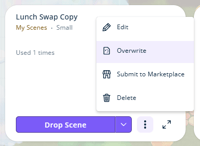
-
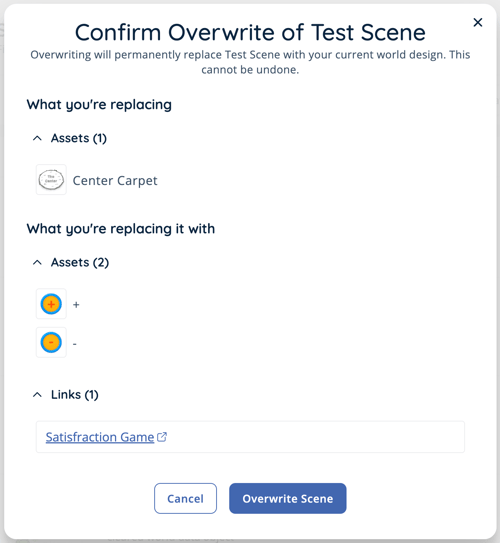
A confirmation popup will open showing:
-
What you're replacing. This is what will no longer be in the scene if you overwrite it.
-
What you're replacing it with. This is what will be added to the scene if you overwrite it.
-
Both of the above lists will also show assets, media, and links that you’re removing or adding as a part of the overwrite process.
-
-
Click Overwrite Scene to confirm and update the previously saved scene with a new version based on your current world design. Or click Cancel to exit and return to the My Scenes table view.
Overwriting a scene means you will lose access to the previously saved version. To maintain access to your previously saved scene, save your changes as a new scene.
Where are My Saved Scenes?
Saved scenes live in your My Scenes library.
To Open your My Scenes Library:
-
Click Builder Mode
in the left sidebar or press B on your keyboard to enter Builder Mode. -
Click Scenes
in the left sidebar. -
On the right side, click All Sources and select My Scenes.
-
To use the scene in your world, hover over the scene card and either:
-
Click Drop Scene to add the selected scene to the world in additional to your current world design.
- Click the
 icon to see more options like Replace Scene to completely swap out your current world design for a new one.
-
Learn more about dropping or replacing a scene.
What Gets Saved and What Doesn't?
 Saved
Saved
- Assets: All assets and their current placement.
- Asset Configuration: Anything you’ve added to the assets (links, media, broadcast zone, etc).
- World Background Image: If you use a background image for your world, it will be saved in the Scene. However, when the Scene is used in a world, the Background Image will only be shown if you use Replace Scene
 . It will not appear if you use Drop Scene
  . Learn more about Replace Scene vs. Drop Scene.
 Not Saved
- World Background Color: If you use a solid color for the background it is not currently saved as part of a scene.
- World Map: The World Map is a static image that can be updated after you drop or replace a scene.
Best Practices for Saving Scenes
- Save often, especially before big changes.
Saving a scene is a great way to preserve your work in case you want to test out a new idea or revert back later. Adding a few words in the description can also save confusion later: “Added breakout zones,” “Updated links,” etc. - Use Overwrite Scene to avoid confusion and reduce multiple versions.
Have you ever saved a scene only to realize you need to make a few more changes? Instead of making these changes and saving a new scene, you can use Overwrite Scene to replace a previously saved scene with your updated version. - Save smaller configurations for easy use in the future.
Saving “micro-scenes” can be a helpful way to create new world layouts. You can use these as building blocks by dropping multiple "micro-scenes" in a world.