
| This article explains what the Chess app is, how to play, and how admins add the Chess app to a world. |
Keep reading to learn about:
 Adding the Chess app to a World
What is Chess?
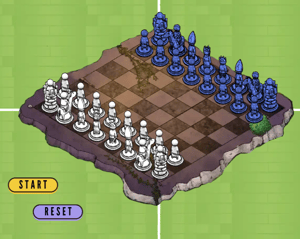
Chess is a timeless strategy game for two players. In SchoolSpace Chess app, each move you make is show on the board in the world so people can watch the game in real time. Students can play together, learn how to strategize, and have fun in a safe, school-approved environment.
 |
Playing Chess
Everyone can play Chess! Two players are needed to start the game.
If you don't have someone to play with, try sending a message in the 'Everyone in World' chat channel and invite someone to join your game. When one player starts a new game, an Activity Feed notification will also appear automatically with an option to Teleport  to the game to give folks a heads up that a game needs another player to begin.
To Play Chess:
- Click the 'Start' button near the chess board.

- A page will open on the left side of your screen. Select either:
- Start a new game. The first player to click 'Start' will see this option.

- Join [Name's] game. The second player to click 'Start' will see this option.

- After two players join, the page on the left side of your screen will show a small chess board and the game status.
- The game status will show whose turn it is. When it's your turn:
- Click a piece on the board on the left side of your screen. The piece you selected will be highlighted. The grey dots will show the squares where this piece can be placed.
- Click a square with a grey dot to place the piece and finish your turn. Your move will be shown on the board on the left side of your screen and on the board in the world.
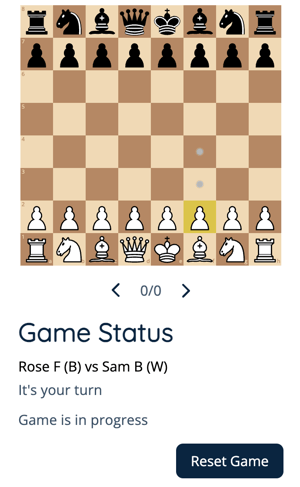
- To see previous moves: Click the arrows under the chess board on the left side of your screen to scroll through past moves.
- The first player to capture their opponent's Queen wins the game!
- To start a new game: Click the 'Reset Game' button under the board on the left side of your screen or click the 'Reset' button near the chess board in the world.
There is no auto-detection of a draw at this time. The Chess app will auto-detect a check, but not a checkmate.
Chess for Admins
Editors, Designers, Managers, or world Owners can add the Chess app to their world.
To Add Chess:
- Click Scenes
 in the left sidebar.
 - Search for 'Chess App' in the
 Filter Results search bar.
 - Hover over the thumbnail image and click Drop Scene
 .
.
- Click an area in the world to drop the Chess app in that location.
- You can drop the Chess app in the world multiple times and multiple games of Chess can be played at the same time.
Want to create a world for your school's Chess Club? Search for the 'Chess Club Template' in the SchoolSpace Scene Library. It's ready to use and contains multiple Chess boards for your students!
Tips for Admins
- Admins can reset the board anytime, even if a game is in process.
- Admins can easily move Chess to a new location in the world. While in Builder Mode, move the Chess board, 'Start' button, and 'Reset' button assets to a new spot. Then exit Builder Mode and click the 'Reset' button asset to bring all the Chess pieces to the new location.
- The 'Start' and 'Reset' button assets can be manually moved to a different location in the world.
- Do not remove any Chess app assets from the world. Removing app assets may cause the app to malfunction.