
| This article helps students, educators, and parents understand how to navigate virtual worlds and connect with others in meaningful ways. Whether you’re looking to meet up with a classmate, join an event, or explore something new, SchoolSpace gives you lots of easy ways to find people and things to do. |
Keep reading to learn how to:
 Find People in your Friend List
Use This World to Find Things to Do
Interact with Others
When your avatar gets close to someone in SchoolSpace, you’ll automatically connect via audio and sometimes video. To move your avatar around the world, use your mouse to click to where you’d like to go or use your keyboard arrows or WASD keys.
You can:
- Say hi face-to-face.
- Send them a message.
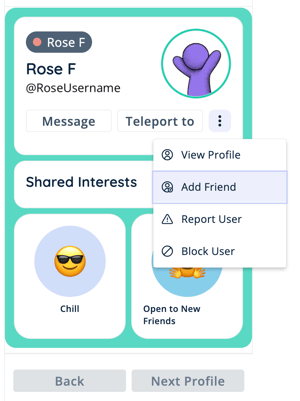
- Send a friend request.
- Accept an invitation to follow them around the world (or send one for others to follow you).
Don’t forget: You can always walk away to leave a conversation, just like in real life. Learn more about steps students can take to feel safe.
If you don't see or hear anyone over video chat, the world may be in Silent Mode or video or microphone access may be turned off. These settings can be changed by your school.
Current Users
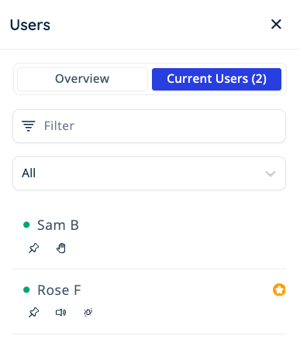
See who is currently online in the world in Current Users in the Users Menu.
 |
You can:
- Filter: Search for someone by name.
- Landmark Zone Dropdown: Filter people by location, so you can see who’s in the Library or on the Soccer Field.
- Teleport to User: Instantly move to their location and say hello! If you don't see the Teleport option, your school may have limited who can teleport to other people in the world.
Learn how to find people by using Current Users.
Friend List
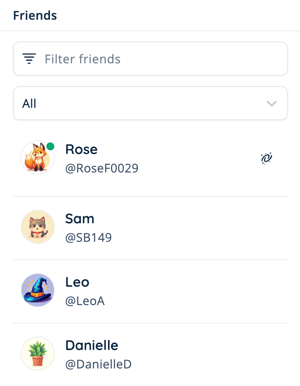
Your Friends list lets you quickly see who’s online and where they are.
 |
You can also:
- Send messages.
- Teleport to a friend's location.
- Portal to a friend's current world if they are in a different world (if they have chosen to share their location. You must also have access to the other world).
- Remove a friend from your list.
Learn more about how friending works in Schoolspace.
Find New Friends
Use your profile’s Friendship Mode to show others if you’re open to meeting new people. Add Interests to your profile and use Find New Friends to send friend requests to people who share your interests!
 |
Interact with Content
If your mouse turns into a pointing finger, you've found something! Click the item to reveal the content.
You might find:
- A video to watch together.
- An image.
- A collaborative document or whiteboard.
- A link to another website.
- A game.
- More information about how to use the world.
- …and so much more!
Use This World to Find Things
This World  in the left sidebar gives you a quick overview of everything happening in the world. This World is where you can find the Activity Feed, Landmarks, Events, and Portals.
Activity Feed
See what’s been going on and teleport  to the action!
Notifications include:
- People gathering in Landmark Zones.
- New game starting.
- Games in need of more players.
- New high score achieved.
Learn more about using the Activity Feed.
Landmarks
Landmark Zones are key locations like the Cafeteria, Help Desk, or Game Area.
Landmarks are helpful for:
- Students: Easy navigation around the world.
- Builders: Marking important areas and guiding others.
- Everyone: Quickly teleporting to where the action is!
Admins can add Landmark Zones. Students are not able to add Landmark Zones.
Events
See a calendar of upcoming events like game nights, club meetings, or study groups. Click Teleport next to an event to move to the event location.
Admins can add or edit events in SchoolSpace. Students are not able to add or edit events.
Portals
These magical gateways let you travel to other worlds or experiences. For example, a portal near the Science Lab might take you to a virtual field trip world. Click Portal  to see where it leads!
Admins can add portals. Students are not able to add portals. If a student does not have access to a world, they will not be able to use a portal to that world.