
| This article explains how to use Jukebox to let students create a Playlist from a teacher curated Catalog. |
Keep reading to learn about:
 Adding and Managing Jukebox as an Admin
What is Jukebox?
Jukebox is a collaborative music player that lives right inside your SchoolSpace world. Admins add songs from YouTube to the Jukebox Catalog. Everyone near the Jukebox can listen together, watch updates live as songs change, and add songs from the Jukebox Catalog.
Jukebox is perfect for:
- Class parties or themed events.
- Break times in student lounges.
- Background music for a club meeting or study area.
 |
Using Jukebox
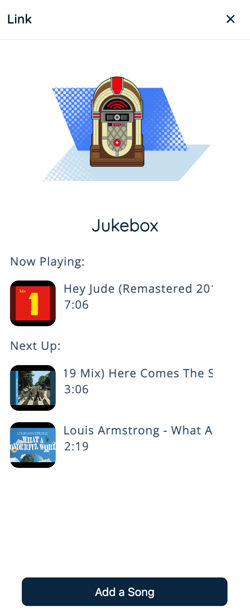
Everyone can add songs from the Jukebox Catalog to the 'Next Up' list. Walk up to the Jukebox to hear what's currently playing. Click 'Jukebox' (the white text in the world) to open instructions or follow the steps below to add songs to the playlist!
 |
To Add Songs to the Playlist:
- Click the Jukebox in the world.
- The Jukebox app will open on the left side of your screen. If songs have already been added to the Playlist, you will see what's currently playing and what songs are up next.
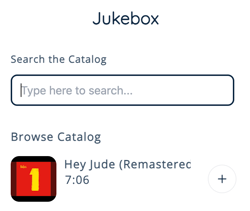
- Click the Add a Song button at the bottom to open the Catalog.

- Find a song by scrolling or searching the Catalog.
- Click the Plus
 icon next to any songs you want to hear. If a song has a checkmark
  icon next to it, it's already in the Playlist!
- Click the Add button. You can add multiple songs at once.
- To see what's playing now and what's up next, click the Back Arrow
 icon at the top of the Jukebox page.
If there are songs you want to hear that aren't in the Catalog, talk to a teacher!
Jukebox for Admins
Admins can manage the Jukebox Catalog and Playlist. Click 'Jukebox' (the white text in the world) to open instructions or follow the steps here.
Admins can:
- Add the Jukebox App to a World
- Add Songs to the Catalog
- Remove Songs from the Catalog
- Skip to the Next Song in the Playlist
- Remove Songs from the Playlist
To Add the Jukebox App:
- Click Scenes
 in the left sidebar.
 - Search for 'Jukebox' in the
 Filter Results search bar.
 - Hover over the thumbnail image and click Drop Scene
 .
.
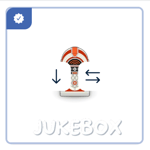
- Click an area in the world to drop the Jukebox app in that location.
- Click 'Jukebox' (white text) to open instructions for students and admins.
Avoid putting multiple Jukeboxes close together so songs don’t overlap.
To Add a Song to the Catalog:
- Click the Jukebox asset in the world.
- The Jukebox app will open on the left side of your screen. At the top of the app, you will see tabs for 'Home' and 'Admin'
- Click Admin.

- Click the Add a Song button at the bottom of the Admin page.

- Search YouTube by typing a song name or pasting a YouTube link in the search bar to find a specific version. Then click the Search button or press Enter on your keyboard.
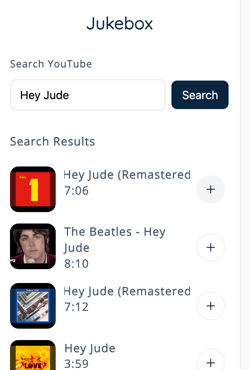
- Next to the song, click the Plus icon then click the Add button to confirm.
- The Catalog will update immediately. Admins and students can follow the instructions above to add songs from the Catalog to the Playlist.
Not sure what to put in your Jukebox Catalog? Ask for suggestions in chat or share a simple form so students can submit song requests!
To Skip to the Next Song:
- Click the Jukebox asset in the world.
- In the Home tab, click the Skip to the Next Song button.

- The next song in the 'Next Up' list will play immediately.
To Remove a Song from the Catalog:
- Click the Jukebox asset in the world.
- The Jukebox app will open on the left side of your screen. At the top of the app, you will see tabs for 'Home' and 'Admin'
- Click Admin.
- Click the Minus
 icon next to the song(s) you want to remove.
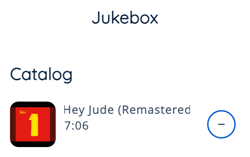
- Click the Remove button to confirm.
- The song(s) are immediately removed from the Catalog and students will no longer be able to add them to the Playlist.
To Remove a Song from the Playlist:
- Click the Jukebox asset in the world.
- In the Home tab under Next Up, click the Minus icon next to the song(s) you want to remove.
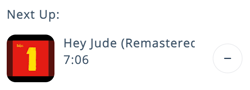
- Click the Remove button to confirm.
- The song(s) are immediately removed from the Playlist. Students are still able to search for the song(s) in the Catalog and add them to the Playlist.
Tips for Jukebox
- Take requests: Ask for suggestions in chat or create and share a simple form (e.g., Google Form, Typeform) for students to request songs! You can even attach your form link to an asset in the world. Admins can add requested songs to the Jukebox Catalog and everyone can add them to the Playlist.
- Add visual flair: Pair your Jukebox with lights, posters, or event decorations from the Asset Library to make it stand out.
- Keep it social: Place Jukebox where students naturally gather like near seating areas, on a dance floor, or in the main plaza.
- Set the tone: Create different Jukeboxes for different events or areas in the world (e.g., relaxing music in study zones and upbeat tunes in party areas).