
| This article explains how Moderators or Managers can set a regular schedule that automatically opens and closes a SchoolSpace world. It also covers what students see if they try to enter a closed world. |
Keep reading to learn about:

Setting an Open / Close Schedule
What Happens When a World is Closed
What is an Open / Close World Schedule?
Automate your SchoolSpace world's availability by setting a regular schedule. This feature is perfect for aligning with classroom hours, club meetings, or simply restricting access outside of school hours. Rest assured, communication within SchoolSpace worlds is disabled unless an admin is present and has turned off Silent Mode. This ensures that students will not be able to communicate without a Moderator present.
To Set an Open / Close Schedule:
- In the left sidebar, click World Settings
 → Open/Close World.
 - Under Scheduler, click
 Add Time.
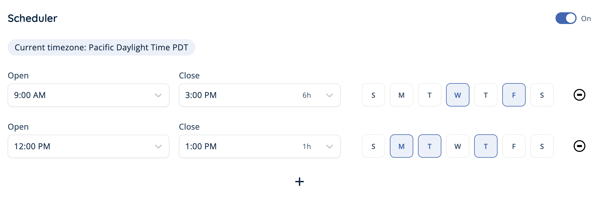
 - Choose an open time, close time, and the days of the week. Your current timezone will display automatically. The open and close times will apply to all days you select.
- To add different open and close times for different days of the week, repeat steps 2-3.
- To the top right of the Scheduler, click the toggle:
- Toggle on to activate the scheduled open and close times. Your world will open and close based on the schedule(s) you set.
- Toggle off to deactivate the scheduled open and close times. This will turn off automatic open and close without deleting your schedule(s). Your world will remain open unless manually closed by a Moderator.
- To delete a schedule, click Remove Time
 to the right of the schedule.
Moderators can also open or close a world outside of scheduled times. See the Moderation Handbook for instructions on manually opening and closing a world.
What Happens When a World is Closed?
If students or other non-admin users are present in the world when the scheduled close time occurs, they will automatically be removed and will not be able to re-enter.
If a student or other non-admin user tries to visit your world while it's closed:
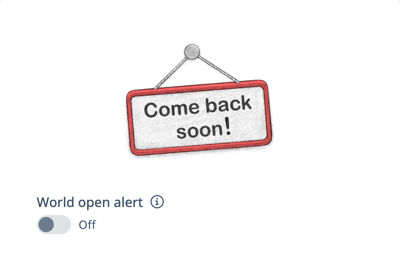
- They’ll see a message saying the world is currently closed.
- They won’t be able to enter until the scheduled open time or until a Moderator manually opens the world.
 |
World Admins can Bypass Closures
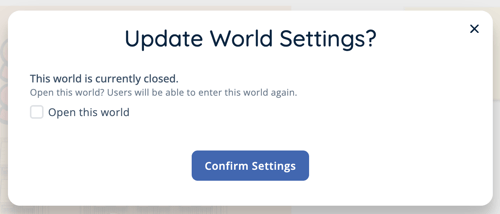
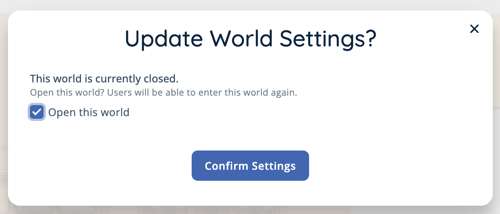
If a world is closed, world admins like Moderators will see a similar message indicating the world is currently closed however they will be able enter the world as usual. This allows admins to make changes in the world without opening it for students. After a Moderator or World Admin enters a closed world, they will see a prompt allowing them to open the world. To enter without opening the world, leave the box unchecked and click Confirm Settings.
 |
 |