| This article explains what the Race app is, how to play, and how admins can add Race to a world. |
Keep reading to learn about:
 Adding the Race App to a World
What is Race?
The Race app is a fun, fast-paced game you can add to any SchoolSpace world. Students, teachers, and guests can race through a set of checkpoints to reach the finish line. The goal? Hit each checkpoint in order and race to the end as fast as you can!
Missed a checkpoint? No problem. The app tells you to go back so you don’t get lost. Everyone gets a final race time at the end, which adds a fun competitive twist. You can play again to try and beat your score or check out the leaderboard to see how you rank! Learn how to play Race.
For admins, this app is flexible and easy to set up. You can change the track or reset scores on the Leaderboard between rounds, making it great for repeat use in community events, advisory groups, or virtual PE days.
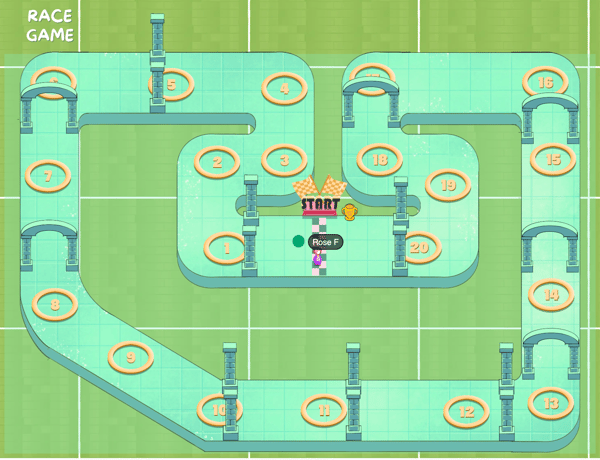 |
The Race app has multiple track designs! You might see a different track in your world. Admins can change the track in the Race app settings.
Playing Race
Everyone can play Race! You can race together or solo. When you finish a Race, your time will be added to the leaderboard and you might earn a badge!
- Move your avatar to the Race game area and click the 'Start' sign in the world.
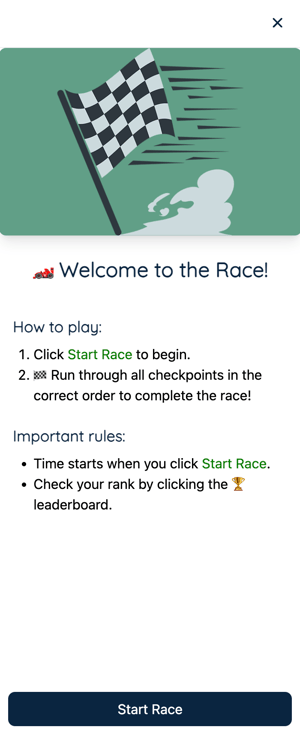
- The game page will open on the left side of your screen. Click the 'Start Race' button at the bottom of this page to begin.
- After a short countdown, your avatar will move to the starting line and the race begins!
- Run through each checkpoint in order on the racetrack in the world.
- The Race page on the left side of your screen shows your status:
- During a race, this page will show 'Race in Progress,' your elapsed time, and a list of checkpoints.
- When you pass a checkpoint on the racetrack, you will see a green check with a message and the checkpoint bullet will be marked green as well.
- If you miss a checkpoint, you’ll see a message telling you to go back.
- Once you pass all the checkpoints and the finish line, your final time will be displayed on the left side of your screen. You'll also see two buttons:
- View Leaderboard: Shows the fastest Race times.
- Play Again: Starts a new Race.
- You can also view the Leaderboard at any time by clicking the trophy in the world.
Tips for Race:
- Take the corners tightly! The faster you turn, the less time you lose.
- You can race using your mouse or the arrow keys on your keyboard. Is one way faster than the other for you?
- Try changing your avatar to Fast Mode!
- Stay focused! Make sure you hit all the checkpoints. Missing a checkpoint costs time, so aim for clean runs.
- If you want to try a new racetrack, ask a teacher to change the track.
Race Badges
Earn badges and show off your Race skills! Learn how to add badges to your profile or check your badge progress.
| Badge | Description |
 |
Race Rookie Complete your first race. |
 |
Top 3 Racer Place in the top 3 for a track. |
 |
Leaderboard Climber Improve your leaderboard position by at least 5. |
 |
Speed Demon Finish a race in under 30 seconds. |
 |
Race Pro Complete 100 races. |
 |
Race Expert Complete 1000 races. |
 |
Slow & Steady Finish a race in over 2 minutes. |
 |
Never Give Up Wrong turn? No problem. You kept going and finished the race! |
 |
Track Explorer Complete a race on at least 3 different tracks. |
 |
Evergreen Forest Complete a race on the Evergreen Forest track. |
 |
Thunder Forest Complete a race on the Thunder Forest track. |
 |
Twilight Forest Complete a race on the Twilight Forest track. |
 |
Wildwood Forest Complete a race on the Wildwood Forest track. |
 |
Mystic Forest Complete a race on the Mystic Forest track. |
 |
Highway Complete a race on the Highway track. |
 |
Sunset Complete a race on the Sunset track. |
 |
Speedway Complete a race on the Speedway track. |
 |
Dunes Complete a race on the Dunes track. |
 |
Arches |
 |
Ocean Complete a race on the Ocean track. |
 |
Hills Complete a race on the Hills track. |
 |
Poolside Complete a race on the Poolside track. |
 |
Beach Complete a race on the Beach track. |
 |
Freeway Complete a race on the Freeway track. |
 |
Desert Complete a race on the Desert track. |
Race for Admins
Editors, Designers, Managers, or world Owners can add the Race app to their world. All admins can change the track or reset the Leaderboard.
Learn how to:
To Add Race:
- Click Scenes
 in the left sidebar.
 - Search for 'Race App' in the
 Filter Results search bar.
 - Hover over the thumbnail image and click Drop Scene
 .
.
- Click an area in the world to drop the Race app in that location. For the best experience, place the Race app in an open area with plenty of space.
The Race app is automatically set as a Landmark Zone. Students can click This World  in the left sidebar to see Landmarks and Teleport
  to the Racetrack. Admins can change the Landmark Zone name as needed.
To Change the Race Track:
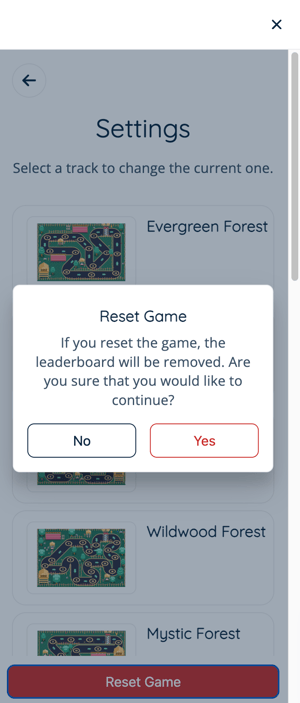
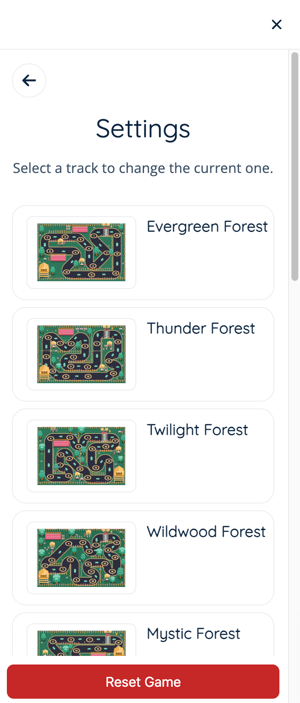
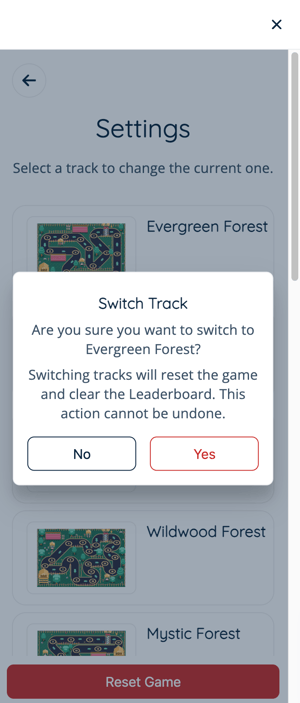
Changing the track places the new track design in the world and clears the Leaderboard. All admins can change the Race track.
- Click the Start sign or Leaderboard asset (usually looks like a trophy) in the world.
- The game page will open on the left side of your screen. Click the Settings
 icon in the upper left of this page.
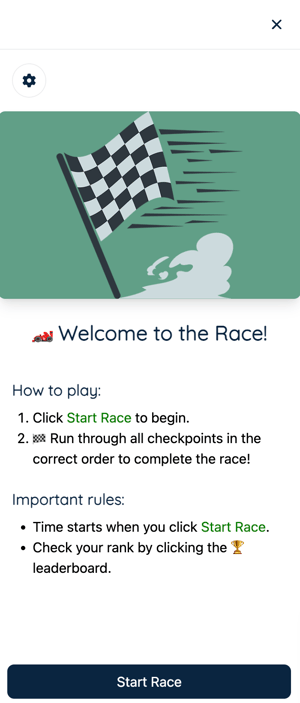
- Select a new track from the list.
- When the popup appears, select 'Yes' to confirm or 'No' to cancel.
- Tip: Don’t close the game page too soon! It will close by itself when the new track is ready.
To Reset the Leaderboard:
Resetting the Leaderboard keeps the current track design and clears the Leaderboard. All admins can reset the Leaderboard.
- Click the Start sign or Leaderboard asset (usually looks like a trophy) in the world.
- The game page will open on the left side of your screen. Click the Settings icon in the upper left of this page.
- Click the 'Reset Game' button at the bottom of this page.

- When the pop-up appears, select 'Yes' to confirm or 'No' to cancel.