| This article explains how to use the Puzzle App in SchoolSpace. It covers how to add the app to your world, how admins can set up puzzles, and how students, teachers, and families can play together. |
Keep reading to learn about:

Adding the Puzzle App to a World
What is Puzzle?
The Puzzle app is a fun, cooperative game in SchoolSpace. Instead of competing, players work together to complete a virtual jigsaw puzzle. Everyone shares the same puzzle pieces and works together to finish the image. It's great for building teamwork, communication, and problem-solving skills. Admins can set up multiple puzzle choices and swap in new puzzles to keep things fresh.
Playing Puzzle
Everyone can use the Puzzle app! Puzzles can be solved by yourself or with others.
To Use the Puzzle App:
- Click the Puzzle App (table) asset in the world.
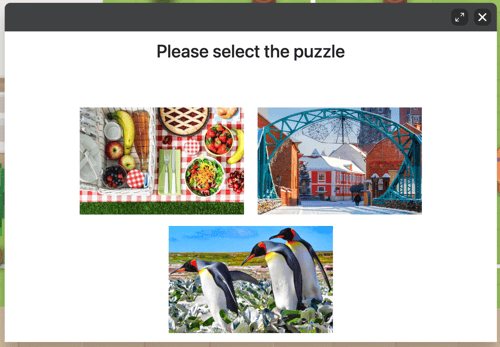
- A popup window will open with a list of puzzles. Choose a puzzle to play.
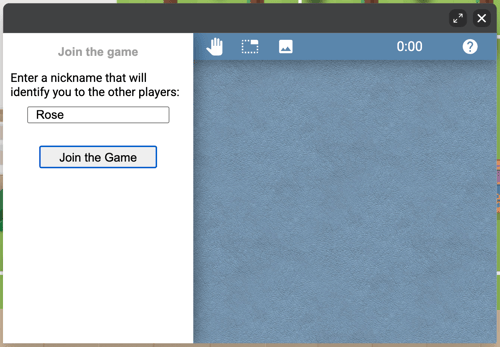
- Enter a nickname and click Join the Game.
- Click the Play (left arrow) icon.
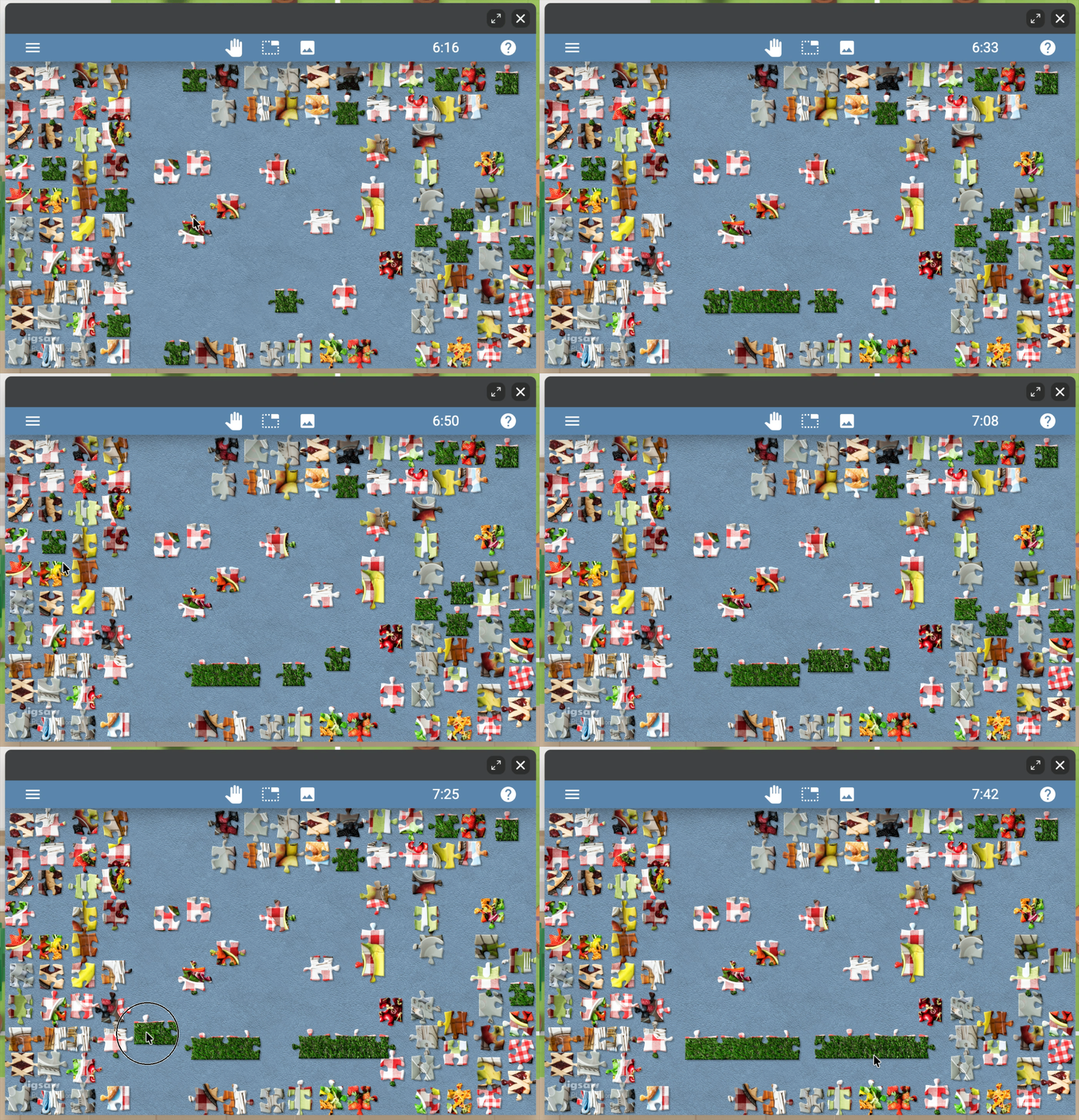
- Click and drag a piece to pick up and drop in place. You can also click to pick up and click again to place. If the piece fits, it will stay connected to the other pieces.
- To exit the puzzle: Click the Close
 icon in the upper right corner of the popup window. Your progress will be saved and anyone can return to the puzzle and continue playing.
Having trouble seeing the pieces? Click Expand  in the upper right corner of the popup window to see a larger view of the puzzle.
Puzzle App for Admins
Editors, Designers, Managers, or world Owners can add the Puzzle app to their world. All admins can set up puzzle choices or delete existing puzzles.
Learn how to:
To Add the Puzzle App:
- Click Scenes
 in the left sidebar.
 - Search for 'Puzzle App' in the
 Filter Results search bar.
 - Hover over the thumbnail image and click Drop Scene
 .
.
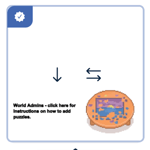
- Click an area in the world to drop the Puzzle app in that location.
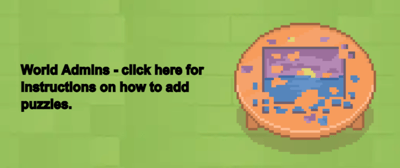
- The text asset next to the Puzzle table asset contains instructions for updating puzzle choices. Click Builder Mode
 in the left sidebar or press B on your keyboard to exit Builder Mode. Then click the text asset to open instructions or continue reading below.
To Add a New Puzzle to the App:
- Open https://www.jigsawexplorer.com/
- Find a puzzle you like and click on it.
- Get the puzzle image link:
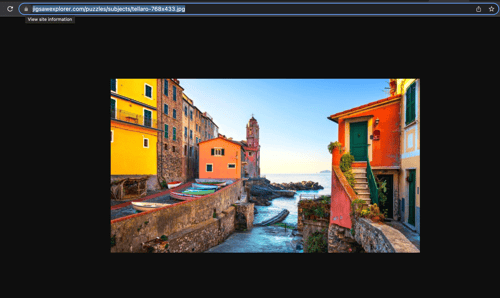
- Right click on the puzzle image and select Open Image in New Tab.
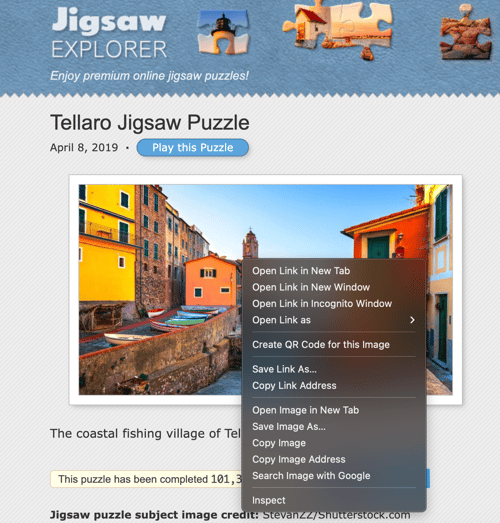
- Copy the URL of this new tab and paste this URL in a note or document. This URL will be used in a later step.
- Get the puzzle game link:
- Click Play this Puzzle. The puzzle will open in a new tab.
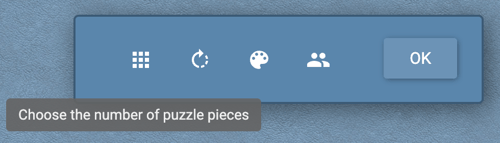
- [Optional] Click the Grid icon to change the number of puzzle pieces.
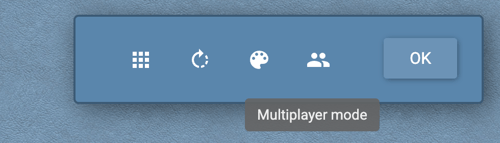
- Click Multiplayer Mode.
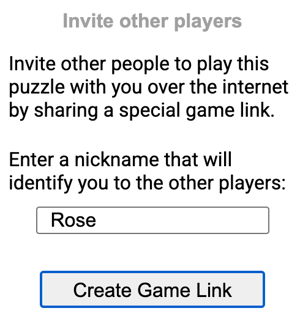
- Add your nickname and click Create Game Link. This link will be unique to your puzzle and only people in the world will be able to play the puzzle.
- Click Copy Link and paste this URL in a note or document. This URL will be used in a later step.
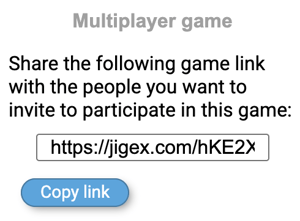
- Add puzzle links to the Puzzle App in the world:
- If you are in Builder Mode, click Builder Mode in the left sidebar or press B on your keyboard to exit Builder Mode.
- Click the Puzzle App (table) asset in the world.
- Click the 'Settings' button.
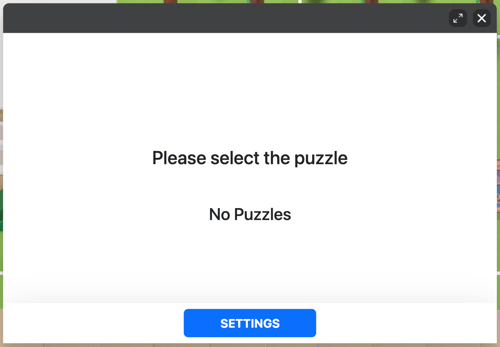
- Under Game Link, paste the URL from step 4. Under Image Link, paste the URL from step 3.
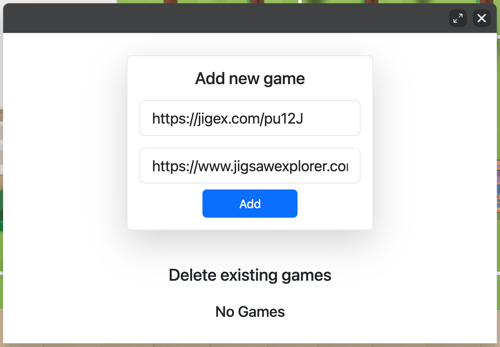
- Click the 'Add' button to save.
- If you are in Builder Mode, click Builder Mode
- Multiple puzzles can be added. Repeat steps 1-5 to add additional puzzle choices.
- You can also create custom puzzles on Jigsaw Explorer. After creating your custom puzzle, follow steps 1-5 to add it to the app.
Puzzle links expire after 30 days of inactivity. If a puzzle link expires, it will need to be replaced.
To Delete a Puzzle from the App:
- If you are in Builder Mode, click Builder Mode in the left sidebar or press B on your keyboard to exit Builder Mode.
- Click the Puzzle App (table) asset.
- Click the 'Settings' button.
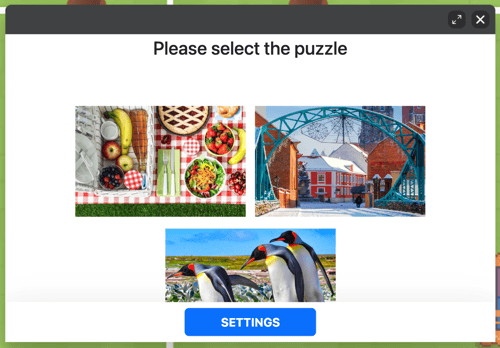
- Scroll to find the puzzle you want to remove.
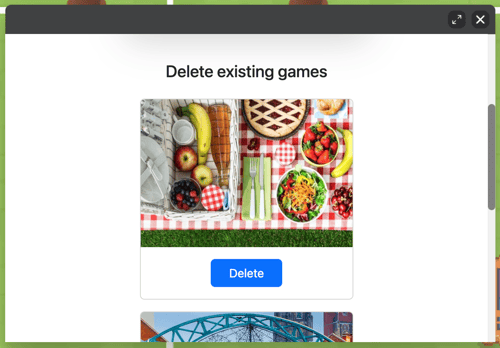
- Click the 'Delete' button under the puzzle image.