| This article explains what Quiz Race 2.0 is, how to play, and how admins can add Quiz Race 2.0 to a world and customize it to fit their needs. |
Keep reading to learn about:
 Adding Quiz Race 2.0 to a World
Updating Quiz Race 2.0 Questions
Resetting Quiz Race 2.0 Leaderboard
What is Quiz Race 2.0?
Quiz Race 2.0 is a multiplayer activity that turns learning into a friendly competition! Players answer questions to complete a quiz. This app can also include a "race" component where players' completion is timed and ranked on a leaderboard. The goal is to get every answer right! It’s a great way to test knowledge, practice quick thinking, and encourage healthy competition with classmates or teammates.
Admins can customize the Quiz Race 2.0 app appearance in the world as well as add questions and answers in multiple formats. Admins can also choose if the quiz uses the timed race component (with an optional time limit) or can be completed at the student's preferred pace.
 |
An older version of Quiz Race may still be present in your worlds. This older version's pre-configured question & answers, settings and visual look of the app cannot be changed, but the app can still be used and leaderboard scores can be reset.
Playing Quiz Race 2.0
Everyone can play Quiz Race 2.0!
To Play Quiz Race 2.0:
-
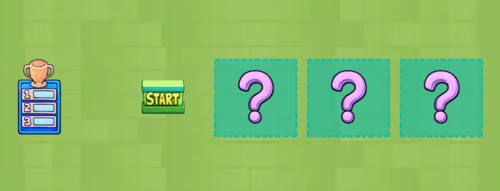
Walk to and click the 'Start' asset in the world.
-
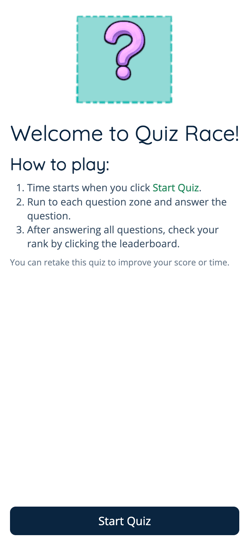
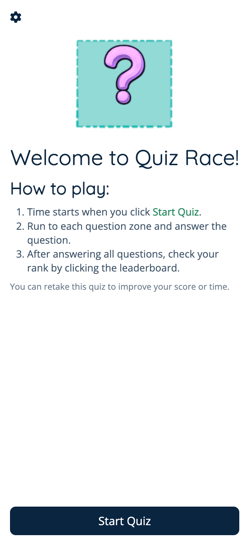
The Quiz Race app will open on the left side of your screen. Click the 'Start Quiz' button at the bottom. This teleports you to the start sign.
-
Move to each Question Mark platform. When you stand on the platform, the question opens automatically on the left side of your screen.
Tip: Use Fast Mode to move more quickly! -
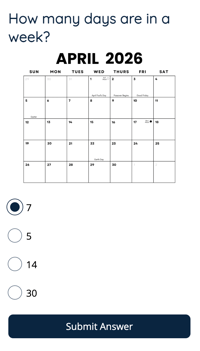
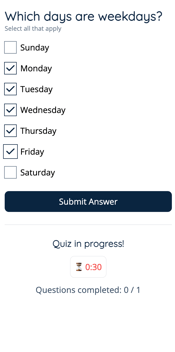
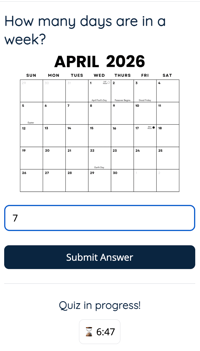
Answer the question in the app on the left side of your screen. You might have to choose from multiple choice, select all the correct answers, or type your answer in the text box.You might see an image, video, or webpage in the question.
-
Click the Submit Answer button and continue moving to each Question Mark platform. Answer all the questions to complete the quiz! Your final results will appear on the left side of your screen.
-
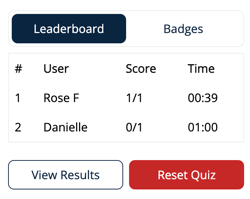
Click the Trophy near Quiz Race in the world to see the Leaderboard.
Try to move quickly while reading and answering each question carefully. Both accuracy and speed matter!
Quiz Race 2.0 Badges
Earn badges and show off your Quiz Race skills!
| Badge | Description |
 |
Quiz Master Complete 10 total Quiz Races. |
 |
Top 3 Finisher |
 |
Perfect Score Score 100% on a Quiz Race. |
 |
Lightning Round Finish a Quiz Race in under 30 seconds. |
Quiz Race 2.0 for Admins
Editors, Designers, Managers, or world Owners can easily add the Quiz Race 2.0 app to their world. All admins can change the questions or reset the Leaderboard.
Learn how to:
To Add Quiz Race 2.0:
- Click Builder Mode
 in the left sidebar or press B on your keyboard to enter Builder Mode.
 - Click Scenes
 in the left sidebar.
 - Search for 'Quiz Race' in the
 Filter Results search bar.
 - Hover over the thumbnail image and click Drop Scene
 .
.
- Click an area in the world to drop the Quiz Race app in that location. For the best experience, place the Quiz Race app in an open area with plenty of space.
- Admins can move the Quiz Race assets to change the layout of the app in the world.
To Configure Quiz Race 2.0 Settings:
The Settings tab allows you to control gameplay behavior and customize the appearance of the world assets.
- Click the Quiz Builder asset or, if the Quiz has already been configured, click the 'Start' asset.
Note: Make sure you are not in Builder Mode when doing this!
- The Quiz Race app will open on the left side of your screen. Click Settings
 in the upper left corner.
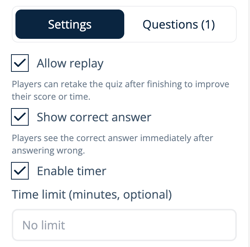
- In the Settings tab, click to enable or leave unchecked to disable:
- Allow Replay: When enabled, players can retake the quiz to improve their score or time. When disabled, players complete the quiz once and cannot retake.
- Show Correct Answer: When enabled, players see the correct answer after submitting an incorrect answer. When disabled, players do not receive feedback.
- Enable Timer: When enabled, players times are tracked and you can add an optional Time limit. When disabled, players complete the quiz without time pressure. Disabling removes the 'race' component of this app.
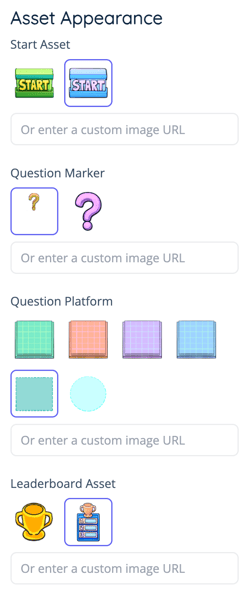
- In the Asset Appearance section, you can:
- Choose from available images for the Start, Question Marker, or Leaderboard assets.
- Enter a Custom Image URL for the Start asset, Question Marker, or Leaderboard assets.
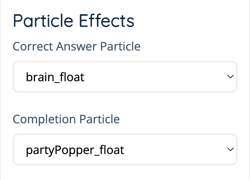
- In the Particle Effects section, you can choose animations that play when a correct answer is submitted. Click the dropdown and select from the list.
- When your updates are complete, click the 'Save Settings' button to save your changes.

To Add Quiz Race 2.0 Questions:
The Questions tab allows you to add new questions or edit existing questions.
-
Click the Quiz Builder asset or, if the Quiz has already been preconfigured, click the 'Start' asset.
Note: Make sure you are not in Builder Mode when doing this!
-
The Quiz Race app will open on the left side of your screen. Click Settings
 in the upper left corner and select the Questions tab.
 -
Click
 Add Question to create a new question.
-
For each question:
-
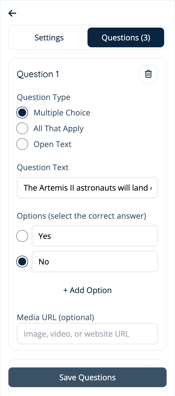
Choose Question Type. Options are:
-
Multiple Choice: Player select one answer from a list.
-
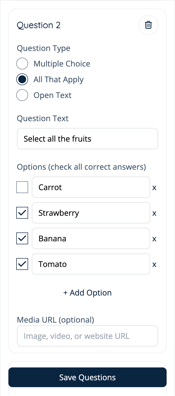
All That Apply: Players select multiple answers from a list.
-
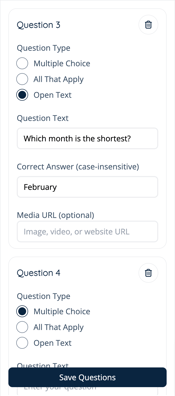
Open Text: Players type the answer. Their typed answer must match the answer you configure.
-
-
Enter the Question Text and add answer options or the answer text.
-
For Multiple Choice and All That Apply questions, select the correct answer(s).
-
For Open Text questions, type the answer in the text box.
-
[Optional] Add a Media URL. This can be a URL to an image, video, or website. The URL contents will appear below the question.
-
-
Repeat step 4 until all your questions are added.
-
When all questions have been added, click Save Questions to save your changes and update the Quiz Race app.

- Questions and answers can also be edited in the Questions tab. Make your necessary changes and click Save Questions to update the Quiz Race app.
To Reset the Leaderboard:
- Click the Trophy asset in the world.
Note: Make sure you are not in Builder Mode when doing this !
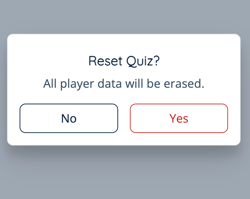
- The Leaderboard will open on the left side of your screen. Click Reset Quiz, then select Yes to clear the leaderboard.