---
title: Custom Text Asset
description: Learn how to add and modify the Custom Text Asset to display text in your SchoolSpace world.
---
[Skip to content](https://support.schoolspace.io/custom-text-asset#main-content)
[](https://schoolspace.io)
- [Help Center Home](https://support.schoolspace.io/)
- Getting Started
Show submenu for Getting Started
- Overview of SchoolSpace
Show submenu for Overview of SchoolSpace
- [What is SchoolSpace?](https://support.schoolspace.io/what-is-schoolspace)
- Your First Time in SchoolSpace: What to Expect
Show submenu for Your First Time in SchoolSpace: What to Expect
- [Entering SchoolSpace](https://support.schoolspace.io/entering-schoolspace)
- [Inside SchoolSpace](https://support.schoolspace.io/inside-schoolspace)
- [Understanding the SchoolSpace Sidebar](https://support.schoolspace.io/understanding-the-schoolspace-sidebar)
- [Admin Sidebar](https://support.schoolspace.io/admin-sidebar)
- Best Practices for Success
Show submenu for Best Practices for Success
- [System Requirements](https://support.schoolspace.io/system-requirements)
- Setup, Safety, & Insights
Show submenu for Setup, Safety, & Insights
- Your SchoolSpace World: The Basics
Show submenu for Your SchoolSpace World: The Basics
- [What is a SchoolSpace World?](https://support.schoolspace.io/what-is-a-schoolspace-world)
- [How do I Communicate in SchoolSpace?](https://support.schoolspace.io/how-do-i-communicate-in-schoolspace)
- [Get Started with a Ready-to-Use Scene!](https://support.schoolspace.io/get-started-with-a-ready-to-use-scene)
- [World Customization: Quick Start Guide](https://support.schoolspace.io/world-customization)
- Safety, Security, & Moderation on SchoolSpace
Show submenu for Safety, Security, & Moderation on SchoolSpace
- [Who Can Access SchoolSpace?](https://support.schoolspace.io/access)
- [Safety Actions](https://support.schoolspace.io/safety-actions)
- [Moderation Handbook](https://support.schoolspace.io/moderation-handbook)
- [Student Safety Guide](https://support.schoolspace.io/student-safety-guide)
- [SchoolSpace Roles & Permissions](https://support.schoolspace.io/schoolspace-roles-and-permissions)
- [Incognito Mode](https://support.schoolspace.io/incognito-mode)
- Your SchoolSpace Dashboard
Show submenu for Your SchoolSpace Dashboard
- [Understanding the SchoolSpace Dashboard](https://support.schoolspace.io/understanding-the-schoolspace-dashboard)
- [Managing Reports](https://support.schoolspace.io/managing-reports)
- [Accessing Message History](https://support.schoolspace.io/message-history)
- [Analytics](https://support.schoolspace.io/analytics)
- Integrations
Show submenu for Integrations
- [Setting Up LTI 1.3](https://support.schoolspace.io/set-up-lti-1.3)
- [Using LTI 1.3](https://support.schoolspace.io/use-lti-1.3)
- Navigating SchoolSpace
Show submenu for Navigating SchoolSpace
- Exploring the Virtual World
Show submenu for Exploring the Virtual World
- [What Students See & Do](https://support.schoolspace.io/what-students-see-and-do-in-schoolspace)
- [Moving Around the World](https://support.schoolspace.io/moving-around-the-world)
- [Finding People & Things](https://support.schoolspace.io/finding-people-and-things)
- Communicating on SchoolSpace
Show submenu for Communicating on SchoolSpace
- [Chat & Video: What’s Safe, What’s Allowed](https://support.schoolspace.io/safe-communication)
- [Video Chat](https://support.schoolspace.io/video-chat)
- [Sending & Receiving Chat Messages](https://support.schoolspace.io/sending-and-receiving-chat-messages)
- Building Community: Safe Social Tools
Show submenu for Building Community: Safe Social Tools
- [SchoolSpace Profiles](https://support.schoolspace.io/schoolspace-profiles)
- [Making Friends](https://support.schoolspace.io/friends)
- [Availability, Mood, & Friendship Mode](https://support.schoolspace.io/mood-availability-friendship-mode)
- [Activity Feed](https://support.schoolspace.io/activity-feed)
- [Users Menu](https://support.schoolspace.io/users-menu)
- Customizing SchoolSpace
Show submenu for Customizing SchoolSpace
- Builder Mode
Show submenu for Builder Mode
- [Using Builder Mode](https://support.schoolspace.io/using-builder-mode)
- Designing & Personalizing a World
Show submenu for Designing & Personalizing a World
- [Using the Asset Library](https://support.schoolspace.io/using-the-asset-library)
- [Create & Upload Custom Assets](https://support.schoolspace.io/custom-assets)
- [Custom Text Asset](https://support.schoolspace.io/custom-text-asset)
- [Layering Assets](https://support.schoolspace.io/layering)
- [Saving your World as a Scene](https://support.schoolspace.io/save-scene)
- [Private Zones](https://support.schoolspace.io/private-zones)
- [Broadcast Zones](https://support.schoolspace.io/broadcast-zones)
- [Mute Zones](https://support.schoolspace.io/mute-zones)
- Making the World Interactive
Show submenu for Making the World Interactive
- [Add Links, Forms, Images, PDFs, or Text](https://support.schoolspace.io/attach-links-forms-images-pdfs-or-text)
- [Add Video or Audio Content](https://support.schoolspace.io/add-video-or-audio)
- [Create Teleports, Portals, & Landmarks](https://support.schoolspace.io/create-teleports-portals-and-landmarks)
- [Schedule an Event in SchoolSpace](https://support.schoolspace.io/schedule-an-event-in-schoolspace)
- Custom Settings & Controls
Show submenu for Custom Settings & Controls
- [Schedule World Open & Close](https://support.schoolspace.io/schedule-world-open-close)
- [Control Camera & Microphone Access](https://support.schoolspace.io/camera-microphone-access)
- [Control Chat Channels & Direct Messaging](https://support.schoolspace.io/control-messaging)
- [Control Screenshare in SchoolSpace](https://support.schoolspace.io/screenshare-access)
- [Add a Guestlist to a World](https://support.schoolspace.io/guestlist)
- [Allow Guestlist Bypass](https://support.schoolspace.io/guestlist-bypass)
- [Add Password to a World](https://support.schoolspace.io/world-password)
- [Prevent Unsupervised Interactions with Chaperone Mode & Silent Mode](https://support.schoolspace.io/chaperone-mode-and-silent-mode)
- Using SchoolSpace for Learning
Show submenu for Using SchoolSpace for Learning
- Live Instruction
Show submenu for Live Instruction
- [Hosting a Class](https://support.schoolspace.io/hosting-a-class)
- [Gallery Mode](https://support.schoolspace.io/gallery-mode)
- [Breakout Mode](https://support.schoolspace.io/breakout-mode)
- [Polls](https://support.schoolspace.io/polls)
- [Making Announcements, Screensharing, & Recording](https://support.schoolspace.io/broadcast-spotlight-record-screenshare)
- Student Life and School Community
Show submenu for Student Life and School Community
- [Hosting an Event](https://support.schoolspace.io/hosting-an-event)
- Games, Apps, & Experiences
Show submenu for Games, Apps, & Experiences
- Adding a Game or App to your World
Show submenu for Adding a Game or App to your World
- [Embedding SchoolSpace Games and Apps](https://support.schoolspace.io/embedding-schoolspace-apps)
- [Embedding External Games and Content](https://support.schoolspace.io/embedding-external-games-and-content)
- Our Games & Experiences
Show submenu for Our Games & Experiences
- [Breakout App](https://support.schoolspace.io/breakout-app)
- [Build an Asset Apps](https://support.schoolspace.io/build-an-asset)
- [Capture the Flag](https://support.schoolspace.io/capture-the-flag)
- [Chess](https://support.schoolspace.io/chess)
- [Connect 4](https://support.schoolspace.io/connect-4)
- [Electric Fence](https://support.schoolspace.io/electric-fence)
- [Epic Pong](https://support.schoolspace.io/epic-pong)
- [Glitch Lava](https://support.schoolspace.io/glitch-lava)
- [HotShot](https://support.schoolspace.io/hotshot)
- [Jelly Jumper](https://support.schoolspace.io/jelly-jumper)
- [Jukebox](https://support.schoolspace.io/jukebox)
- [Last Card](https://support.schoolspace.io/last-card)
- [Lite CMS](https://support.schoolspace.io/lite-cms)
- [Lunch Swap](https://support.schoolspace.io/lunch-swap)
- [Poll App](https://support.schoolspace.io/poll-app)
- [Puzzle](https://support.schoolspace.io/puzzle)
- [Quest](https://support.schoolspace.io/quest)
- [Quiz Race 2.0](https://support.schoolspace.io/quiz-race-2.0)
- [Race](https://support.schoolspace.io/race)
- [Scavenger Hunt](https://support.schoolspace.io/scavenger-hunt)
- [Sharing Apps: Landscape](https://support.schoolspace.io/sharing-apps-landscape)
- [Sharing Apps: Portrait](https://support.schoolspace.io/sharing-apps-portrait)
- [Sharks & Minnows](https://support.schoolspace.io/sharks-and-minnows)
- [Sushi Smash](https://support.schoolspace.io/sushi-smash)
- [Tic-Tac-Toe](https://support.schoolspace.io/tictactoe)
- [Tip Toe](https://support.schoolspace.io/tip-toe)
- [Virtual Field Trip](https://support.schoolspace.io/virtual-field-trip)
- [Virtual Pet](https://support.schoolspace.io/virtual-pet)
- [Wiggle](https://support.schoolspace.io/wiggle)
- Need Help Using SchoolSpace?
Show submenu for Need Help Using SchoolSpace?
- What's New in SchoolSpace
Show submenu for What's New in SchoolSpace
- [New Features & Updates](https://support.schoolspace.io/new-features-and-updates)
- [Features & Updates: 2025](https://support.schoolspace.io/new-features-and-updates-2025)
- Troubleshooting
Show submenu for Troubleshooting
- [World Access](https://support.schoolspace.io/troubleshooting-world-access)
- [Avatars](https://support.schoolspace.io/troubleshooting-avatars)
- [Video Chat](https://support.schoolspace.io/troubleshooting-video-chat)
- FAQs
Show submenu for FAQs
- [FAQs for Teachers](https://support.schoolspace.io/faqs-for-teachers)
Open main navigation
Close main navigation
- [Help Center Home](https://support.schoolspace.io/)
- Getting Started
Show submenu for Getting Started
- Overview of SchoolSpace
Show submenu for Overview of SchoolSpace
- [What is SchoolSpace?](https://support.schoolspace.io/what-is-schoolspace)
- Your First Time in SchoolSpace: What to Expect
Show submenu for Your First Time in SchoolSpace: What to Expect
- [Entering SchoolSpace](https://support.schoolspace.io/entering-schoolspace)
- [Inside SchoolSpace](https://support.schoolspace.io/inside-schoolspace)
- [Understanding the SchoolSpace Sidebar](https://support.schoolspace.io/understanding-the-schoolspace-sidebar)
- [Admin Sidebar](https://support.schoolspace.io/admin-sidebar)
- Best Practices for Success
Show submenu for Best Practices for Success
- [System Requirements](https://support.schoolspace.io/system-requirements)
- Setup, Safety, & Insights
Show submenu for Setup, Safety, & Insights
- Your SchoolSpace World: The Basics
Show submenu for Your SchoolSpace World: The Basics
- [What is a SchoolSpace World?](https://support.schoolspace.io/what-is-a-schoolspace-world)
- [How do I Communicate in SchoolSpace?](https://support.schoolspace.io/how-do-i-communicate-in-schoolspace)
- [Get Started with a Ready-to-Use Scene!](https://support.schoolspace.io/get-started-with-a-ready-to-use-scene)
- [World Customization: Quick Start Guide](https://support.schoolspace.io/world-customization)
- Safety, Security, & Moderation on SchoolSpace
Show submenu for Safety, Security, & Moderation on SchoolSpace
- [Who Can Access SchoolSpace?](https://support.schoolspace.io/access)
- [Safety Actions](https://support.schoolspace.io/safety-actions)
- [Moderation Handbook](https://support.schoolspace.io/moderation-handbook)
- [Student Safety Guide](https://support.schoolspace.io/student-safety-guide)
- [SchoolSpace Roles & Permissions](https://support.schoolspace.io/schoolspace-roles-and-permissions)
- [Incognito Mode](https://support.schoolspace.io/incognito-mode)
- Your SchoolSpace Dashboard
Show submenu for Your SchoolSpace Dashboard
- [Understanding the SchoolSpace Dashboard](https://support.schoolspace.io/understanding-the-schoolspace-dashboard)
- [Managing Reports](https://support.schoolspace.io/managing-reports)
- [Accessing Message History](https://support.schoolspace.io/message-history)
- [Analytics](https://support.schoolspace.io/analytics)
- Integrations
Show submenu for Integrations
- [Setting Up LTI 1.3](https://support.schoolspace.io/set-up-lti-1.3)
- [Using LTI 1.3](https://support.schoolspace.io/use-lti-1.3)
- Navigating SchoolSpace
Show submenu for Navigating SchoolSpace
- Exploring the Virtual World
Show submenu for Exploring the Virtual World
- [What Students See & Do](https://support.schoolspace.io/what-students-see-and-do-in-schoolspace)
- [Moving Around the World](https://support.schoolspace.io/moving-around-the-world)
- [Finding People & Things](https://support.schoolspace.io/finding-people-and-things)
- Communicating on SchoolSpace
Show submenu for Communicating on SchoolSpace
- [Chat & Video: What’s Safe, What’s Allowed](https://support.schoolspace.io/safe-communication)
- [Video Chat](https://support.schoolspace.io/video-chat)
- [Sending & Receiving Chat Messages](https://support.schoolspace.io/sending-and-receiving-chat-messages)
- Building Community: Safe Social Tools
Show submenu for Building Community: Safe Social Tools
- [SchoolSpace Profiles](https://support.schoolspace.io/schoolspace-profiles)
- [Making Friends](https://support.schoolspace.io/friends)
- [Availability, Mood, & Friendship Mode](https://support.schoolspace.io/mood-availability-friendship-mode)
- [Activity Feed](https://support.schoolspace.io/activity-feed)
- [Users Menu](https://support.schoolspace.io/users-menu)
- Customizing SchoolSpace
Show submenu for Customizing SchoolSpace
- Builder Mode
Show submenu for Builder Mode
- [Using Builder Mode](https://support.schoolspace.io/using-builder-mode)
- Designing & Personalizing a World
Show submenu for Designing & Personalizing a World
- [Using the Asset Library](https://support.schoolspace.io/using-the-asset-library)
- [Create & Upload Custom Assets](https://support.schoolspace.io/custom-assets)
- [Custom Text Asset](https://support.schoolspace.io/custom-text-asset)
- [Layering Assets](https://support.schoolspace.io/layering)
- [Saving your World as a Scene](https://support.schoolspace.io/save-scene)
- [Private Zones](https://support.schoolspace.io/private-zones)
- [Broadcast Zones](https://support.schoolspace.io/broadcast-zones)
- [Mute Zones](https://support.schoolspace.io/mute-zones)
- Making the World Interactive
Show submenu for Making the World Interactive
- [Add Links, Forms, Images, PDFs, or Text](https://support.schoolspace.io/attach-links-forms-images-pdfs-or-text)
- [Add Video or Audio Content](https://support.schoolspace.io/add-video-or-audio)
- [Create Teleports, Portals, & Landmarks](https://support.schoolspace.io/create-teleports-portals-and-landmarks)
- [Schedule an Event in SchoolSpace](https://support.schoolspace.io/schedule-an-event-in-schoolspace)
- Custom Settings & Controls
Show submenu for Custom Settings & Controls
- [Schedule World Open & Close](https://support.schoolspace.io/schedule-world-open-close)
- [Control Camera & Microphone Access](https://support.schoolspace.io/camera-microphone-access)
- [Control Chat Channels & Direct Messaging](https://support.schoolspace.io/control-messaging)
- [Control Screenshare in SchoolSpace](https://support.schoolspace.io/screenshare-access)
- [Add a Guestlist to a World](https://support.schoolspace.io/guestlist)
- [Allow Guestlist Bypass](https://support.schoolspace.io/guestlist-bypass)
- [Add Password to a World](https://support.schoolspace.io/world-password)
- [Prevent Unsupervised Interactions with Chaperone Mode & Silent Mode](https://support.schoolspace.io/chaperone-mode-and-silent-mode)
- Using SchoolSpace for Learning
Show submenu for Using SchoolSpace for Learning
- Live Instruction
Show submenu for Live Instruction
- [Hosting a Class](https://support.schoolspace.io/hosting-a-class)
- [Gallery Mode](https://support.schoolspace.io/gallery-mode)
- [Breakout Mode](https://support.schoolspace.io/breakout-mode)
- [Polls](https://support.schoolspace.io/polls)
- [Making Announcements, Screensharing, & Recording](https://support.schoolspace.io/broadcast-spotlight-record-screenshare)
- Student Life and School Community
Show submenu for Student Life and School Community
- [Hosting an Event](https://support.schoolspace.io/hosting-an-event)
- Games, Apps, & Experiences
Show submenu for Games, Apps, & Experiences
- Adding a Game or App to your World
Show submenu for Adding a Game or App to your World
- [Embedding SchoolSpace Games and Apps](https://support.schoolspace.io/embedding-schoolspace-apps)
- [Embedding External Games and Content](https://support.schoolspace.io/embedding-external-games-and-content)
- Our Games & Experiences
Show submenu for Our Games & Experiences
- [Breakout App](https://support.schoolspace.io/breakout-app)
- [Build an Asset Apps](https://support.schoolspace.io/build-an-asset)
- [Capture the Flag](https://support.schoolspace.io/capture-the-flag)
- [Chess](https://support.schoolspace.io/chess)
- [Connect 4](https://support.schoolspace.io/connect-4)
- [Electric Fence](https://support.schoolspace.io/electric-fence)
- [Epic Pong](https://support.schoolspace.io/epic-pong)
- [Glitch Lava](https://support.schoolspace.io/glitch-lava)
- [HotShot](https://support.schoolspace.io/hotshot)
- [Jelly Jumper](https://support.schoolspace.io/jelly-jumper)
- [Jukebox](https://support.schoolspace.io/jukebox)
- [Last Card](https://support.schoolspace.io/last-card)
- [Lite CMS](https://support.schoolspace.io/lite-cms)
- [Lunch Swap](https://support.schoolspace.io/lunch-swap)
- [Poll App](https://support.schoolspace.io/poll-app)
- [Puzzle](https://support.schoolspace.io/puzzle)
- [Quest](https://support.schoolspace.io/quest)
- [Quiz Race 2.0](https://support.schoolspace.io/quiz-race-2.0)
- [Race](https://support.schoolspace.io/race)
- [Scavenger Hunt](https://support.schoolspace.io/scavenger-hunt)
- [Sharing Apps: Landscape](https://support.schoolspace.io/sharing-apps-landscape)
- [Sharing Apps: Portrait](https://support.schoolspace.io/sharing-apps-portrait)
- [Sharks & Minnows](https://support.schoolspace.io/sharks-and-minnows)
- [Sushi Smash](https://support.schoolspace.io/sushi-smash)
- [Tic-Tac-Toe](https://support.schoolspace.io/tictactoe)
- [Tip Toe](https://support.schoolspace.io/tip-toe)
- [Virtual Field Trip](https://support.schoolspace.io/virtual-field-trip)
- [Virtual Pet](https://support.schoolspace.io/virtual-pet)
- [Wiggle](https://support.schoolspace.io/wiggle)
- Need Help Using SchoolSpace?
Show submenu for Need Help Using SchoolSpace?
- What's New in SchoolSpace
Show submenu for What's New in SchoolSpace
- [New Features & Updates](https://support.schoolspace.io/new-features-and-updates)
- [Features & Updates: 2025](https://support.schoolspace.io/new-features-and-updates-2025)
- Troubleshooting
Show submenu for Troubleshooting
- [World Access](https://support.schoolspace.io/troubleshooting-world-access)
- [Avatars](https://support.schoolspace.io/troubleshooting-avatars)
- [Video Chat](https://support.schoolspace.io/troubleshooting-video-chat)
- FAQs
Show submenu for FAQs
- [FAQs for Teachers](https://support.schoolspace.io/faqs-for-teachers)
- [Contact Support](mailto:support@schoolspace.io)
[Contact Support](mailto:support@schoolspace.io)
How can we help you?
- There are no suggestions because the search field is empty.
1. [SchoolSpace Help Center](https://support.schoolspace.io/?hsLang=en)
2. [Customizing SchoolSpace](https://support.schoolspace.io/customizing-schoolspace?hsLang=en)
3. [Designing and Personalizing a World](https://support.schoolspace.io/customizing-schoolspace?hsLang=en#designing-and-personalizing-a-world)
# Custom Text Asset
## Quickly Add Text to your World Design
| This article explains how to add a Custom Text Asset to your SchoolSpace world. It includes suggestions for using the Custom Text Asset and instructions for adding a Custom Text Asset, modifying the text displayed, and changing text formatting like weight, color, size, and font. |
| --- |
Keep reading to learn about:
[Custom Text Asset](https://support.schoolspace.io/custom-text-asset#overview)
[Adding a Custom Text Asset](https://support.schoolspace.io/custom-text-asset#add)
[Modifying a Custom Text Asset](https://support.schoolspace.io/custom-text-asset#modify)
---
### What is the Custom Text Asset?
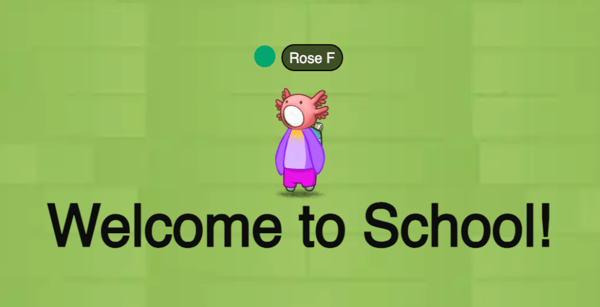
The Custom Text asset allows you to quickly and easily add text to your world design.
##### The Custom Text asset is great for:
- Classroom or office signs.
- Directory boards.
- Calls to action (e.g., Fill out the survey!).
- Instructions (e.g., Group Project Instructions).
- Any areas where you want to add text.
|  |
| --- |
Once you add a Custom Text Asset, you can make it interactive.
##### Clicking a Custom Text Asset could:
- [Teleport](https://support.schoolspace.io/create-teleports-portals-and-landmarks#add-teleport) your avatar to a new location in the same world.
- [Portal](https://support.schoolspace.io/create-teleports-portals-and-landmarks#add-portal) your avatar to a different world.
- [Open a form, website, PDF, or document](https://support.schoolspace.io/attach-links-forms-images-pdfs-or-text#add-website-URL-instructions).
- [Open an image](https://support.schoolspace.io/attach-links-forms-images-pdfs-or-text#add-image).
- [Open a pop-up text box](https://support.schoolspace.io/attach-links-forms-images-pdfs-or-text#text-pop-ups).
- [Play a video after clicking](https://support.schoolspace.io/add-video-or-audio#clickable-media) or [start a spatial video](https://support.schoolspace.io/add-video-or-audio#spatial-media) when standing near the asset.
---
### Using the Custom Text Asset
[Editors, Designers, Managers, and world Owners](https://support.schoolspace.io/schoolspace-roles-and-permissions?hsLang=en) can add and modify Custom Text Assets.
##### To Add a Custom Text Asset:
1. Click **Builder Mode**  in the left sidebar or **press B on your keyboard** to enter Builder Mode.
2. Click **Assets**  in the left sidebar.
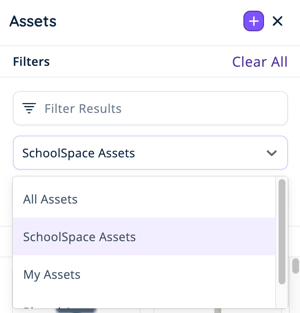
3. The Asset Library will open in a thumbnail list view on the left side of your screen. The Asset Library is filtered for 'Placed Assets' by default. **Change the dropdown to 'SchoolSpace Assets.'**
| **** |
| --- |
4. Search for 'Custom Text Asset' in the ** Filter Results** search bar.
5. **Select the Custom Text Asset thumbnail image,** then **select an area in the world** to drop the asset.
6. To drop more Custom Text Assets: **Continue selecting areas** in the world. [Use Builder Mode tools](https://support.schoolspace.io/using-builder-mode#toolbar) to move your view of the world as needed.
7. To finish dropping Custom Text Assets: **Close  the Asset Library** page on the left side of your screen. If necessary, **select Builder Mode**  in the left sidebar or **press B** on your keyboard to exit Builder Mode.
*Note: To modify a Custom Text Asset, you will need to continue using [Builder Mode](https://support.schoolspace.io/using-builder-mode#enter-builder-mode).*
##### To Modify a Custom Text Asset:
1. **Add a Custom Text Asset** to your world.
2. **Select the Custom Text Asset** in the world. The Asset Selection menu will open on the right side of your screen.
*Note: Make sure you're using [Builder Mode](https://support.schoolspace.io/using-builder-mode#enter-builder-mode)!*
3. In the *Text* section, change:
- **Content:** Enter the text you want displayed in the world.
- **Typeface:** Choose a font in the dropdown.
- **Weight:** Choose Normal or Bold in the dropdown.
- **Size:** Change the text size by using the up and down arrows or entering a number.
- **Container Width:** The container is an invisible box around the text asset. Decreasing Container Width will split your text into multiple lines. Increasing Container Width will reduce the number of lines.
- **Color:** Use the Hue Box or Color Selector Dropper to choose a color for your text.
4. \[Optional\] In the *Asset Details* section, **add a Unique Name.** This can make it easier to find your asset in the Placed Assets list in the future. We recommend choosing something easily recognizable, such as 'Welcome Message' or 'Classroom 1.'
The Custom Text Asset does not support alignment (like centered or justified) in a single asset. However, you can add individual Custom Text Assets for each line of text, [select multiple Custom Text assets](https://support.schoolspace.io/using-builder-mode#select), and use the [Builder Mode Align tool](https://support.schoolspace.io/using-builder-mode#align) to create the alignment you need.
- [Getting Started](https://support.schoolspace.io/getting-started?hsLang=en#main-content)
- [Overview of SchoolSpace](https://support.schoolspace.io/getting-started?hsLang=en#overview-of-schoolspace)
- [Your First Time in SchoolSpace: What to Expect](https://support.schoolspace.io/getting-started?hsLang=en#your-first-time-in-schoolspace-what-to-expect)
- [Best Practices for Success in SchoolSpace](https://support.schoolspace.io/getting-started?hsLang=en#best-practices-for-success-in-schoolspace)
- [Setup, Safety, and Insights](https://support.schoolspace.io/setup-safety-and-insights?hsLang=en#main-content)
- [Your SchoolSpace World: The Basics](https://support.schoolspace.io/setup-safety-and-insights?hsLang=en#your-schoolspace-world-the-basics)
- [Safety, Security, and Moderation on SchoolSpace](https://support.schoolspace.io/setup-safety-and-insights?hsLang=en#safety-security-and-moderation-on-schoolspace)
- [Your SchoolSpace Dashboard](https://support.schoolspace.io/setup-safety-and-insights?hsLang=en#your-schoolspace-dashboard)
- [Integrations](https://support.schoolspace.io/setup-safety-and-insights?hsLang=en#integrations)
- [Navigating SchoolSpace](https://support.schoolspace.io/navigating-schoolspace?hsLang=en#main-content)
- [Exploring the Virtual World](https://support.schoolspace.io/navigating-schoolspace?hsLang=en#exploring-the-virtual-world)
- [Communicating on SchoolSpace](https://support.schoolspace.io/navigating-schoolspace?hsLang=en#communicating-on-schoolspace)
- [Building Community: Safe Social Tools](https://support.schoolspace.io/navigating-schoolspace?hsLang=en#building-community-safe-social-tools)
- [Customizing SchoolSpace](https://support.schoolspace.io/customizing-schoolspace?hsLang=en#main-content)
- [Builder Mode](https://support.schoolspace.io/customizing-schoolspace?hsLang=en#builder-mode)
- [Designing and Personalizing a World](https://support.schoolspace.io/customizing-schoolspace?hsLang=en#designing-and-personalizing-a-world)
- [Making the World Interactive](https://support.schoolspace.io/customizing-schoolspace?hsLang=en#making-the-world-interactive)
- [Custom Settings & Controls](https://support.schoolspace.io/customizing-schoolspace?hsLang=en#custom-settings-controls)
- [Using SchoolSpace for Learning](https://support.schoolspace.io/using-schoolspace-for-learning?hsLang=en#main-content)
- [SchoolSpace for Live Instruction](https://support.schoolspace.io/using-schoolspace-for-learning?hsLang=en#schoolspace-for-live-instruction)
- [SchoolSpace for Student Life and School Community](https://support.schoolspace.io/using-schoolspace-for-learning?hsLang=en#schoolspace-for-student-life-and-school-community)
- [Games, Apps, and Experiences](https://support.schoolspace.io/games-apps-and-experiences?hsLang=en#main-content)
- [Adding a Game or App to your World](https://support.schoolspace.io/games-apps-and-experiences?hsLang=en#adding-a-game-or-app-to-your-world)
- [Our Games & Experiences](https://support.schoolspace.io/games-apps-and-experiences?hsLang=en#our-games-experiences)
- [Need Help?](https://support.schoolspace.io/need-help?hsLang=en#main-content)
- [What's New in SchoolSpace](https://support.schoolspace.io/need-help?hsLang=en#whats-new-in-schoolspace)
- [Common Problems and Solutions](https://support.schoolspace.io/need-help?hsLang=en#common-problems-and-solutions)
- [Frequently Asked Questions](https://support.schoolspace.io/need-help?hsLang=en#frequently-asked-questions)
[](https://schoolspace.io)
Go to [schoolspace.io](https://schoolspace.io/)
[mailto:support@schoolspace.io](mailto:support@schoolspace.io)
Copyright © 2025, Topia Interactive, Inc.
```json
{
"@context" : "https://schema.org",
"@type" : "VideoObject",
"contentUrl" : "https://22253251.fs1.hubspotusercontent-na1.net/hubfs/22253251/video_assets/210583958352/inherited/web_optimized.mp4",
"dateModified" : "2026-04-06T18:25:28.399Z",
"duration" : "PT34.422S",
"height" : 1080,
"name" : "Custom Text Asset - Video - Search + Drop",
"thumbnailUrl" : "https://22253251.fs1.hubspotusercontent-na1.net/hubfs/22253251/Custom%20Text%20Asset%20-%20Video%20-%20Search%20%2B%20Drop.mp4/medium.jpg",
"uploadDate" : "2026-04-06T18:23:14.145Z",
"width" : 1920
}
```
```json
{
"@context" : "https://schema.org",
"@type" : "VideoObject",
"contentUrl" : "https://22253251.fs1.hubspotusercontent-na1.net/hubfs/22253251/video_assets/210583978094/inherited/web_optimized.mp4",
"dateModified" : "2026-04-06T18:23:36.597Z",
"duration" : "PT2M2.285S",
"height" : 1080,
"name" : "Custom Text Asset - Video - Modification",
"thumbnailUrl" : "https://22253251.fs1.hubspotusercontent-na1.net/hubfs/22253251/Custom%20Text%20Asset%20-%20Video%20-%20Modification.mp4/medium.jpg",
"uploadDate" : "2026-04-06T18:23:24.632Z",
"width" : 1920
}
```