
| This article walks through how to place external content (like educational tools, games, and interactive websites) directly into your SchoolSpace world. Students don’t have to leave the world - they can interact with it inside the space you’ve created. Learn how to make the world more engaging and help your students immerse into your environment! |
Keep reading to learn about:

Why Add Links & Collaborative Website Embeds to Your SchoolSpace World?
You can make your student’s experience richer & more interactive by embedding interactive content in your world. Adding embedded links and collaborative tools in your world transforms it from a simple virtual space into an interactive classroom hub. Here’s why it’s worth doing:
- Boosts Engagement: Students can click on objects in the world to open games, quizzes, and tools. It turns learning into an exploration, keeping students curious and active.
- Supports Collaboration: By embedding collaborative tools like Padlet, Miro, or Google Docs, students can brainstorm, share ideas, and work together in real time, without leaving the world.
- Saves Time & Reduces Confusion: Instead of juggling multiple links in chat or email, everything is right inside the world. Students know exactly where to click. And, they can come back and find it anytime!
- Makes Learning Interactive: Websites, videos, puzzles, and interactive boards make lessons hands-on. Students aren’t just listening, they’re doing.
- Flexible for Any Subject: Whether it’s a math quiz (Kahoot), a creative brainstorm (Miro), or a class survey (Google Forms), you can customize the world to fit your teaching goals.
Adding links and embeds turns your SchoolSpace world into a one-stop learning space where students can explore, collaborate, and have fun—all while staying focused in the same environment.
To Embed Content in your World:
- Choose the website you want to link to and copy the link!
- You may need to get the “share link” or embed URL to ensure that it opens properly in the world.
- See instructions below for commonly used sources or search for instructions on finding the embed code for the tool you're using (e.g., search for "get a Google Doc embed code" in a search engine).
- Follow instructions for attaching a clickable link to an asset. Always test your embedded content to ensure it's working as expected!
- Specific instructions for the following tools are available below:
Some websites have a different URL for embedding or iframe content. You may need to use a specific “share” link or “publish to web” link or “get embed code”. Having trouble linking your content? Reach out to support@schoolspace.io for assistance!
Need Some Inspiration?
Here are some great sites, collaborative tools and games that work well in SchoolSpace. Please review each carefully to ensure it aligns with your schools guidelines and is appropriate for your students’ age range.
- Padlet - boards, timelines, canvases, maps, etc.
- Genially - easily create interactive learning materials.
- Miro - online whiteboard.
- Google Suite - embed a document, slides, spreadsheet, or form in your world.
- Typeform - interactive forms.
- AirTable - collaborative cloud based spreadsheet-database.
- AhaSlides - interactive presentations for meetings, classroom, trivia nights.
- Kudoboard - virtual bulletin board of messages, gifs, and images. Require premium account to embed.
- Copypaste - QR code file or text sharing tool.
- VideoAsk - recorded questions and answers.
- Circle - community platform.
- Mural - visual collaborative tool.
- Skribbl - multiplayer drawing and guessing game.
- Kahoot - learning games.
- Fish Bowl - group guessing game.
- Duck Hunt - single player duck hunting game.
- Donkey Kong - classic Donkey Kong game.
- Playingcards - play card games with friends.
- Deck of Cards - deck of cards to play with friends.
- Let's Draw It - simple drawing tool.
- Gartic Phone - online game that mixes Pictionary with the Telephone game.
- Bingo Baker - premade and custom bingo cards.
Specific Content Link Instructions
Some content has specific steps you'll need to take in order to get a working link to attach to an asset in your SchoolSpace world.
To Get a Collaborative Miro Board Link:
This link will allow people in the world to work together on a Miro board.
- Open your Miro board.
- In the top left corner, click the Share button.

- Choose Embed.

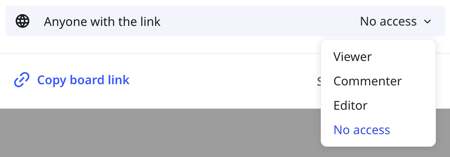
- If necessary, change the visibility of the board:

- 'Anyone with the link - Viewer' will let students view the board (no edit access) without signing in to Miro.
- 'Anyone with the link - Editor' will let students edit the board without signing in to Miro.
- 'Anyone with the link has no access' will only allow people with access in Miro to view or edit the board. Students will have to sign in to Miro in order to access the board.
- Click Embed. Choose a start view and uncheck 'View only' to allow people to edit your board.

- Click the 'Copy link' button.

- Using the URL copied in step 6, follow the instructions for adding a clickable link to an asset.
To Get a View Only Google Docs, Sheets, or Slides Link:
This link will allow people to view your Doc, Sheet, or Slides in the world. Any updates you make to your Doc, Sheet, or Slides will automatically be visible in the world! This type of link will not allow people to edit your file in the world.
- Open your Google Doc, Sheet, or Slides.
- Click File → Share → Publish to web.

- In the window that appears, click Embed.

- Under Published content & settings, choose a publishing option:
- Spreadsheet: Choose to publish the entire spreadsheet or individual sheets.
- Slides: Choose a presentation size and slide change behavior.
- If you want changes you make in the Doc, Sheet, or Slides to be automatically visible to people in the world, check the box next to 'Automatically republish when changes are made.'

- Click Publish.

- Copy and paste the text in the box into a note or doc.

- Select and copy the URL in the middle of the text from step 6. Do not include the quotation marks. The URL will look like the bolded text in this example:
- <iframe src="https://docs.google.com/document/d/e/2PACX-1vR6d4v5PX2y2QIzUUUsmIlKzfggzSH9lYiLCPUUISwrwWf6pED4fjMoLk2P6Udo_2KuoQKGaPsU/pub?embedded=true"></iframe>
- Using your URL from step 7, follow the instructions for adding a clickable link to an asset.
To Get a Collaborative Google Docs, Sheets, or Slides Link:
This link will allow people in the world to collaborate in your Doc, Sheet, or Slides. In order to collaborate, the file sharing settings must be set up correctly.
- Open your Google Doc, Sheet, or Slides.
- If necessary, change the file share settings. Click the 'Share' button and choose the settings that match your needs:
- If your students sign in to Google Workspace and SchoolSpace using their school SSO account, make sure they file is shared so they can access via SSO.
- If your students do not normally have access to Google Workspace via school SSO or they do not sign in to SchoolSpace via school SSO, change the file share setting to 'Anyone with the link can edit'
- Click Copy link.
- Using your URL from step 3, follow the instructions for adding a clickable link to an asset.