
| This article explains what the Connect 4 app is, how to play, and how admins can add Connect 4 to a world. |
Keep reading to learn about:

What is Connect 4?
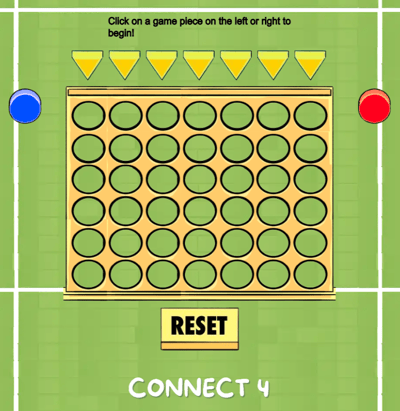
Connect 4 is a classic two player game where your goal is to be the first to line up four of your game pieces vertically, horizontally, or diagonally in the grid. Players take turns dropping their game pieces into the grid and block their opponent while creating their own winning line.
 |
Playing Connect 4
Everyone can play Connect 4! Two players are needed to start the game.
If you don't have someone to play with, try sending a message in the 'Everyone in World' chat channel and invite someone to join your game. When one player starts a new game, an Activity Feed notification will also appear automatically with an option to Teleport  to the game to give folks a heads up that a game needs another player to begin.
To Play Connect 4:
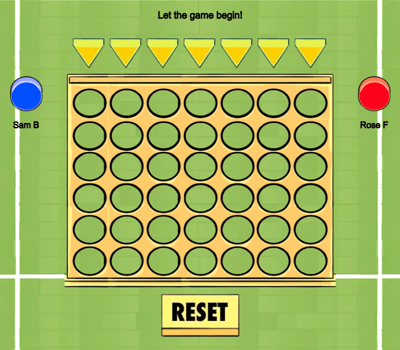
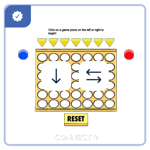
- Click either the Red or Blue game piece next to the grid and have your opponent click the other. After both players click an option, the game will start.
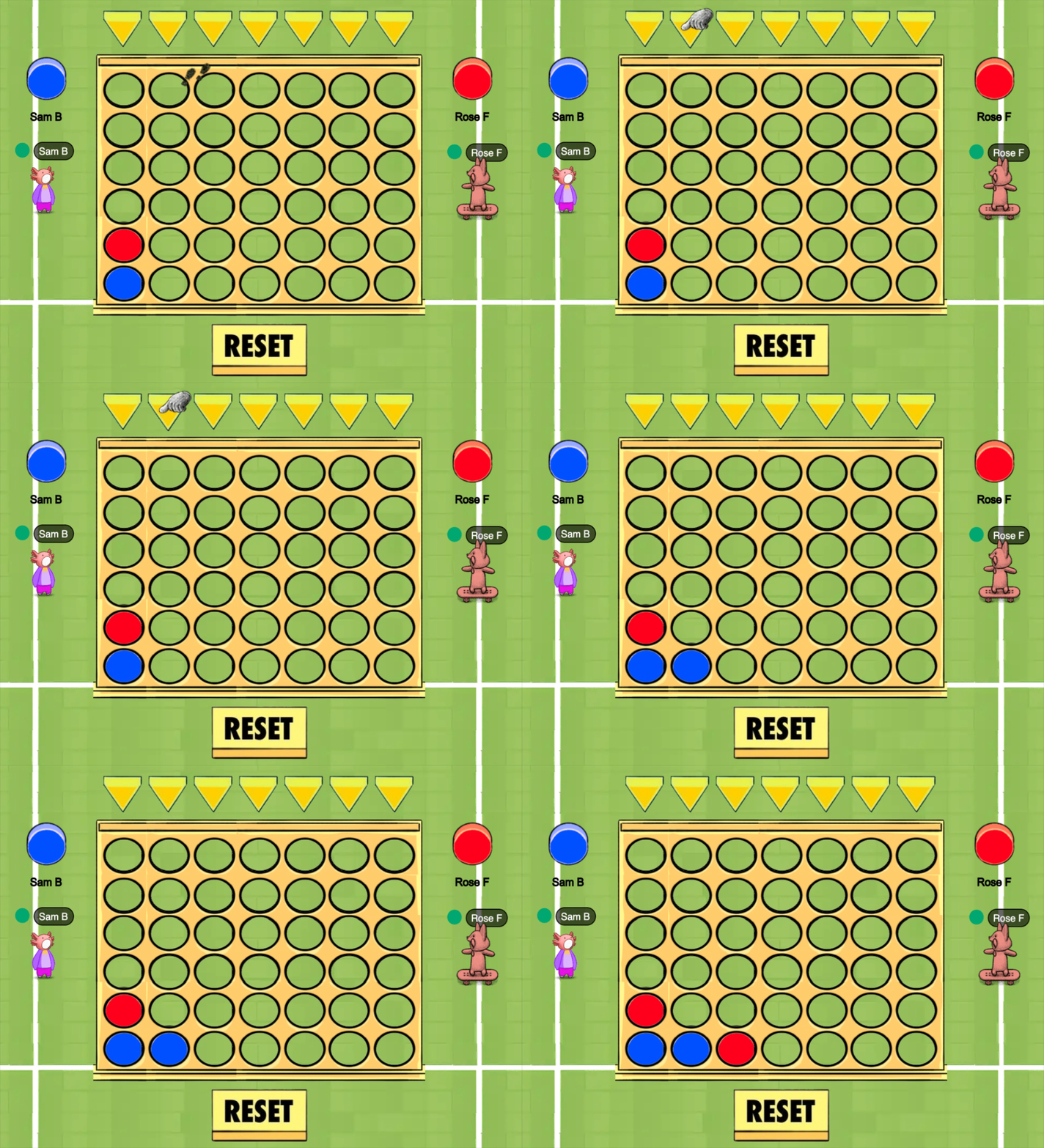
- When it's your turn, click a triangle above the grid to drop your game piece into that row.
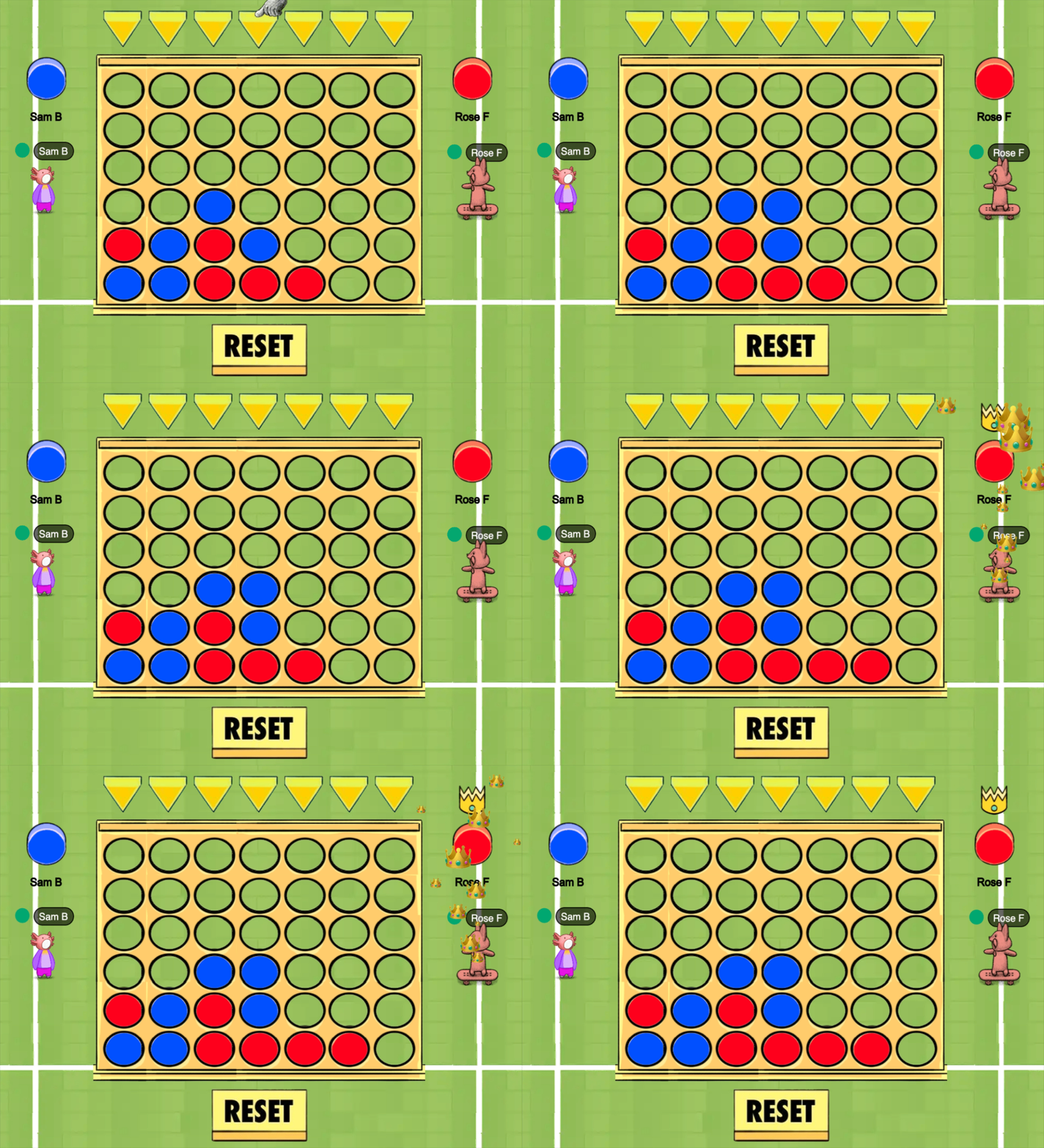
- Take turn dropping your game pieces. The first player to line up 4 in a row wins! Players can create lines vertically, horizontally, or diagonally.
- To clear the grid and start a new game: Click the 'Reset' button in the world.
If nothing happens when you try to play Connect 4, click the 'Reset' button and try again!
Connect 4 for Admins
Editors, Designers, Managers, or world Owners can add the Connect 4 app to their world.
To Add Connect 4:
- Click Scenes
 in the left sidebar.
 - Search for 'Connect 4' in the
 Filter Results search bar.
 - Hover over the thumbnail image and click Drop Scene
 .
.
- Click an area in the world to drop the Connect 4 app in that location. For the best experience, place Connect4 in an open, easy to find area with plenty of space around it so avatars can move and see clearly.
- Important! Click the 'Reset' button asset under the Connect 4 app you placed in the world. This ensures the app is ready for students to use.
- Admins can place multiple Connect 4 apps in a world. To add another Connect 4, repeat steps 1 - 5 above.
- Players can click the 'Connect 4' asset (white text) to open game instructions in the world.
Students or admins can click the 'Reset' button in the world to clear the grid and start a new game.