
| This article explains what the Sharks & Minnows app is, how to play, and how admins add Sharks & Minnows to a world. |
Keep reading to learn about:
 Adding Sharks & Minnow to a World
What is Sharks & Minnows?
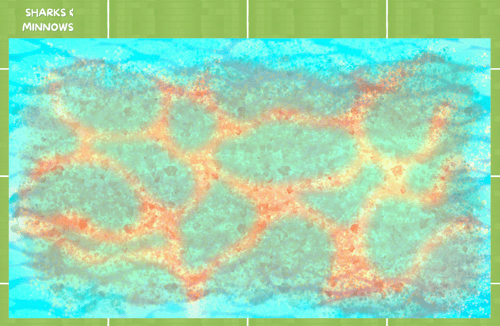
Sharks & Minnows is a multiplayer tag game. At the start of the game, one person is a shark and everyone else is a minnow. When a shark tags a minnow, the minnow becomes a shark. The last minnow standing wins! You'll need at least 3 players to start this game and up to 10 people can play at the same time.
 |
Playing Sharks & Minnows
Everyone can play Sharks & Minnows! You'll need at least 3 players to start the game. A max of 10 people can play at the same time.
If you don't have enough players, try sending a message in the 'Everyone in World' chat channel and invite people to join your game.
To Play Sharks & Minnows:
-
Move your avatar into the Sharks & Minnows game area and click the 'Join' button on the left side of your screen. The first player to click 'Join' is the host.

-
Hover over the Games
 icon on the left side of your screen to open the menu. Toggle on Focus to keep your screen centered on Sharks & Minnows. Click Pin
  to keep the menu open.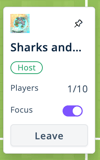
-
The game begins when at least 3 players have joined. A few things happen after 3 players have joined:
-
Tips for playing the game will be shown on the board.
-
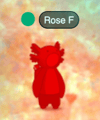
One player's avatar will turn red. They are the shark!
-
All other players' avatars will turn blue. They are the minnows!
-
You will be automatically teleported to an area of the board.
-
Use Fast Mode when playing!
-
-
Playing as a shark (red avatar):
-
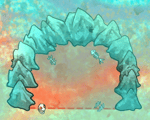
When you become a shark, you are automatically teleported to the shark cave.
-
Avoid the sea flowers! If you touch one, you'll be teleported back to the shark cave.

-
Try to catch minnows (blue avatars)! If you touch a minnow, they will become a shark.
-
Don't touch the safe zones! Minnows can hide from sharks in the safe zones. If a shark touches a safe zone, they are teleported back to the shark cave. Safe zones disappear after a short time, so be ready to chase the minnows!

-
- Playing as a minnow (blue avatar):
- Run away from sharks (red avatars)! If a shark touches you, you'll be turned into a shark and teleported to the shark cave.
- Use the safe zones! Sharks can't enter safe zones. Safe zones will flash and disappear though so be ready to run away quickly!
- Use the sea flowers! Sharks can't touch the sea flowers and minnows can hide in them. Stay alert! When a shark touches a sea flower, it disappears and you lose your hiding place.
-
The game continues until only one minnow is left. The last minnow wins the game!
-
To leave the game:
-
Walk out of the game area. This will start a countdown. After the countdown, you may see a pop-up asking you to confirm if you want to leave the game
-
Click the Leave button on the left side of your screen.

-
If the host leaves the game, the game ends for everyone.
Sharks & Minnows for Admins
Editors, Designers, Managers, or world Owners can add the Sharks & Minnows app to a world.
To Add Sharks & Minnows:
-
Click Builder Mode
 in the left sidebar or press B on your keyboard to enter Builder Mode.
 -
Click Scenes
 in the left sidebar.
 -
Search for 'Sharks & Minnows' in the
 Filter Results search bar.
 -
Hover over the thumbnail image click Drop Scene
 .
.
- Click an area in the world to drop Sharks & Minnows in that location.
Note: Sharks & Minnows takes up a large area. Make sure there's enough room before you click to drop!