
| This article explains how Incognito Mode works and how Moderator, Managers, or world Owners can change their status to Incognito Mode to observe students without being seen. |
Keep reading to learn about:

What is Incognito Mode?
Incognito Mode is a status option only available to admins with Moderator, Manager, or world Owner permission that allows the admin to observe others without being seen.
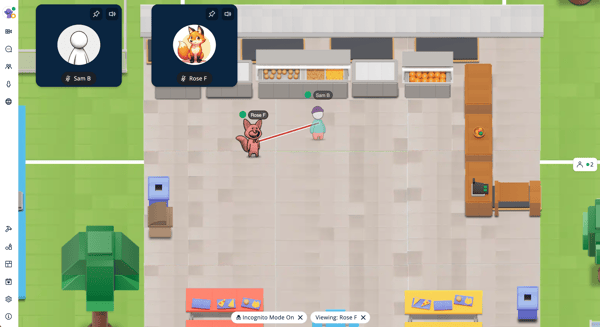 |
When an admin turns on Incognito Mode:
- Their avatar disappears from the world.
- Their video tile disappears for everyone (including self).
- New buttons appear at the bottom of the admin's screen.
- Others will not connect to the admin's video.
- The admin can still move by clicking in the world.
- The admin can see and hear others by clicking an avatar in the world.
- The admin will also see and hear everyone connected to the selected avatar.
- The admin is not listed in the Current Users tab.
- The admin cannot teleport and no one can teleport to the admin.
- The admin can adjust others' Audio Settings, Video Settings, or perform Safety Actions from their video tiles or the Current Users tab in the Users Menu.
Incognito Mode is useful for:
- Investigating reports.
- Class observation by principals, teachers, or other school admins.
- Situations where a teacher needs to observe behavior but should not be seen by students.
Incognito Mode is a powerful feature. If you need to investigate usage of Incognito Mode in your SchoolSpace worlds, reach out to support@schoolspace.io.
Using Incognito Mode
Only Moderators, Managers, or world Owners can use Incognito Mode.
 |
To Use Incognito Mode:
- On your Video Tile, click your name.
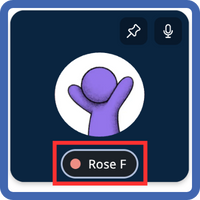
- In the Availability dropdown, select
 Incognito Mode.
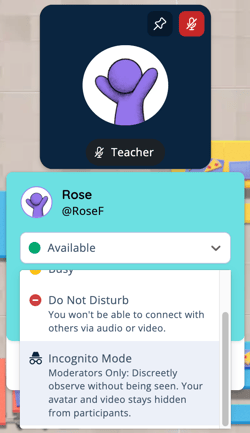
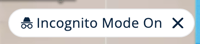
- Your avatar and video tile will disappear from the world and an Incognito Mode indicator will appear at the bottom of your screen.
- To observe someone:
- If needed, click to move to person you want to observe.
- Click their avatar to begin observing. If the selected person is connected to anyone over video and audio you will see lines between these avatars.
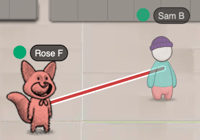
- You will see and hear the selected person and anyone connected to them. No one will see or hear you.
- A new indicator will appear at the bottom of your screen with the name of the person you selected.

- To stop observing: At the bottom of your screen, click the
 next to Viewing: [Name]. Repeat step 4 to observe additional people in the world.

- To exit Incognito Mode: At the bottom of your screen, click the next to Incognito Mode On.
Incognito Mode can be used when Breakout Mode is turned on.