
| This article explains what the Locker, Build-A-Desk, Build-A-Snowman, and Pumpkin Patch apps are, how to use them, and how admins add these apps to a world. |
Keep reading to learn about:
 Adding a Build an Asset App to a World
What are Build an Asset apps?
Build an Asset apps are a collection of interactive apps that allow students to decorate parts of the world using pre-set customization options. Instead of free-building, students choose from curated elements to create themed assets and place them in the world.
The app names are:
- Locker App
- Build-A-Desk App
- Build-A-Snowman App
- Pumpkin Patch App
Each app provides a structured, safe way for students to express creativity while maintaining a clean and manageable shared space.
 |
 |
|
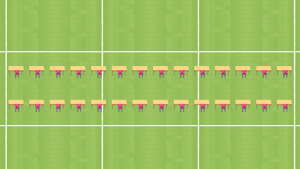
| Build-A-Desk App Claim a desk and add decorations. |
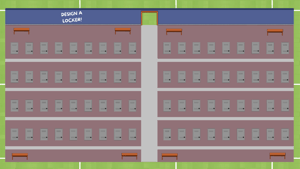
Locker App Claim a locker and add decorations. |
|
 |
 |
|
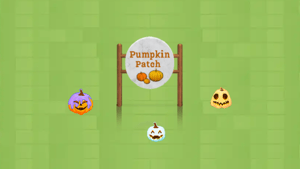
| Pumpkin Patch App Decorate a pumpkin. |
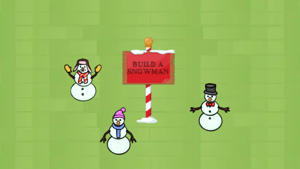
Build-A-Snowman App Decorate a snowman. |
Using a Build an Asset App
Everyone can use the Build an Asset app! Each app has different options for decorating.
To Use a Build an Asset App:
Follow these instructions for Build-A-Desk App, Locker App, Pumpkin Patch App, and Build-A-Snowman App.
- Click:
- For Pumpkin Patch and Build-A-Snowman: The app's key asset (typically a sign).
- For Locker and Build-A-Desk: A locker or desk.
- The app will open on the left side of your screen. Depending on the app, you may need to click Claim.
- Choose options for each part of the asset. A preview of your asset will be shown at the top.
- Depending on the app, click Add or Save. Your asset will appear in the world with the decorations you chose!
Build an Asset Apps for Admins
Editors, Designers, Managers, or world Owners can add Build an Asset apps to their world.
To Add a Build an Asset App:
- Click Builder Mode
 in the left sidebar or press B on your keyboard to enter Builder Mode.
 - Click Scenes
 in the left sidebar.
 - Search for the app by name in the
 Filter Results search bar. App names are:
- Build-A-Desk App
- Locker App
- Build-A-Snowman App
- Pumpkin Patch App
- Hover over the thumbnail image and click Drop Scene
 .
. -
Click an area in the world to drop the app in that location. Choose an area with a good amount of space so pumpkins or snowmen can be seen! For Locker or Build-A-Desk, a large area is needed when you drop the app.