
| This article explains what the HotShot app is, how to play, and how admins add the HotShot app to a world. |
Keep reading to learn about:

What is HotShot?
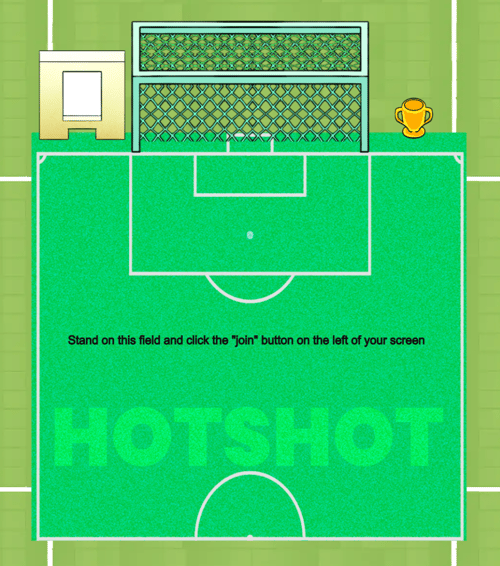
HotShot is a single-player soccer game where you try to score as many goals as you can before the clock runs out. A goalie tries to block you from scoring and the clock is ticking. It's time to score some goals!
 |
Playing HotShot
Everyone can play HotShot! HotShot is a single-player game. Play solo or take turns playing with your friends!
To Play HotShot:
-
Move your avatar into the HotShot field and click the Join button on the left side of your screen.

-
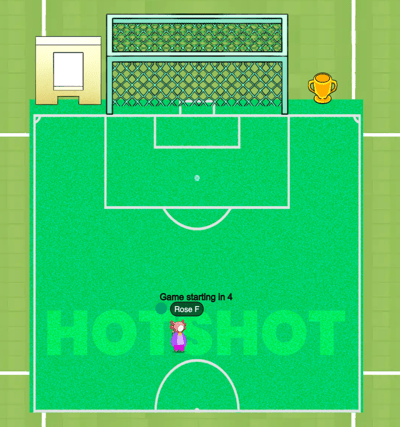
After you've joined the game a countdown will appear in the middle of the field.
-
Optional: Hover over the Games
 icon on the left side of your screen to open the menu. Toggle on Focus to keep your screen centered on HotShot. Click Pin
  to keep the menu open.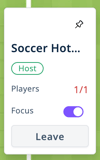
-
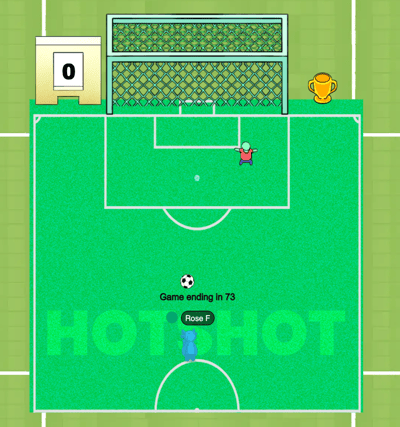
After the countdown ends, your avatar will turn blue, a ball will appear near you, and a goalie will appear in the goal.
-
Move your avatar to the ball to "kick" it into the goal. The goalie will try to block your score. Try to get as many goals as you can before the clock runs out!
-
A few things happen when you score a goal:
-
The scoreboard will update on the left side of the goal.
-
Your avatar will be automatically moved back to the starting position.
-
A new ball will appear.
-
-
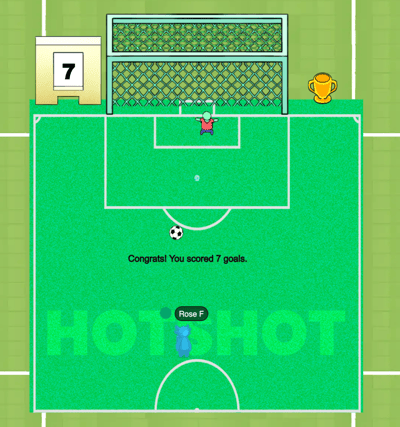
When the clock runs out, you will see the total number of goals you scored in the middle of the field and on the scoreboard.
-
To leave the game, either:
-
Walk out of the game area. This will start a countdown. After the countdown, you may see a pop-up asking you to confirm if you want to leave the game.
-
Click the Leave button on the left side of your screen.

-
HotShot for Admins
Editors, Designers, Managers, or world Owners can add the HotShot app to a world.
To Add the HotShot App:
-
Enter Builder Mode: Click Builder Mode
 in the left sidebar or press B on your keyboard.
 -
Click Scenes
 in the left sidebar.
 -
Search for 'HotShot' in the
 Filter Results search bar.
 -
Hover over the thumbnail image click Drop Scene
 .
.
- Click an area in the world to drop HotShot in that location.