
| This guide walks educators and administrators with Manager or Moderator permissions through accessing student message history in SchoolSpace. You’ll learn how to view and export chat logs from private conversations, group messages, and chat channels. |
SchoolSpace makes it easy to monitor chat communication when necessary. Message history is available in Dashboard for:
Schools can choose to enable or disable these chat options for all users in a world. Individual students can also be banned from using Chat Channels in a world or banned from Direct Messaging in all your worlds.
Reviewing One-on-One or Group Direct Messages
To see DM or Group Direct Message History, you must have an administrative role associated with at least one of the students in the conversation. You will also need the email address or SchoolSpace username for at least one student involved in the chat.
To View One-on-One or Group Direct Message History:
- Open the SchoolSpace Dashboard.
- In the purple sidebar, click
 Message History.
 - Select the Direct & Group Messages tab.
- In Email Address 1, enter one participant's email or SchoolSpace username.
- [Optional] Enter another participant’s info in Email Address 2.
- Press Enter on the keyboard or click out of the email box.
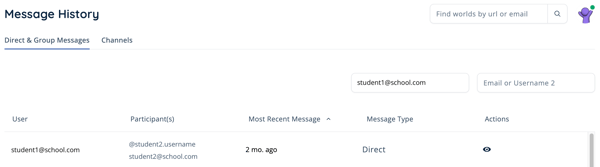
- In the results list, locate the chat and click View Details
 in the Actions column to view the entire conversation.
 - From here you can:
- Use
 Filter Results to search for keywords.
 - Adjust the date range to view older messages.
- Export
 results as a CSV file.
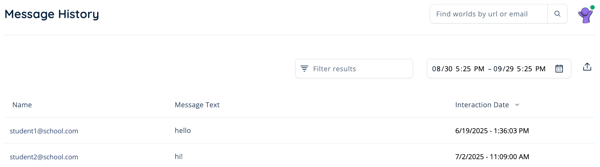
- Use
Reports related to chat messages include a direct link to the relevant message history.
Reviewing Channel Messages
To see Channel Message History in a world, you must have Manager or Moderator permission within that world. There are multiple types of Chat Channels available in SchoolSpace. Message history for Chat Channels is separated by world.
To View Channel Message History:
- Open the SchoolSpace Dashboard.
- In the purple sidebar, click Message History.
- Select the Channels tab.
- Scroll to find the world you are looking for or use Filter Results to search.
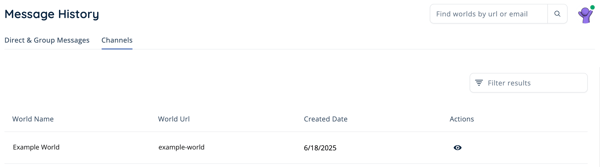
- In the results list, locate the world and click View Details in the Actions column to view the Chat Channel history for that world.
- From here you can:
- Use Filter Results to search for keywords.
- Use the dropdown to filter by Chat Channel type.
- Adjust the date range to view older messages.
- Export results as a CSV file.

- Use
Reports related to chat messages include a direct link to the relevant message history.