
| This article explains everything you need to know about using Builder Mode to customize your virtual campus. |
Keep reading to learn about:
 Builder Mode Keyboard Shortcuts
What is Builder Mode?
Builder Mode lets you make changes to the design, content, and interactivity of a SchoolSpace world. Only Editors, Designers, Managers, and world Owners can access Builder Mode.
What Changes while in Builder Mode?
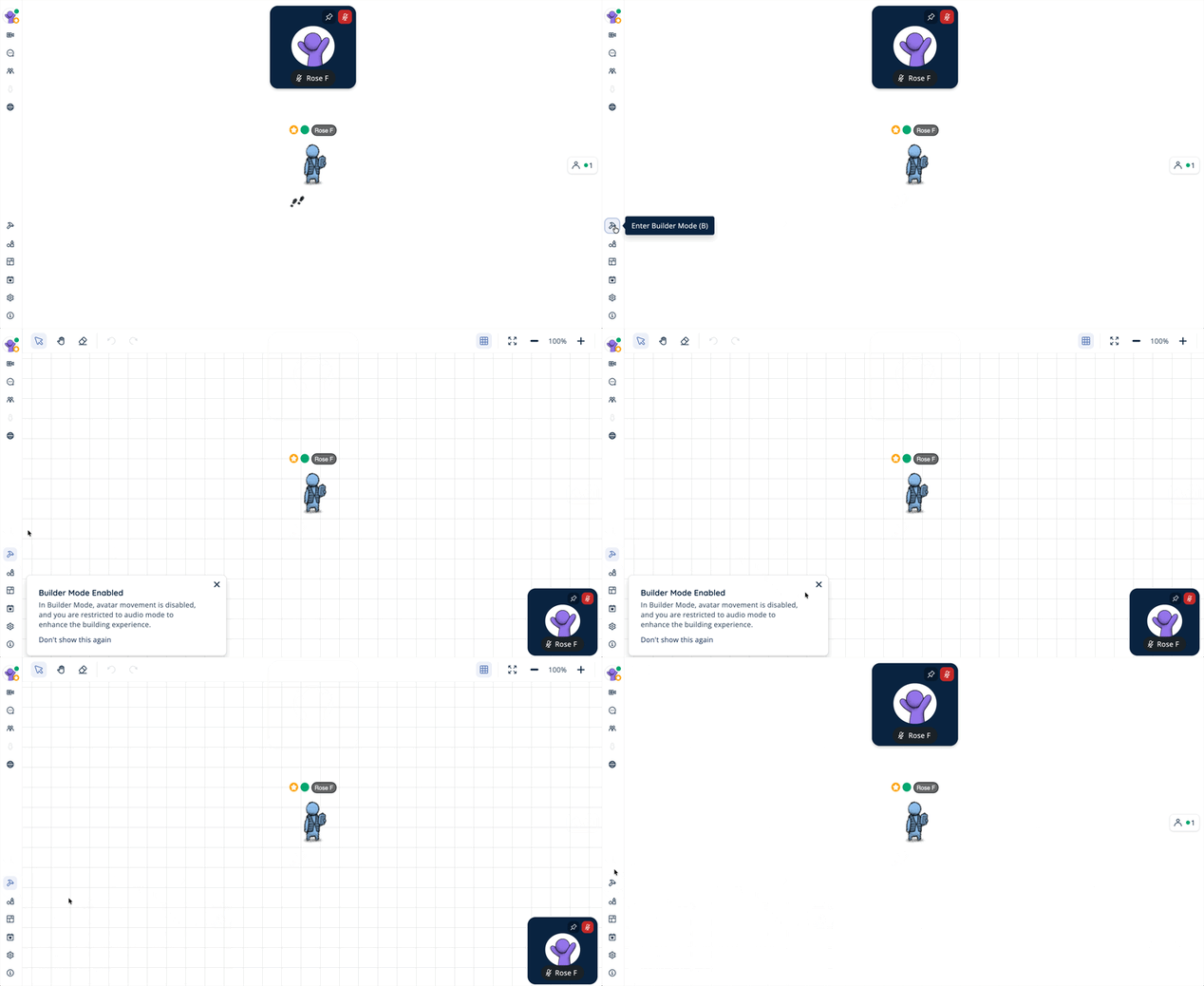
While you are in Builder Mode, you will see a new Builder Mode toolbar at the top of your screen and your avatar movement will be disabled. You will also automatically be placed in Audio Mode - you can still use your camera and mic to communicate with others in the world but everyone else's video tiles will be minimized to make it easier for you to see the entire world.
Multiple people can use Builder Mode at the same time which means you can collaborate with each other while building! If you want to talk with others while building, you will need to stand near each other before entering Builder Mode. You can also use Broadcast All to communicate without being near each other.
To Enter or Exit Builder Mode:
- Click Builder Mode
 in the left sidebar or press B on your keyboard.
 - While in Builder Mode:
- A grid will appear in the world.
- The Builder Mode toolbar will be shown at the top of your browser.
- Your avatar will be locked in place.
- You will enter Audio Mode. You can control your camera on/off but will not see other users' video.
 |
Builder Mode Anatomy
When you enter Builder Mode, your view of the world will change.
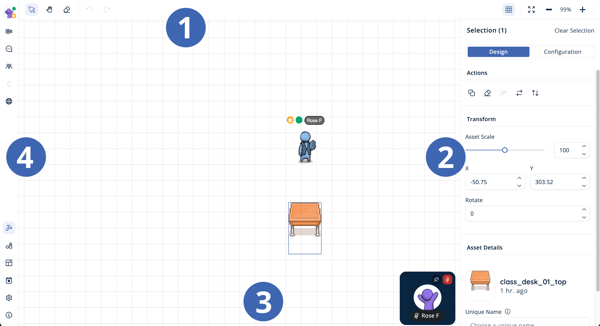 |
- Builder Mode Toolbar
Contains tools to help you build the world.
Learn more about the Builder Mode toolbar. - Asset Selection Menu
Opens when one or more assets are selected and allows you to make changes like:- Group, duplicate, lock, erase, align, or flip assets.
- Change asset size, location, or rotation.
- Attach content like a website, image, video, or audio.
- Canvas
The area where assets are placed. Also referred to as "the world." - Left Sidebar
The lower half of the left sidebar contains features and settings for building your world like entering or exiting Builder Mode .
.
Builder Mode Toolbar
After you enter Builder Mode, you will see the Builder Mode toolbar at the top of your screen.
 |
 |
| Top Left | Top Right |
- Select

Allows you to select one or multiple assets to edit. Your cursor changes to an arrow. This is the default tool when you first enter Builder Mode.
Learn how to use Select. - Pan

Move your view of the world. Your cursor changes to a hand.
Learn how to use Pan. - Erase

Remove assets from the world. Your cursor changes to an eraser.
Learn how to use Erase. - Undo
 and Redo
Click to undo or redo up to 10 changes like erasing, moving, or transforming one or multiple assets. - Grid

Click to hide or show the grid. The grid is turned on by default when you first enter Builder Mode. - Fit to Screen

Click to quickly zoom out to view the entire world. - Zoom
Click to increase or decrease
  the zoom by 10% intervals.
All actions in the Builder Mode toolbar can also be accessed with keyboard shortcuts.
To Use Select:
- Click Select in the Builder Mode toolbar or press V on your keyboard. Your cursor will change to an arrow.
- Select the asset(s):
- Select One Asset: Click a single asset.
- Select Multiple Assets: Hold Command (⌘) or Shift and click multiple assets. See keyboard shortcuts for more info.
- Select All Assets: Command (⌘) + A or Control (Ctrl) + A. See keyboard shortcuts for more info.
- The asset(s) will have a purple outline and the Asset Selection menu will open on the right side of your screen.
To Use Pan:
- Click Pan in the Builder Mode toolbar or press H on your keyboard. Your cursor will change to a hand.
- Click and drag in the canvas to change your view of the world.
- You can also use keyboard shortcuts to pan by holding Spacebar and clicking and dragging with your mouse.
To Use Erase (Builder Mode Toolbar):
- Click Erase in the Builder Mode toolbar or press E on your keyboard. Your cursor will change to an eraser.
- Erase One Asset: Click a single asset to erase.
- Erase Multiple Assets: Click and drag over assets to erase. A box will appear and all assets in the box will be erased.
- If you accidentally erase one or multiple assets, use Undo to make them reappear.
- You can also use keyboard shortcuts to erase one or more assets. With the asset(s) selected, press:
- Mac: Delete
- Windows: Backspace
Assets can also be erased from the Asset Selection menu.
Asset Selection Menu
When you select one or multiple assets, the Asset Selection menu will open on the right side of your screen.
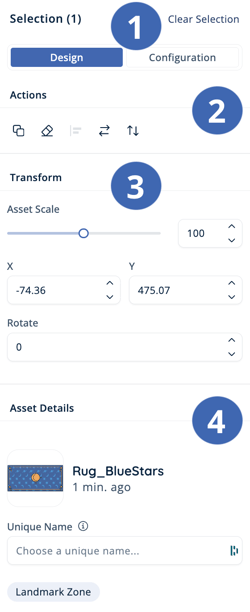 |
- Selection and Tabs
- Selection (#): Shows how many assets are currently selected.
- Clear Selection: Click to deselect asset(s) and close this menu.
- Design Tab: Make changes to the asset(s) appearance.
- Configuration Tab: Make changes to the interactivity of a single asset.
- Actions
Group, duplicate, lock, erase, align, or flip the asset(s). These can also be accessed with keyboard shortcuts. - Transform
Change asset size, location, or rotation. - Asset Details
Shows an image of the asset, it's name in the Asset Library, when it was added to the world, and allows you to specify a Unique Name. If the asset is configured as a zone (i.e. Broadcast Zone, Private Zone, Mute Zone, or Landmark Zone) that information will also be shown here.
A Unique Name makes it easier for you and your team to identify an individual asset. Including a Unique Name is especially helpful for assets that trigger actions such as an asset containing a clickable link. You can use Unique Names to search the 'Placed Assets' list in the Asset Library.
Actions
To Use Group:
Grouping combines several assets into a single unit so you can move, duplicate, and lock them together instead of re-selecting them every time.
- Select two or more asset(s) you want to group.
- Click Group
 in the Actions section of the Asset Selection menu on the right side of your screen.
 - You can also use keyboard shortcuts to group assets. With two or more assets selected, press:
- Mac: Command (⌘) + G
- Windows: Control (Ctrl) + G
- The assets become one group with a default name. You can rename it any time from the Placed Assets list in the Assets Drawer.
- To Edit One Asset Inside a Group:
- Double-click the group to step inside it.
- Click the asset you want to change and edit it as usual.
- Press Escape to step back out. The whole group will be selected again.
- To Ungroup:
- Select the grouped assets you want to ungroup
- Use keyboard shortcuts: Shift + Command (⌘) + G (Mac) or Shift + Control (Ctrl) + G (Windows)
- Click the Ungroup
 icon in the Actions section of the Asset Selection menu on the right side of your screen.
 - From the Assets Drawer: Open Assets Drawer > Placed Assets, then click the Ungroup lock icon next to the grouped assets you want to ungroup.
Groups are saved with your world. If you save your world as a Scene, assets arrive still grouped the next time that scene is used.
Locking a group doesn't overwrite the locks you set on individual assets. Unlocking a group returns each asset to whatever lock state it had before.
To Use Duplicate:
- Select the asset(s) you want to duplicate.
- Click Duplicate
 in the Actions section of the Asset Selection menu on the right side of your screen.
 - Click the canvas to place the asset(s) in the world. The asset(s) will be placed where you click.
- You can also use keyboard shortcuts to duplicate. With one or more assets selected, press:
- Mac: Command (⌘) + D
- Windows: Control (Ctrl) + D
Any changes you made to the original asset(s) will be included when you duplicate (i.e. size, flip, rotation, unique name, and any configuration like attaching content or creating zones).
To Use Lock:
Locking an asset prevents it from being accidentally moved, resized, rotated, or selected on the canvas. This is especially helpful for backgrounds, decorations, and other objects you want to keep in place while continuing to build your world.
- Select the asset(s) you want to lock.
- Click Lock
 in the Actions section of the Asset Selection menu on the right side of your screen.
- A lock icon will appear on the asset in the canvas and next to the asset in the Placed Assets list, making it easy to identify locked assets.
- You can also lock an asset from the Assets Drawer: open Assets Drawer > Placed Assets, then click the lock icon next to the asset.
- A
- To unlock an asset, either:
- On the canvas: Click the lock icon displayed on the locked asset. The lock icon will disappear.
- From the Assets Drawer: Open Assets Drawer > Placed Assets, then click the lock icon next to the asset to toggle it back to unlocked.
- Unlock all assets at once: In the Assets Drawer, click the Unlock all assets lock icon to remove the lock from every locked asset in your world. This button only appears when your world contains at least one locked asset.
You can still edit a locked asset's settings, such as links, media, zones, and integrations, from the Placed Assets drawer. Locked assets only affect editors, visitors and students will not notice any difference in how these assets appear or behave.
To Use Erase (Asset Selection Menu):
- Select the asset(s) you want to erase.
- Click Erase in the Actions section of the Asset Selection menu on the right side of your screen. All selected assets will disappear from the world.
- If you accidentally erase one or multiple assets, use Undo to make them reappear.
- You can also use keyboard shortcuts to erase one or more assets. With the asset(s) selected, press:
- Mac: Delete
- Windows: Backspace
Assets can also be erased by using the erase tool in the Builder Mode toolbar.
To Use Align:
- Select multiple assets.
- Click Align
 in the Actions section of the Asset Selection menu on the right side of your screen.
 - Choose:
- Align Left: Aligns left edges with the leftmost edge of the leftmost asset.
 Align Horizontal Center: Evenly spaces and aligns assets based on horizontal centers.
 Align Right: Aligns right edges with the rightmost edge of the rightmost asset.
 Align Top: Aligns top edges with the topmost edge of the topmost asset.
 Align Vertical Center: Evenly spaces and aligns assets based on their vertical centers.
 Align Bottom: Aligns bottom edges with the bottommost edge of the bottommost asset.
 Distribute Horizontal Space: Evenly spaces and aligns assets along a horizontal axis.
 Distribute Vertical Space: Evenly spaces and aligns assets along a vertical axis.
- If you want to revert back to a previous arrangement of assets, use Undo . You can undo up to 10 changes.
- You can also use keyboard shortcuts to align.
Align makes it easy to do things like creating straight walls or evenly space rows of desks.
To Use Flip:
- Select the asset(s) you want to flip.
- In the Actions section of the Asset Selection menu on the right side of your screen, choose:
 Flip Horizontal: Flips the asset(s) along a horizontal axis.
 Flip Vertical: Flips the asset(s) along a vertical axis.
- You can also use keyboard shortcuts to flip. With one or more assets selected, press:
- Flip Horizontal: Shift + H
- Flip Vertical: Shift + V
Transform
To Adjust Asset Size:
- Select the asset you want to make larger or smaller.
- In the Transform section of the Asset Selection menu on the right side of your screen, either:
- Drag the slider left to decrease size or right to increase size.
- Enter a number between 1 and 200 in the text box.
- Use the up or down arrows to increase or decrease size.
Changing the size of assets is a great way to add natural variation to things like trees or rocks.
To Change Asset Location:
- Select the asset(s) you want to move.
- Change the values in the X or Y fields to reposition the asset(s). You can either:
- Type a number in the field.
- Use the up or down arrows.
- If you have selected multiple assets, the center of your selection will equal the X and Y value entered in step 2. If you are saving the world as a scene, we recommend selecting all the assets in the world and changing both the X and Y values to 0 (zero).
- You can also select and drag one or multiple assets directly on the canvas to reposition.
Similar to a graph with extended X and Y values, the X or Y value of an asset can be negative. However, the Y axis is negative towards the top your screen and positive toward the bottom of your screen. The X axis is negative towards the left side of you screen and positive towards the right side of your screen.
To Use Rotate:
- Select the asset you want to rotate.
- Change the value in the Rotate field. You can either:
- Type a number in the field.
- Use the up or down arrows.
- The asset will rotate around it's own center based on the value in the Rotate field.
Note that rotate does not change the visual perspective of the asset, it rotates the asset around it's center.
Keyboard Shortcuts
Note: Keyboard shortcuts are fully functional on Windows and Linux. On Mac, they work with an EN-US keyboard, but may vary with other layouts.
| Action | Mac | Windows |
| Builder Mode On / Off | B | B |
| Select Tool On / Off | V | V |
| Add an Asset to a Multi-Selection | Shift + Click | Shift + Click |
| Remove an Asset from a Multi-Selection | Shift + Click | Shift + Click |
| Select all Assets | Command (⌘) + A | Control (Ctrl) + A |
| Pan Tool On / Off | H | H |
| Pan | Spacebar + Click and drag mouse | Spacebar + Click and drag mouse |
| Erase Tool On / Off | E | E |
| Undo | Command (⌘) + Z | Control (Ctrl) + Z |
| Redo | Shift + Command (⌘) + Z | Shift + Control (Ctrl) + Z |
| Show / Hide Grid | Shift + G | Shift + G |
| Fit to Screen | Command (⌘) + F | Control (Ctrl) + F |
| Zoom Out 10% | Minus (-) | Minus (-) |
| Zoom In 10% | Plus (+) | Plus (+) |
| With Selected Asset(s) | ||
| Erase | Delete | Backspace |
| Group | Command (⌘) + G | Control (Ctrl) + G |
| Ungroup | Shift + Command (⌘) + G | Shift + Control (Ctrl) + G |
| Duplicate | Command (⌘) + D | Control (Ctrl) + D |
| Align Left | Option (⌥) + L | Alt + L |
| Align Horizontal Centers | Option (⌥) + H | Alt + H |
| Align Right | Option (⌥) + R | Alt + R |
| Align Top | Option (⌥) + T | Alt + T |
| Align Vertical Centers | Option (⌥) + V | Alt + V |
| Align Bottom | Option (⌥) + B | Alt + B |
| Distribute Vertical Space | Shift + Option (⌥) + V | Shift + Alt + V |
| Distribute Horizontal Space | Shift + Option (⌥) + H | Shift + Alt + V |
| Flip Horizontal | Shift + H | Shift + H |
| Flip Vertical | Shift + V | Shift + V |