
| This article explains what a Broadcast Zone is, how to use a Broadcast Zone, and how admins turn an asset into a Broadcast Zone. |
Keep reading to learn about:
 Controlling Access to a Broadcast Zone
Broadcast Zone Tips for Admins
What is a Broadcast Zone?
Broadcast makes a user's video visible to everyone in the world or everyone in a private zone. Broadcast is a great way to make video announcements, share a presentation, or host a Q&A session.
A Broadcast Zone is an asset that places someone on broadcast when their avatar is standing within the Broadcast Zone asset. Each Broadcast Zone can be used by one person at a time. An Approved List can also be added to a Broadcast Zone to control access to broadcasting.
To Use a Broadcast Zone:
- Move your avatar so it's within the asset set as a Broadcast Zone.
- If the Broadcast Zone is not already occupied, your video and audio will automatically start broadcasting to either:
- Everyone in the world if the asset is set as Broadcast - All.
- Everyone in a Private Zone if the asset is set as Broadcast - Private Zone and the Broadcast Zone asset is within a Private Zone.
- If you're successfully broadcasting, you'll see a notification in the bottom left corner of your screen.
- When you're broadcasting, a Broadcast
 icon will appear in the upper left corner of your video tile. Hover over this icon to see which Broadcast type (All or Private Zone) you are using.
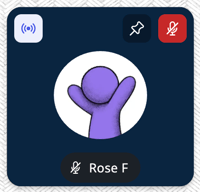
- If the Broadcast Zone is occupied or you are not on the Approved List, you will see a notification in the bottom left corner of your screen.
- To stop broadcasting, move your avatar away from the Broadcast Zone asset. The Broadcast icon on your video tile will disappear and you'll see a notification in the bottom left corner of your screen.
Broadcast Zones for Admins
Editors, Designers, Managers, and world Owners can add Broadcast Zones. Any asset can be set up as a Broadcast Zone. However, we recommend:
- Using an asset large enough to easily move an avatar onto. Rugs make great Broadcast Zone assets!
- Placing a microphone or podium asset on top of the Broadcast Zone asset to indicate broadcast functionality.
- When placing multiple Broadcast Zone assets, leave space between the assets.
- Avoid placing clickable assets near a Broadcast Zone asset.
Broadcast Zones are great for:
- School announcements or assemblies
- Presentations
- Guest speakers
- Q&A sessions
- Allowing students to use broadcast without needing a Moderator to manually place them on broadcast.
Types of Broadcast Zones
| Broadcast - All | Share video and audio with all users in the world. |
| Broadcast - Private Zone | Share video and audio to everyone in a Private Zone. The Broadcast Zone asset must be placed within a Private Zone. |
To Add a Broadcast Zone:
- Click Builder Mode
 in the left sidebar or press B on your keyboard to enter Builder Mode.
 - Find the asset you want to set as a Broadcast Zone. You can:
- Use Pan
 to change your view of the world, then use Select
  and click the asset to open the Asset Selection Menu.
 - Click Assets
 in the left sidebar and search the Placed Assets list. Click an asset in the list to open the Asset Selection Menu.
 - Place a new asset from the SchoolSpace Asset Library. After placing, press ESC on your keyboard then click the asset in the world to open the Asset Selection Menu.
- Use Pan
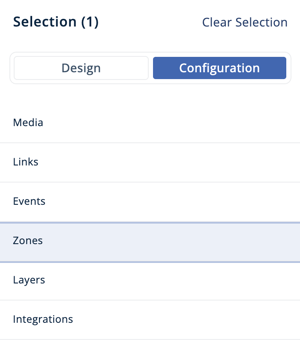
- In the Asset Selection Menu on the right side of your screen, click Configuration → Zones.
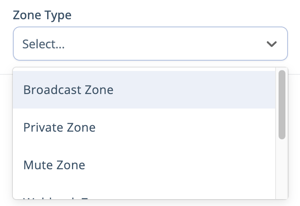
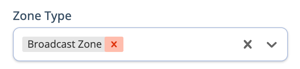
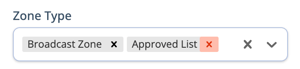
- In the Zone Type dropdown, choose Broadcast Zone. A new Broadcast Zone section will appear below.
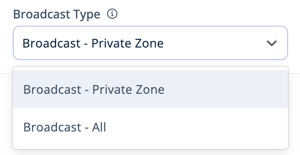
- In the Broadcast Type dropdown, choose either:
- Broadcast - All to share video and audio with everyone in the world.
- Broadcast - Private Zone to share video and audio to everyone in a Private Zone. The Broadcast Zone asset must be placed within a Private Zone.
- To continue building: Click Clear Selection in the upper right of the Asset Selection Menu.
- To exit Builder Mode: Click Builder Mode or press B on your keyboard.
- To disable the Broadcast Zone: Click the X icon on Broadcast Zone in the Zone Type dropdown.
Prefer to have full control over broadcasting? Moderators can manually place others on broadcast.
To Add an Approved List to a Broadcast Zone:
An Approved List is optional. Only people on the Approved List can use the Broadcast Zone.
- Click Builder Mode in the left sidebar or press B on your keyboard to enter Builder Mode.
- Use Select and click the asset set as a Private Zone.
- In the Asset Selection Menu, click Configuration → Zones.
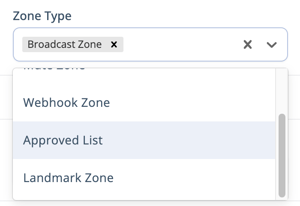
- In the Zone Type dropdown, choose Approved List. A new Approved List section will appear below.
- In the Approved List section, click the purple plus
 button.
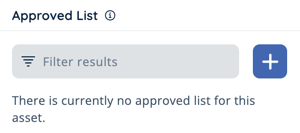
- Choose an Upload Type from the dropdown:
- List: Bulk upload emails. Click Choose File, select a .csv file of user emails. To add emails to an existing list, click the purple 'Add to List' button. To replace an existing list with a new file, click the 'Replace List' button.
- Email Address: Add emails individually. Type an email in the Email Address text box and click the purple 'Add Email' button.
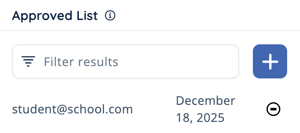
- Emails added will be shown in the Approved List section. Click the back arrow
 in the upper left of the Asset Selection Menu to view these email addresses.
 - To remove someone from the Approved List: Click Remove
 next to their email.
- To disable the Approved List: Click the X icon on Approved List in the Zone Type dropdown.
Student or teacher emails added to an Approved List must match school SSO accounts. If you want to allow external guests to use the Broadcast Zone, add the email addresses used when setting up Guestlist Bypass.
Broadcast Zone Tips
- Rugs make great Broadcast Zone assets! Place a microphone or podium asset on the rug to indicate the Broadcast function. Use a sign or the Custom Text asset to make the Broadcast Zone even more visible. Learn how to search for and place assets.
- Avoid using small assets as Broadcast Zones. While a microphone or podium might seem like a logical choice for a Broadcast Zone asset, the smaller size can make it challenging for people to use Broadcast successfully.
- For Q&A sessions, use at least 3 Broadcast Zone assets: one for each speaker and two for questions. Instruct people to "line up" with their avatars near these Broadcast Zones and wait to ask their question.
- Prefer to have full control over broadcasting? Moderators can manually place others on broadcast.
- Place one or more Broadcast Zones on top of a Private Zone asset. Only people inside the Private Zone will see and hear the broadcaster(s). Create multiple spaces like this for simultaneous presentations in a single world!
- When placing multiple Broadcast Zone assets in an area, leave space between the assets. This helps people clearly see which Broadcast Zone is available vs. occupied.
- Avoid placing clickable assets near a Broadcast Zone asset. Most people move their avatar with their mouse and could accidentally open a clickable when they wanted to walk into the Broadcast Zone.