
| This article explains what the Capture the Flag app is, how to play, and how admins add Capture the Flag to a world. |
Keep reading to learn about:
 Tips for Playing Capture the Flag
Adding Capture the Flag to a World
What is Capture the Flag?
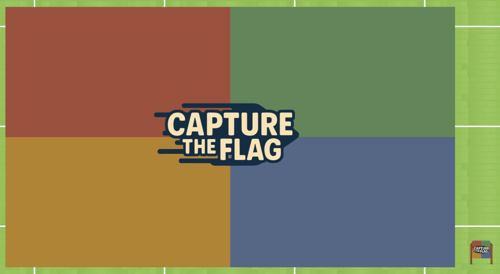
Your mission is simple: steal the enemy flag and bring it to your home base without getting tagged. The first team to do this three times wins! Capture the Flag is a multiplayer game and can be played with 2 or more players.
 |
Playing Capture the Flag
Everyone can play Capture the Flag! You'll need at least 2 players to start the game.
If you don't have someone to play with, try sending a message in the 'Everyone in World' chat channel and invite someone to join your game. When one player joins a game, an Activity Feed notification will also appear automatically with an option to Teleport  to the game. This gives folks a heads up that a game needs more players to begin.
To Play Capture the Flag:
-
Move your avatar into the Capture the Flag game area and click the 'Join' button on the left side of your screen. The first player to click 'Join' is the host.

-
Hover over the Games
 icon on the left side of your screen to open the menu. Toggle on Focus to keep your screen centered on Capture the Flag. Click Pin
  to keep the menu open.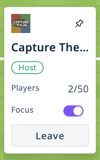
-
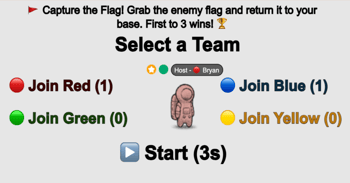
You will automatically be assigned a team color (Red, Blue, Green, or Yellow). Your avatar will change to this color. If you want to change teams, click a different team color at the top of the game area.
-
After at least 2 players have joined and everyone is happy with their team, the host starts the game by clicking ▶️ Start near the top of the game area. The host is the first person who clicked 'Join.'
-
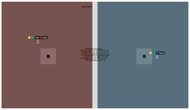
When the game starts, the board will change to team colors. The board will look different depending on the number of teams playing (2, 3, or 4 teams).
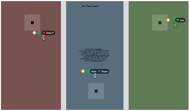
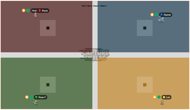
-
To capture a flag:
-
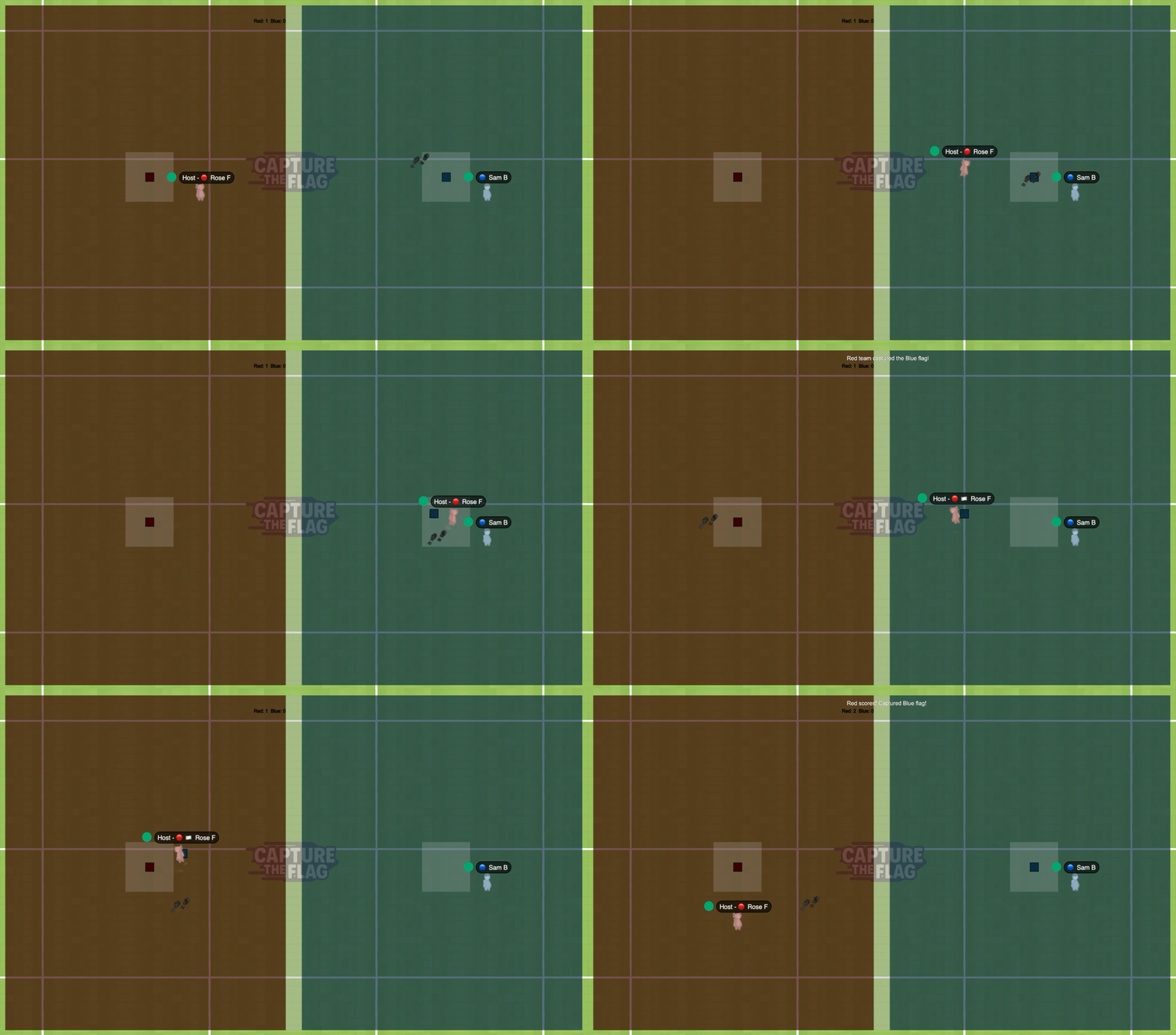
Move your avatar so it touches an enemy flag to pick it up.
-
Once you have a flag, run back to your home base (the lighter square in your team zone).
-
When you reach the center of your home base, you score a point!
-
-
To tag an enemy:
-
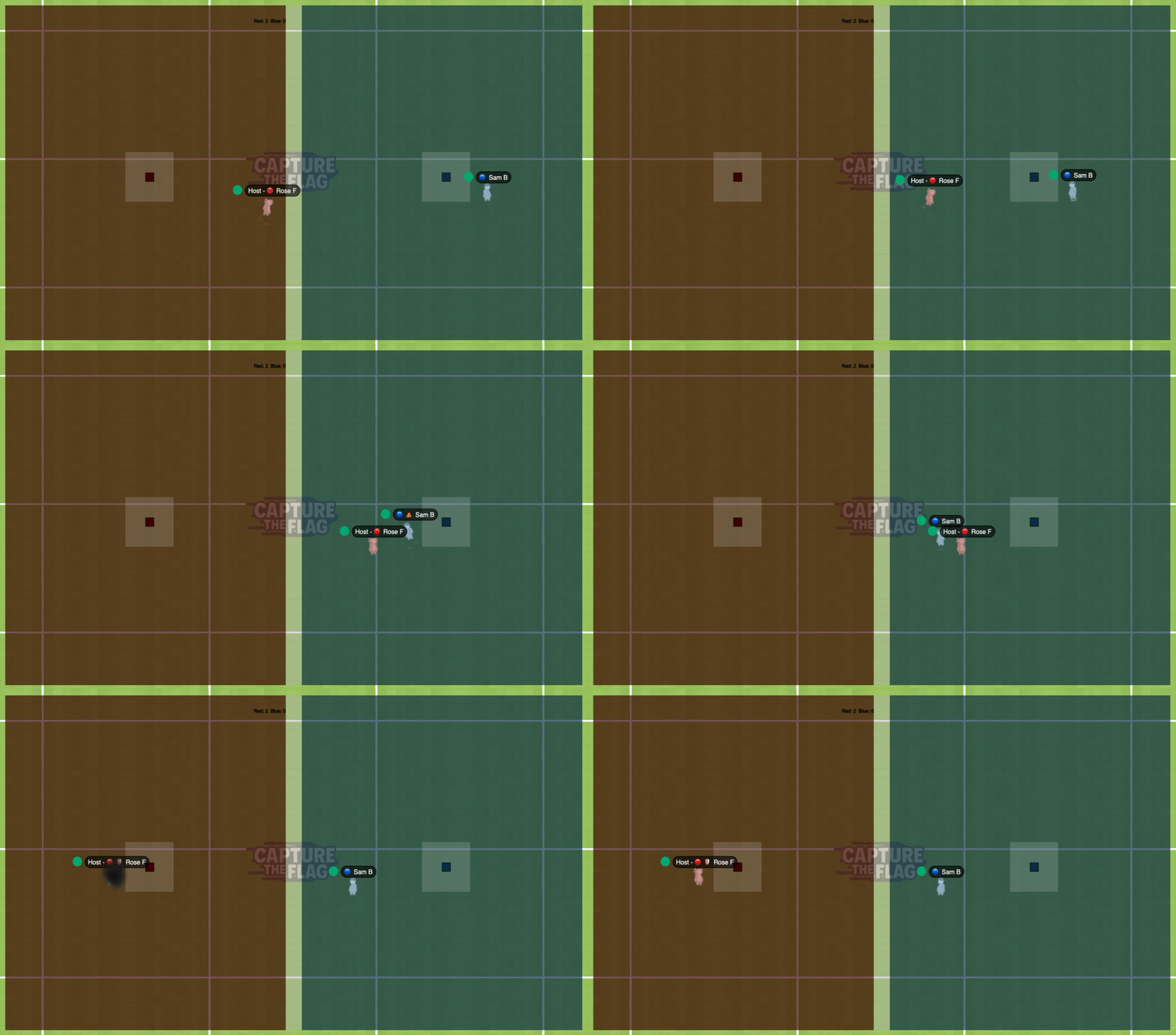
When a player is in another team's zone, they can be tagged.
-
Tag enemy players when they enter your team zone by running up to them and touching them with your avatar.
-
If you get tagged, you'll be teleported back to your team zone.
-
-
No camping! If you hang out in your home base (the lighter square in your team zone) for too long, you'll be teleported out to your team zone.
-
Team scores are shown at the top of the game area. Your team earns 1 point for each captured flag.
-
The first team to successfully capture 3 flags wins!
Tips for Playing Capture the Flag
- Before the host starts the game, make sure everyone who wants to play has joined and is happy with their team color.
- Use Fast Mode to move more quickly.
- Work together! Larger teams have a bigger advantage. You can choose to split into 2 teams instead of 3 or 4.
- Strategize! Before the game starts, talk to your teammates and decide who will play defense (guard your flag and tag enemies) and who will play offense (capture other teams' flags and avoid enemies).
- Guard your flag! Stick near your flag and tag enemies that enter your team zone. But remember, no camping! If you hang out in your home base (the lighter square in your team zone) for too long, you'll be teleported out to your team zone.
- Communicate! Start a group direct message chat with your teammates or use emotes.
Capture the Flag for Admins
Editors, Designers, Managers, or world Owners can add the Capture the Flag app to a world.
To Add Capture the Flag:
-
Enter Builder Mode: Click Builder Mode
 in the left sidebar or press B on your keyboard.
 -
Click Scenes
 in the left sidebar.
 -
Search for 'Capture the Flag' in the
 Filter Results search bar.
 -
Hover over the thumbnail image click Drop Scene
 .
.
- Click an area in the world to drop Capture the Flag in that location.
Note: Capture the Flag takes up a large area. Make sure there's enough room before you click to drop!