
| This article explains what Scavenger Hunt is, how to play, and how admins add, manage, configure, and customize Scavenger Hunt. |
Keep reading to learn about:
 Adding and Configuring Scavenger Hunt as an Admin
Creating a Custom Scavenger Hunt
What is Scavenger Hunt?
Scavenger Hunt is a fun, educational game inside SchoolSpace where everyone searches for hidden items scattered around the world. These items typically contain things like facts or lessons and often help you answer the final challenge question. Once you’ve found all the items, you’ll answer a challenge question based on what you’ve learned. Answer correctly and you’ll unlock a new emote!
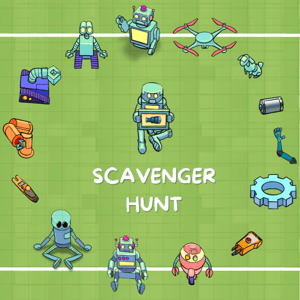 |
The Scavenger Hunt app has a version that can be customized by admins! You might see a Scavenger Hunt with different images than what's pictured above.
Playing Scavenger Hunt
Everyone can play Scavenger Hunt. Explore hidden items placed throughout the world and answer the final challenge question to earn a reward. You'll also earn badges as you play Scavenger Hunt!
To Play Scavenger Hunt:
- Walk around the world and look for items. You can explore on your own or find a buddy and search together.
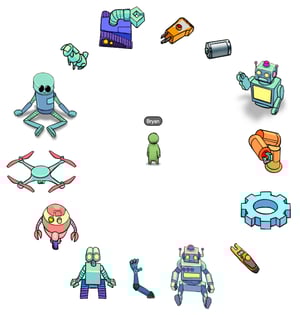
- Items are clickable and your cursor will change to a pointer finger when you hover over a clickable object. Select a clickable object in the world. If the object is a Scavenger Hunt item, you'll see a message at the top congratulating you for finding a item. You might find something to read, watch, or even an interactive activity!
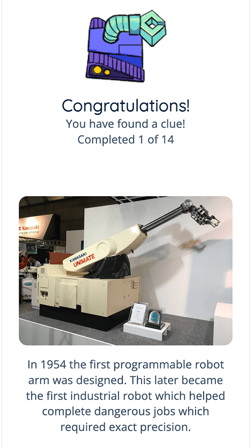
- Check your progress at the top of each item to see how many items you've found and how many items remain.
- After you've found all the items, select the key asset and try answering the Challenge Question!
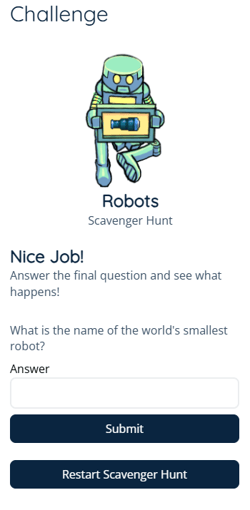
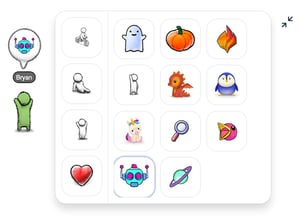
- If you answer correctly you'll receive a new emote! Select your avatar, expand the Expressions menu, and see what you've unlocked. If you answer incorrectly you can try again or go back and review the items to see if you missed anything important.
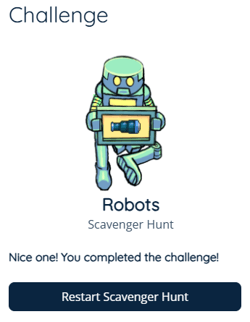
- To play again: Select the key asset and click the Restart Scavenger Hunt button.
Scavenger Hunt Badges
Earn badges and show off your Scavenger Hunt skills! Learn how to add badges to your profile or check your badge progress.
| Badge | Description |
 |
Spark of Discovery |
 |
Quick Thinker Answer the challenge question correctly on the first attempt |
 |
Traveler Collect clues in 3 different worlds |
 |
Scout Collect 25 total clues across one or more scavenger hunts |
 |
Curious Mind Complete 10 scavenger hunts |
Scavenger Hunt for Admins
Editors, Designers, Managers, or world Owners can add Scavenger Hunt to a world. If you want to create a Scavenger Hunt using your own images, use the 'Custom Scavenger Hunt' app.
As an Admin you can:
- Add Scavenger Hunt to your World
- Modify Items
- Add Items
- Delete Items
- Find Items
- Change the Challenge Question
- Check Scavenger Hunt Results
- Create a Custom Scavenger Hunt using your own Images
To Add Scavenger Hunt:
- Click Scenes
 in the left sidebar.
 - Search for 'Scavenger Hunt' in the
 Filter Results search bar.
 - Hover over the thumbnail image for the Scavenger Hunt theme you want to use and click Drop Scene
 .
.
- Click an area in the world to drop Scavenger Hunt in that location.
- After you've dropped Scavenger Hunt, you can hide the items around the world.
- Enter Builder Mode
 and move the Scavenger Hunt items to different locations in your world. Learn how to move assets.
Setting Up Scavenger Hunt
After Scavenger Hunt has been added to a world, Editors, Designers, Managers, or world Owners can modify the items, challenge question, and change the unlock-able emote. This allows you to customize your Scavenger Hunt to fit your lesson or event!
To Modify Items:
- Click the Scavenger Hunt Key Asset. A page will open next to the left sidebar.
- Click Settings
 in the upper left corner of this page.
 - Scroll down to the Items section.
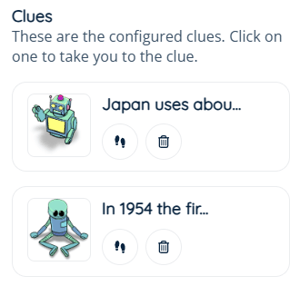
- In the list of items, click on an item to update:
- Item Text: Enter a fact, riddle, or anything else you want people to read when they click this item.
- Item Media URL: Add a link to an image, video, or website page.
- Media Type: Click the dropdown and choose the option that matches the Item Media URL.
- Link Behavior: Choose drawer iframe (item will slide out from the left sidebar) or modal iframe (item will open in the middle of the screen like a popup window).
- Asset Image: This is what the item looks like in the world. Choose one of the available option.
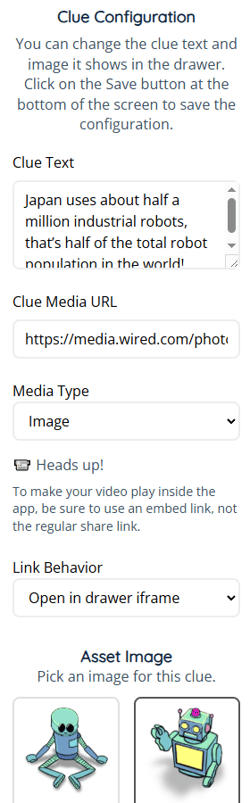
- Scroll down and click Save to apply your changes. To discard your changes, click Close.
To Add Additional Items:
- Click the Scavenger Hunt Key Asset. A page will open next to the left sidebar.
- Click Settings in the upper left corner of this page.
- Scroll to the bottom of the Items section.
- Click Add New Item. A new item will be added to the list. Follow the instructions above to edit the item contents.

To Delete Items:
- Click the Scavenger Hunt Key Asset. A page will open next to the left sidebar.
- Click Settings in the upper left corner of this page.
- Scroll down to the Items section.
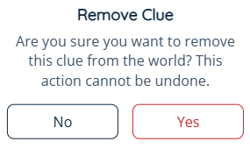
- Click the Trash
 icon next to the item you want to delete.
 - Click Yes to confirm.
To Find Items You Already Placed:
- Click the Scavenger Hunt Key Asset. A page will open next to the left sidebar.
- Click Settings in the upper left corner of this page.
- Scroll down to the Items section.
- Click the Walk
 button on the asset you want to find and your avatar will walk to that item's location.
To Change the Challenge Question, Answer, or Emote:
- Click the Scavenger Hunt Key Asset. A page will open next to the left sidebar.
- Click Settings in the upper left corner of this page.
- At the top off the page, edit the following fields as needed:
- Question Type: This can be Text Answer, Multiple Choice or All That Apply.
- Question: This is the Challenge Question. Type a new question as needed.
- Answer or Options: Type an answer or options that correspond to your Challenge Question. This field is not case sensitive for Text Answer.
- Emote: This is the emote that users unlock when they answer the Challenge Question correctly. Click the dropdown and choose an option.
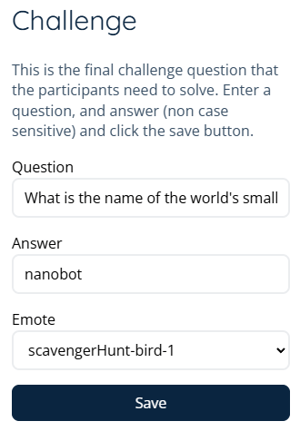
- Click Save to apply your changes.
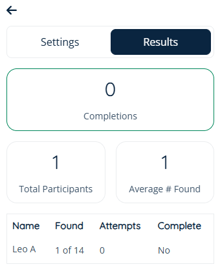
To Check Results:
- Click the Scavenger Hunt Key Asset. A page will open next to the left sidebar.
- Click Settings in the upper left corner of this page.
- Click Results tab. From here you can check the number of completions, total participants, average # found and other participant details.
Create Custom Scavenger Hunt
This section shows you how to add and create your own custom Scavenger Hunt with personalized images. This is similar to the standard Scavenger Hunt described above but with the addition of using your own custom images as items.
To Add Custom Scavenger Hunt:
- Click Scenes in the left sidebar.
- Search for 'Custom Scavenger Hunt' in the Filter Results search bar.
- Hover over the thumbnail image and click Drop Scene .
- Click an area in the world to drop Scavenger Hunt in that location.
To Modify the Challenge Question Image:
- Click the Custom Scavenger Hunt Key Asset (binoculars) in the world. A page will open next to the left sidebar.
- Click Settings in the upper left corner of this page.
- Add your custom image URL in the Challenge Image URL field.
- Scroll down for instructions on creating a custom image URL, or choose an image from this list.
- Click Save.
To Modify the Key Asset Image:
- Enter Builder mode by clicking Builder Mode
 in the left sidebar or press B on your keyboard.
 - Click the Custom Scavenger Hunt Key Asset (binoculars) in the world.
- In the Asset Selection menu on the right side of your screen, click Configuration → Layers.
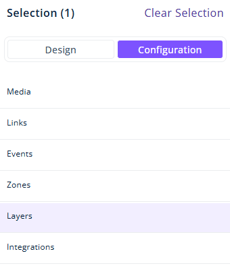
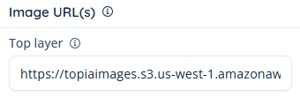
- Add your custom image URL into the Top Layer Field under the Image URL(s).
- Scroll down for instructions on creating a custom image URL, or choose an image from this list.
To Add Custom Items:
- Click the Custom Scavenger Hunt Key Asset. A page will open next to the left sidebar.
- Click Settings in the upper left corner of this page.
- Scroll to the bottom of the Items section.
- Click Add New Item. A new item will be added to the list.
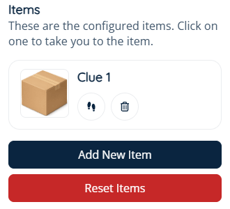
- Click the new item in the list to update Item Text, Media URL, Type and Link Behavior. Or follow the instructions above to edit the item contents.
- Scroll down to the Asset Image section to add the Image URL for the item asset.
- See instructions below to create a custom image URL or choose an image from this list.
The first item (cardboard box) has already been added by default. Click on the item to update the image, item text, etc.
To Change the Challenge Question, Answer, or Emote you can follow the same instructions above.
Creating your own Custom Image URL:
- Create an image with a transparent background. Use a design tool that supports transparency like Photoshop, Photopea, GIMP or Canva with transparency.
- Crop the image to the visible area only and resize it if necessary (recommended max 200px by 200px).
- Export the image as a PNG file.
- Upload the image to a hosting service that provides a non-expiring direct image link with CORS enabled. If you are unfamiliar of any of this, we suggest using a free hosting service like ImgBB.
- Copy the direct link of the image from the hosting service and paste it into the Scavenger Hunt app settings page using the guides for custom item images, custom Challenge Question image, and custom key asset image.
Using ImgBB.com to Host Images
ImgBB is a free, image hosting and sharing service that allows you to upload various image formats and get instant direct links that can be used for the Scavenger Hunt app.
Uploading and Obtaining your ImgBB Custom Image URL:
- Create a free account at ImgBB.com.
- Sign in to your ImgBB account.
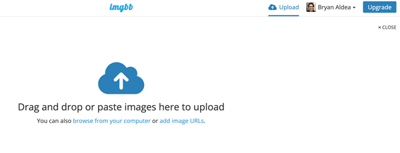
- Click Upload in the upper left corner of the page and upload the Scavenger Hunt image you created. You can also use Drag and drop or paste images on the provided area to upload your image.
- Ensure the setting for Automatically delete image is set to Don’t autodelete and click UPLOAD.
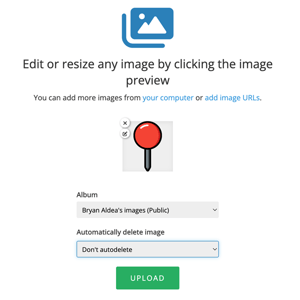
- After upload, select Direct links under Embed codes.
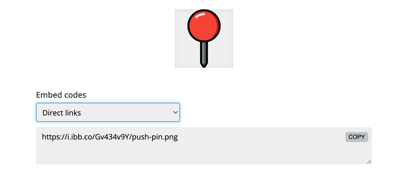
- Copy the direct image URL and paste it into the Scavenger Hunt app settings page using the guides for custom item images, custom Challenge Question image, and custom key asset image.
ImgBB has a 32 MB limit on images. You can also create an album so you can organize the uploaded content saved to your ImgBB account.