
|
This article explains what a Guestlist is, why schools sometimes use a Guestlist to restrict access to a world, and how to set up a Guestlist so only certain students can enter the world. Looking for information about using a Guestlist to invite external people like parents or guest speakers? Check out Allowing Guestlist Bypass. |
Keep reading to learn about:
 Guestlists and Why Schools Use Them
Enabling or Disabling a Guestlist
Manually Adding Guests by Email
Removing People from a Guestlist
What is a Guestlist?
Your SchoolSpace world is set up so only people with a school SSO account are able to enter a world. A guestlist is an additional way for schools to allow a specific list of people into a world. Guestlists can allow a specific subset of students to enter a world, allow external guests to join for special events, or help you manage student access if your school SSO has minimal information tied to accounts.
You may want to use a guestlist if:
- Your school's SSO accounts have limited or no user attributes like grade or class enrollment.
- You want to create a world for a subset of people (e.g., honor roll students, a group project team, club members, etc) but the SSO accounts don't have user attributes to meet these parameters.
- You want to invite students from a different grade into your classroom world.
- You're inviting external guests like parents or community member. Check out Allowing Guestlist Bypass for specific instructions for this scenario!
Managing a Guestlist
Moderators, Managers, and world Owners can manage a guestlist.
To Enable or Disable a Guestlist:
- In the left sidebar, click World Settings
 → Approved Guestlist.
 - In the Settings section, click the Guestlist dropdown and choose either:
- On - Only users on Guestlist can enter: Only people who have SSO access and are included on the guestlist can enter. They will still have to sign in with SSO.
- On - Users on Guestlist bypass SSO: People who have SSO access to the world can enter. People without SSO access (e.g., parents, guest speakers) who are on the guestlist can also enter and sign in with email. Learn more about using Guestlist Bypass to admit external guests.
- Off: Disables the guestlist. People who have SSO access can enter the world.
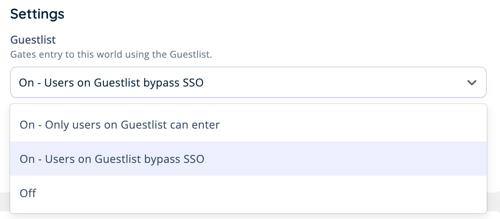
- [Optional] Under Require Guestlist Display Name:
- Toggle on to require people on the guestlist to enter with a preset display name. Students with SSO accounts already have a preset display name that will always be used. For external guests like parents, you will need to include a display name for each user when you add them to the guestlist.
- Toggle off to allow people on the guestlist to choose their own display name. Students with SSO accounts already have a preset display name that will always be used.
- Add people to the guestlist by uploading a .csv file or add each person manually.
Student have preset display names that cannot be changed. These preset student display names will always be used, even if Require Guestlist Display Name is toggled off.
To Upload a Guestlist:
- Create a spreadsheet using Google Sheets or Excel.
- Use the following format in your spreadsheet. Do not include any column headings.
[email] [first name]
[Optional][last name]
[Optional][display name]
[Optional] - Download the spreadsheet as a
.csvfile. - In the left sidebar, click World Settings → Approved Guestlist.
- In the Upload Guestlist section, click Choose File and select your
.csvfile. - Choose:
- Replace Guestlist to overwrite an existing guestlist with your file.
- Add to Guestlist to keep your existing guestlist and add the people in your file to the existing guestlist.
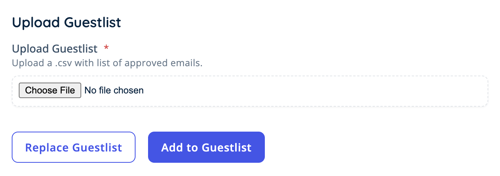
Students with SSO accounts already have preset display names. Do not include Display Names when uploading a guestlist that contains students with SSO accounts.
To Manually Add a Guestlist:
- In the left sidebar, click World Settings → Approved Guestlist.
- In the Add Email to Guestlist section, add:
- [Required] Email Address.
- [Optional] Display Name.
- [Optional] First Name.
- [Optional] Last Name.
- Click Add Email to Guestlist to add the person.
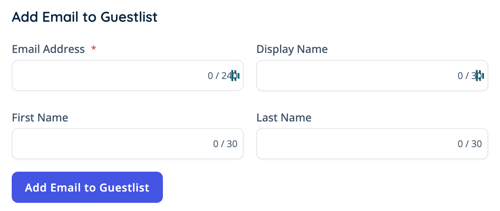
Students with SSO accounts already have preset display names. Do not include Display Names when manually adding students with SSO accounts to the guestlist.
To Remove a Guest from the Guestlist:
- In the left sidebar, click World Settings → Approved Guestlist.
- Scroll down to the Guestlist table section.
- If needed, use the
 Filter Results search bar to find a specific guest.
 - In the Actions column, click Remove
 next to the guest to prevent them from entering the world.
This will not remove a person from the world if they already entered before being removed from the guestlist. You can use Safety Actions to remove them from the world immediately.
Guestlist Tips
Use this chart to help you figure out which Guestlist dropdown option fits your needs.
| I want to... | Choose: |
| Allow only a specific subset of students into a world. | On - Only users on Guestlist can enter |
| Create a world for only my students but my school's SSO accounts don't include enough information for me to do this with SSO. | On - Only users on Guestlist can enter |
| Invite students from another grade or class to join my world and allow my students with SSO access to also enter. | On - Users on Guestlist bypass SSO |
| Invite external guests into a world and allow students and teachers with SSO accounts to also enter. Learn more. | On - Users on Guestlist bypass SSO |
| Return my world to it's normal access settings. | Off |