
| This article explains Chaperone Mode and Silent Mode - how these tools keep students safe by controlling when they can communicate with each other in SchoolSpace and how they help teachers and parents worry less about student safety online. |
Keep reading to learn about:

What is Silent Mode?
SchoolSpace was designed to help students learn, explore, and connect in a safe virtual environment. Silent Mode supports this by turning off all communication in a world. All video tiles will disappear and the Messages  icon on the left sidebar will be removed. Silent Mode can be turned on manually or automatically via Chaperone Mode.
Silent Mode disables:
|
Students can still:
|
What is Chaperone Mode?
Chaperone Mode automatically activates Silent Mode when the last Moderator leaves a world. Every SchoolSpace world is configured with Chaperone Mode by default for K-12 users to ensure communication only happens with supervision.
Using Silent Mode
Moderators, Managers, and world Owners can easily update the Silent Mode setting while in a world. If a Moderator, Manager, or Owner enters the world while it’s in Silent Mode, a pop-up will ask if they’d like to turn Silent Mode off.
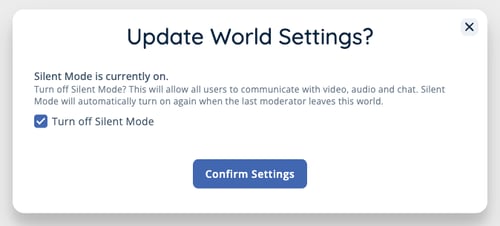 |
Moderators, Managers, and world Owners can also manually turn Silent Mode on or off while present in a world to instantly stop or allow communication.
When Silent Mode is on, communication between admins is disabled. If you want to communicate with other admins and disable student communication you can turn off camera and microphone access and disable chat channels and direct messaging.
To Manually Enable or Disable Silent Mode:
- In the left sidebar, click World Settings
 → General User Controls (you may need to scroll to the bottom of the list).
 - In the Communication section under Silent Mode:
- Toggle on to enable Silent Mode and instantly stop all student to student communication.
- Toggle off to disable Silent Mode and allow student to student communication.

Automatically Enabling Silent Mode
When a world is configured with Chaperone Mode on, Silent Mode will automatically activate whenever there is no Moderator in the world. So, if a teacher’s internet drops during a lesson, communication will be automatically disabled in the world but students will still be able to explore and engage with content safely, without talking or messaging when unsupervised.
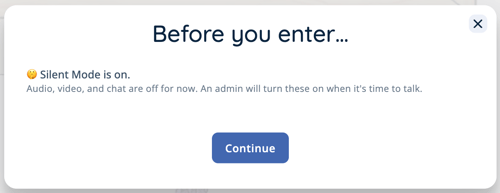
If a student enters a world that is open and Silent Mode is turned on, they will see a message alerting them that Silent Mode is on and communication will not be possible until allowed by an admin.
 |
Want a non-chaperoned world for a special project or event? Contact SchoolSpace Support at support@schoolspace.io.
Why Silent Mode Matters
"Set it and forget it" safety - Teachers can confidently schedule a world to open, knowing that students will not be able to communicate in an unsupervised space, even if the teacher is not present at the scheduled open time.
More time to explore, safely - Students can keep exploring after school without risk of unsupervised chatting.
Peace of mind during tech issues - If a teacher drops offline, SchoolSpace automatically reverts to Silent Mode.