| This article explains how users with Moderator, Manager, or Owner permissions can easily enable or disable camera or microphone access for users in a SchoolSpace world. As a world administrator in SchoolSpace, you have complete control over camera and microphone access for non-admin users like students. You can disable these features in your world. |
Keep reading to learn about:
 Overview of Camera Access and Microphone Access
Why Schools Use These Settings
Manage Camera Access for the Entire World
Manage Camera Access for an Individual User
Manage Microphone Access for the Entire World
Manage Microphone Access for an Individual User
What are Camera Access and Microphone Access?
Camera Access and Microphone Access are settings that control a non-admin user's ability to turn their camera or microphone on or off in a world. Moderators, Managers, and world Owners can change these settings to allow users to freely turn their camera or microphone on or off or prevent users like students from turning their camera or microphone on or off unless individually allowed by an admin.
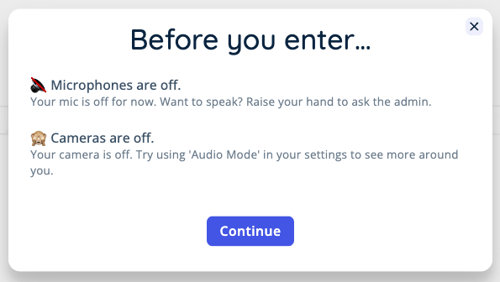
When a non-admin user (like a student) enters a world where Camera Access or Microphone Access is disabled, they will see an alert informing them of the current setting.
 |
Admins like Moderators are always able to freely use their camera or microphone.
Why Schools Use These Settings
These tools are part of how SchoolSpace keeps students safe while promoting engagement and belonging. School leaders and teachers often use these controls to:
- Limit distractions during large events or presentations.
- Prevent background noise in classroom sessions.
- Support student privacy and safety.
- Help manage behavior in open social worlds.
Camera Access
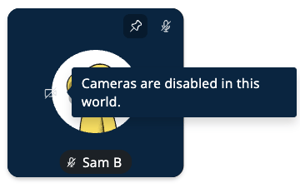
When Camera Access is toggled off, non-admins will see that their camera  icon is disabled. When a non-admin hovers over the camera icon, they will be alerted that cameras are disabled. Non-admins will only be able to use their camera if a Moderator grants them individual access.
 |
You can change Camera Access at any time - even when students are in the world.
To Enable or Disable Camera Access for the Entire World:
- Click the Users Menu
 button on the right side of your screen.
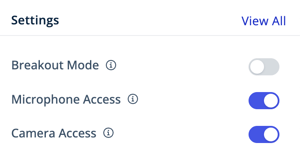
- In the Settings section of the Overview tab, next to Camera Access:
- Toggle on to allow non-admin users to freely turn their camera on or off.
- Toggle off to prevent non-admin users from turning their camera on unless manually turned on by an admin.
- Or, in the left sidebar click World Settings
 → General User Controls
 - Under Camera Access:
- Toggle on to allow non-admin users to freely turn their camera on or off.
- Toggle off to prevent non-admin users from turning their camera on unless manually turned on by an admin.

Admins like Moderators can always turn their camera on or off freely. They are not impacted by the Camera Access setting.
To Enable or Disable Camera Access for an Individual User:
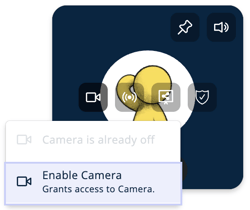
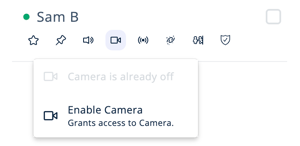
- Click Camera Settings
 in either:
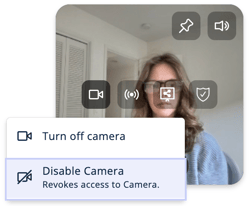
- The user's video tile. You will need to hover over their video tile to see the Camera Settings icon.
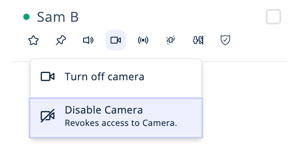
- Under the user's name in the Current Users tab of the Users Menu .
- The user's video tile. You will need to hover over their video tile to see the Camera Settings
- Depending on the world or the individual user's Camera Access setting, you will see the following options:
- Disable Camera: Select this option to revoke the user's ability to use their camera.
- Enable Camera: Select this option to allow the user to freely use their camera.
Microphone Access
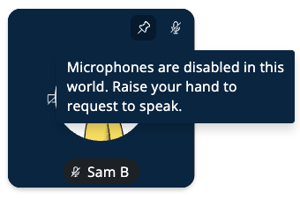
When Microphone Access is toggled off, non-admins will see that their microphone  icon is disabled. When a non-admin hovers over the microphone icon, they will be alerted that microphones are disabled. Non-admins will only be able to use their microphone if a Moderator grants them individual access.
 |
You can change Microphone Access at any time - even when students are in the world.
To Enable or Disable Microphone Access for the Entire World:
- Click the Users Menu button on the right side of your screen.
- In the Settings section of the Overview tab, next to Microphone Access:
- Toggle on to allow users to mute or unmute themselves.
- Toggle off to keep users muted unless unmuted by a Moderator or World Admin
- Or, in the left sidebar, click World Settings → General User Controls (you may need to scroll to the bottom of the list).
- Under Microphone Access:
- Toggle on to allow users to mute or unmute themselves.
- Toggle off to keep users muted unless unmuted by a Moderator or World Admin.

Admins like Moderators can always mute or unmute freely. They are not impacted by the Microphone Access setting.
To Enable or Disable Microphone Access for an Individual User:
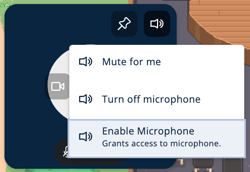
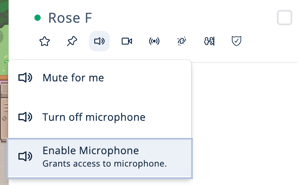
- Click Audio Settings
 in either:
- The upper right corner of the user's video tile.
- Under the user's name in the Current Users tab of the Users Menu .
- Depending on the world or the individual user's Microphone Access setting, you will see the following options:
 Disable Microphone: Select this option to mute the user and revoke their Microphone Access.
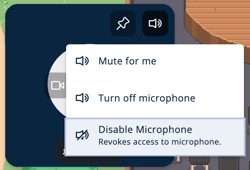
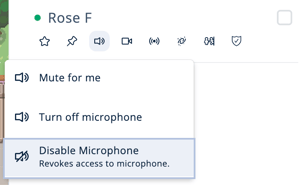
- Enable Microphone: Select this option to allow the user to freely use their microphone.