| This article covers the Users Menu including how to access it, what you'll find, and how to use it to see everyone in the world, teleport to a person, raise your hand, or perform safety actions. |
Keep reading to learn about:
 Viewing or Changing Communication Settings for the Entire World
Showing or Hiding the Current Users Tab
What is the Users Menu?
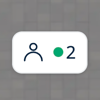
The Users Menu  shows everyone in the world with you and contains actions students and Moderators can perform. It helps people find each other in the world and update personal and world settings. You can access the Users Menu from the floating button on the right side of your screen. The button will always display the total number of users currently in the world.
 |
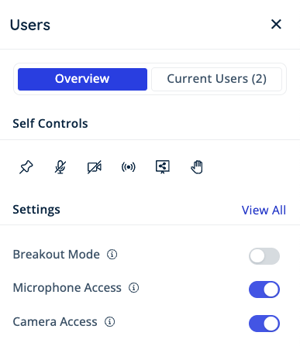
The Users Menu contains two tabs: Overview and Current Users.
If the Current Users tab is not shown, access may have been disabled by your school. Moderators can enable or disable the Current Users tab.
| The Overview Tab | |
|
|
 |
 |
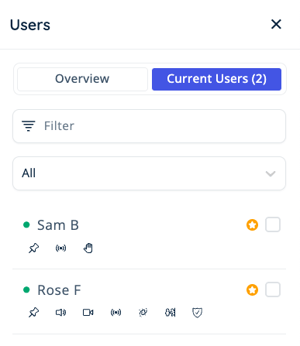
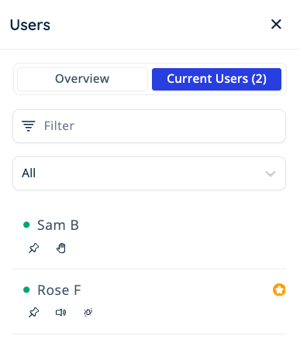
| The Current Users Tab | |
|
|
 |
 |
As a teacher, the Users Menu allows you to multi-task and have both chat (on the left) and classroom tools (on the right) open.
Accessing and Using the Users Menu
To Open the Users Menu:
- Click the floating Users Menu button on the right side of your screen. The button will always display a count of users currently in the world.
- The Users Menu will open on the right side of your screen. You will see tabs for Overview and Current Users. If Current Users is not visible, it may have been disabled by a Moderator.
To Adjust Self Controls from the Users Menu:
- Open the Users Menu .
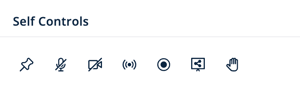
- In the Self Controls section of the Overview tab, you can click:
- Pin Video
 to increase the size of your own video tile.
 - Microphone
 to mute or unmute your microphone.
 - Camera
 to turn your camera on or off.
 - Broadcast
 and choose an option to Broadcast your video. Broadcast is typically only available to admins like Moderators.
 - Record
 to start recording your video. Students are not able to start a recording. Only admins like Moderators can start recordings for themselves or students.
 - Share Screen
 to screenshare. Screensharing is typically only available to admins like Moderators.
 - Raise Hand
 to add your name to the Raised Hands Queue. The option to Raise Hand can be disabled by Moderators.
- Pin Video
To View or Adjust Communication Settings from the Users Menu:
- Open the Users Menu .
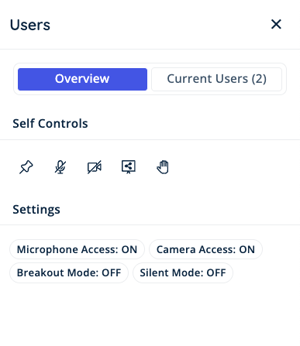
- In the Settings section of the Overview tab, students and non admins can view the current status of each setting.
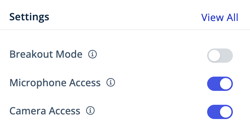
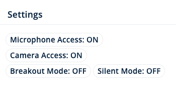
Admin View Student View - From here, Moderators can toggle on or off:
- Breakout Mode: Toggle on to assign users to Breakout Groups. Toggle off to turn Breakout Mode off.
- Microphone Access: Toggle on to allow users to freely use their microphone. Toggle off to mute all microphones and prevent users from unmuting.
- Camera Access: Toggle on to allow users to freely use their camera. Toggle off to turn off all cameras and prevent users from turning their camera on.
Learn more about using Breakout Mode.
To View or Use the Current Users list:
- Open the Users Menu .
- Click the Current Users tab. If Current Users is not visible, it may have been disabled by a Moderator.
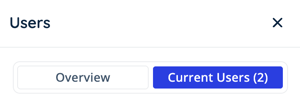
- To find a specific user, scroll the list, type their name in
 Filter, or click the dropdown to view users in different Landmark Zones.
 - From here, all users can choose:
- Pin under your name or another user's name to expand that user's video tile.
- Raise Hand under your name to add your name to the Raised Hands Queue.
- Mute
 under another user's name to mute that person's audio. This only mutes the user for the person doing this action. Others will still be able to hear the user.
 - Teleport
 to instantly move to that user's location.
 - Your own name to:
- Change your Availability.
- Change your Mood.
 View Profile to view your profile.
- Another user's name to:
- View Profile.
 Send Message to send a direct message.
 Add Friend or
  Remove Friend.
 Report User.
 Block User or
  Unblock User.
- Pin
- Additionally, Moderators can choose:
- Grant Admin Permissions
 to make the user an admin in the world.
 - Audio Settings and choose:
- Mute for Me to mute that person's audio. This only mutes the user for the person doing this action. Others will still be able to hear the user.
- Turn Off Microphone to mute the user for everyone. The user can freely unmute.
 Disable Microphone to mute the user and revoke their Microphone Access. The user will not be able to unmute unless Microphone Access is granted by an admin.
- Camera Settings and choose:
- Turn Off Camera to turn off the user's camera. The user can freely turn their camera back on.
 Disable Camera to turn off the user's camera and revoke their Camera Access. The user will not be able to turn their camera back on unless Camera Access is granted by an admin.
- Broadcast to place yourself or another user on Broadcast.
- Record to start recording your video or another user's video.
- Teleport User to My Location
 to move the user to your location in the world. To move multiple users or all users:
- Click the check boxes to the right of the users' names. Click Select All at the bottom to select all users in the world.
- At the bottom, click Teleport to Me to move the selected users to your location in the world or Teleport to Landmark Zone
 to move the users to a Landmark Zone.
- Safety Actions
 and choose:
- Remove User from World to instantly remove the user. The user will be able to rejoin.
 Ban User from Chat Channels to revoke the user's ability to send messages in Chat Channels. The user will still be able to view messages in the Chat Channels. They must be unbanned by a Moderator to send messages in Chat Channels.
 Ban User from World to remove the user from the world and revoke their access. The user will not be able to rejoin until they are unbanned by a Moderator.
- Grant Admin Permissions
Detailed instructions for Moderators, Managers, and world Owners can be found in the Moderation Handbook.
To Enable or Disable the Current Users Tab:
Moderators, Managers, and world Owners can change this setting.
- In the left sidebar, click World Settings
 → General User Controls.
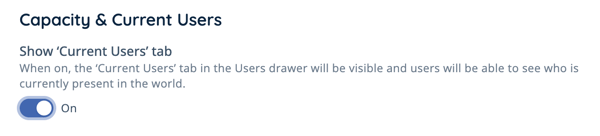
 - In the Capacity & Current Users section under Show 'Current Users' tab:
- Toggle On to make the Current Users tab (formerly known as the 'Current Users List') visible to everyone
- Toggle Off to hide the Current Users tab for all non-admins like students. Moderators and world admins will still have access.