
| This article explains all the newest changes to the SchoolSpace platform. |

September 10, 2026: More reliable captions and transcripts, new duration analytics, and smoother worlds
Update: Captions and Recordings You Can Count On
Live captions now hold up through a full lesson, no dropping out or falling behind when someone talks for a while. Recordings finish processing faster, and transcripts now generate reliably every time, so you'll find the written record sitting right alongside the video in your Dashboard.
Note: Captions are supported in Chrome, Edge, and Safari. If you're on a browser that doesn't support them, you'll see a quick message letting you know.
New: See How Students Are Participating
Our new Insights analytics page now tracks time as well as counts, like the average time spent on camera and on microphone. It's a different kind of picture than headcount alone: you can see how actively students engaged, not just how many showed up. These charts start fresh from today, so give them a few lessons to fill in.
Update: A Smoother Ride Around Your Worlds
Moving through a world just feels better. The camera follows along evenly instead of jittering, avatars move without stutter, and busy worlds with a lot of students in them load reliably.
August 27, 2026: New analytics, live captions, and more classroom controls
Update: Include Student Video in Gallery Mode Recordings
Managers can now decide for themselves whether student video is captured when you record a Gallery Mode session — no need to email us to have it changed. The setting lives under World Settings → General User Controls → Recording, and it's off by default, so student webcams stay out of recordings unless you deliberately turn it on. Turning it on asks you to confirm you've checked your school's rules on recording students and have the consent you need.
If you flip the setting mid-recording, the recording already in progress isn't affected — the change applies to your next one.
New: Decide Who Can Teleport to Other People
Teleporting is great for catching up with a friend or joining a group, but it can pull a class in every direction mid-lesson. You can now set who's allowed to do it for the whole world under World Settings → General User Controls → Teleport to User Access: anyone in the world (the default), administrators only, or no one at all.
When teleporting is limited, the option simply isn't there for students — not in the Current Users list, the profile pop-up, or the Social Hub. Your own ability to bring a student to you works exactly the same no matter which option you choose.
New: Insights, a Build-Your-Own Analytics Page (Beta)
Insights is a new analytics page where you arrange the numbers you care about into a board instead of scrolling a fixed report. Drag and drop cards so the figures you check most are the ones you see first, choose from more card types than the previous page offered, and break a chart out by group to compare groups side by side on the same chart.
Once you've set up a board, save it and come back to it — no rebuilding it every visit. Insights is in beta, and the existing analytics pages are all still available.
New: Guided Product Tours
New to a feature? Guided tours now walk you through it from inside the world, highlighting each part of the screen as they go, so you learn where things are by looking right at them. Every tour available to you lives in the Help drawer under Product tours.
First up is a Gallery Mode tour covering the presenter stage, the audience area, and the controls along the bottom — with an extended version for moderators that also covers the tools for running a session. You'll be offered it automatically the first time you enter Gallery Mode, and it's always there in the Help drawer if you'd rather come back to it later.
New: Live Closed Captioning
Closed captions are here. Hover over someone's video tile, open Additional Options, and click Captions to see what they're saying transcribed live on screen — while you're moving around the world or in Gallery Mode. Helpful for students who are hard of hearing, students still building English fluency, and anyone in a noisy classroom.
Captions are available in English only right now.
Update: Send Message Opens the Right Conversation
Clicking Send Message on someone's profile now drops you straight into your conversation with that person, instead of opening the Messages drawer and leaving you to hunt for their name.
Update: Keep Your Camera Out of the Way While Screensharing
Sharing your screen in Gallery Mode with your camera on? You can now drag your camera preview to any of the four corners and it'll snap into place, so you can keep the important part of your slide visible while staying on camera.
Update: Easier Group Editing in Builder Mode
Hovering over a grouped asset now outlines the whole group, so you can see exactly what you're about to move. And when you duplicate a group, the copy attaches to your cursor — click where you want it instead of dragging it out from on top of the original.
August 7, 2026: Updates to chat and grouped messages.
New: Dedicated Chat Channels for Breakout Groups
Keeping breakout group conversations organized just got easier. Every breakout group now gets its own live chat channel, complete with unread message indicators and notifications when participants join or leave. Moderators can view every group's chat at once, so you can check in and offer support without interrupting the flow of small-group work. Turn it on anytime under Settings → Messaging → Breakout Group Messaging.
New: Group Assets Together in Builder Mode
Building complex worlds is faster now that you can group multiple assets and move, duplicate, flip, or lock them as one unit. Select two or more assets and press Ctrl/Cmd + G to group them — they'll show up as a single, collapsible item in your Placed Assets list, and you can still double-click into a group to tweak one asset without breaking the rest apart. Groups are saved with your scenes, so complex layouts are easy to reuse.
New: Block History for Administrators
Administrators reviewing moderation cases can now see a full picture of a student's block activity. The User Details page in the Dashboard includes new Blocks and Block History tabs, showing current blocks and a timeline of when users were blocked or unblocked, with quick links to the other student's profile for context. Note that history only includes blocks recorded after this feature launched.
New: Reply to Specific Messages
It's now easy to keep busy conversations clear and reply directly to an individual message so everyone can see exactly what you're responding to.
New: React to Messages
Sometimes a quick reaction says it all. You can now respond to any message with an emoji, whether you're celebrating a win or just letting someone know you saw their message.
New: Custom Chat Backgrounds
Make conversations feel more like your own with a custom chat background. Pick a solid color or choose from a list of available images.
Update: Reposition Your Camera Preview While Screen Sharing
When you're sharing your screen with your camera on, you can now drag your camera preview to any corner of the screen, and it'll snap neatly into place. This is handy for keeping both your face and your content visible during a lesson.
July 17, 2026: New Presentation Tools and Redesigned Scene Library
New: Presentation Tools
Hosting a lesson just got smoother. You can now pull up a whiteboard, share a PDF, or play a video for your class, all without sharing your screen. That means no more mismatched windows or choppy audio when you're trying to show a clip. Just click Start Presentation from the toolbar in either Explore or Gallery Mode, pick your tool, and you're live. Whiteboards can even be saved and reused for next time.
Update: Scene Library Redesign
Finding the right world just got faster. The Scene Library now has categories and tags, so you can filter down to exactly what you're looking for instead of scrolling through everything. Scene cards also show more at a glance: a bigger preview, a quick description, and one-click options to add a scene or drop it right into your world.
New: Lock Assets in Place While You Build
Tired of accidentally moving an asset while editing your world? You can now lock any asset so it stays put, no more accidental moves, resizes, or rotations. Students and visitors won't notice a thing; it's purely a build-time convenience for you.
Update: More Control Over Breakout Groups
When shuffling students into breakout groups, you can now choose whether moderators get shuffled in with everyone else or kept separate — whichever fits your lesson better.
Update: Smoother Mute Zones During Broadcasts
If you're broadcasting to your class, walking into a Mute Zone will no longer cut off your mic mid-sentence. Everything returns to normal once you stop broadcasting, and Mute Zones still work as expected for everyone else.
June 4, 2026: Phrases, Messaging Updates, and Experiences Drawer
New: Phrases
Students can now communicate using a list of pre-approved phrases that can be sent in chat or displayed above their avatar. Designed to support younger learners and encourage safe social interaction, phrases make it easy for students to ask questions, invite classmates to play, and respond with simple messages, even in Silent Mode.
New: Ask a Moderator Chat
Students can now send questions directly to world moderators through the new Ask a Moderator Chat. Moderators can respond from a unified "Moderator" identity, creating a simple and consistent support experience for students.
This feature can be enabled on a per-world basis and includes a customizable message for when moderators are unavailable.
New: Experiences Drawer
We’ve expanded the This World drawer (the world icon in the left sidebar) with a brand-new Experiences section, making it easier than ever for students to discover and engage with everything their world has to offer.
- View all games and activities available in the world
- Browse avatar accessories and badges, with filters for All, Earned, and Locked
- Instantly teleport to their favorite games and activities
Update: Ban Student by Email Address
World admins can now proactively ban students directly from the dashboard using their email address without the need for the student to enter the world first. This new capability gives administrators more control over access and helps address moderation concerns before they become issues.
May 12, 2026: Animated Assets, Keyboard Shortcuts, and AV Updates.
Update: Placed Assets drawer now shows Unique Name
When you open the placed assets drawer, you will now see the name of the asset and the unique name below it (if applicable). This makes it easier to find specific assets if you have multiple of a certain asset in the world.
Update: Gallery Mode
Presenter/audience distinction is clearer, moderators have better controls for promoting and demoting users, and raise hand + drag-and-drop behavior has been refined for smoother session flow.
Update: Audio & Video
- Separate microphone and speaker selection
The enter-world audio dropdown is now split into two — one for input (mic) and one for output (speaker) — so users with different mic and speaker hardware can configure each independently. - Mute audio on assets with embedded media
Users can now mute audio individually on video/embed assets (e.g. Twitch streams, embedded videos), so they can talk over them without needing an admin or world owner to turn the audio off. Mutes apply only to the user who triggered them.
Update: Broadcast Zone
We added a clearer error message for unauthorized Broadcast Zone users. The notification shown to users who walk into a broadcast zone without being on the approved list has been rewritten to clearly explain that they have access to the space but not to broadcast - and what to do about it.
Animated Assets
We've added a new "Animated Assets" category to the asset library featuring assets that actually move — including butterflies, a frog, a treasure chest, and a spinning coin.
To find them, open the asset library, go to SchoolSpace Assets, and select "Animated Assets" from the Filter by Category dropdown.
Copy & Paste Shortcuts
You can now use Ctrl+C to copy an asset (or group of assets) and Ctrl+V to paste! This shortcut works both inside a world and across worlds. (Cmd+C and Cmd+V for Mac users)

April 21, 2026: Gallery Mode, Breakout Groups, World Background Images, Recording Transcription
Update: Gallery Mode
We've made some improvements to Gallery Mode that improve the experience when people have low internet bandwidth! Now, presenters and screenshare will be prioritized for people with spotty internet. This means some people might not see all participants videos when using Gallery Mode.
We've also updated the student experience in Gallery Mode to default to Presenter View. This makes Gallery Mode more efficient. Teachers can still switch their view between Presenter and Gallery View. Teachers also have an option to toggle on student access to Gallery View.
Screensharing has also been updated in Gallery Mode to allow all presenters to screenshare regardless of the world's screenshare access setting. Previously, if a world was set to 'Request Access Only' for screensharing, non-admin presenters could not screenshare. This update fixed that issue!
Update: Breakout Groups
Moderators can now create, manage, and edit breakout group presets directly from World Settings, including pre-assigning users to specific groups before a Breakout Groups session begins.
Moderators can upload a CSV file to bulk-assign users to Breakout Groups, replacing manual entry and making large classroom setups much faster.
The Users Menu now includes additional Breakout Group controls allowing Moderators to apply presets, manage live arrangements, and control whether users can move between groups mid-session.
Update: Default World Background Images
World admins can now choose from a curated library of built-in background images when setting up a world, in addition to uploading their own. This means less time searching for or creating tiled background images!
Update: Recording Transcription
Failed or timed-out recording transcripts can now be retried for processing. We're also planning on adding a progress bar for transcript processing, stay tuned!
Other Updates
- Replacing a scene now asks you to confirm before completing the action. This gives you a moment to confirm if you want to clear everything and replace with something completely new.
- When you a replace a scene, the current scene will be saved automatically! A history of 10 versions of a world will be saved so you can revert back if necessary.
- When a Landmark Zone is selected in the Current Users filter but no people are in that Landmark Zone, you'll now see that the Landmark Zone is empty instead of a blank screen.
- When a student cannot enter a world, the error message will now give more information about why they can't enter. This makes it easier for school admins to understand why the student is having trouble accessing a world.
April 1, 2026: Custom Avatar, Welcome Modal, Recording Transcription, LTI 1.3 / Canvas
Update: Custom Avatar Skin Tone and Photobooth
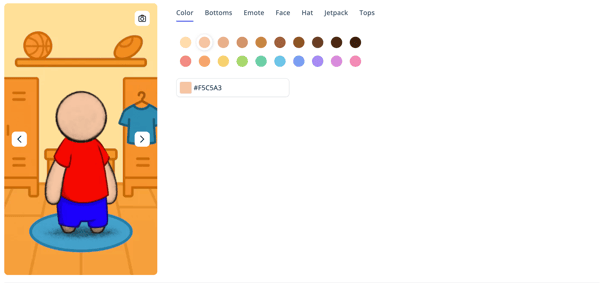
Custom avatars now allow you to choose a skin tone! There are several pre-configured colors (both real skin tones and fun skin tones). User also have the option to choose a custom color with the color selector or by inputting a hex code.
 |
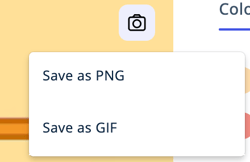
We've added a photo icon that allows you to download an image or GIF of your stylish avatar! In Customize Avatar, click the photo icon in the upper right of the avatar preview. You can download a PNG of your avatar sitting or a GIF of your avatar dancing in the dressing room.
 |
Update: Welcome Modal
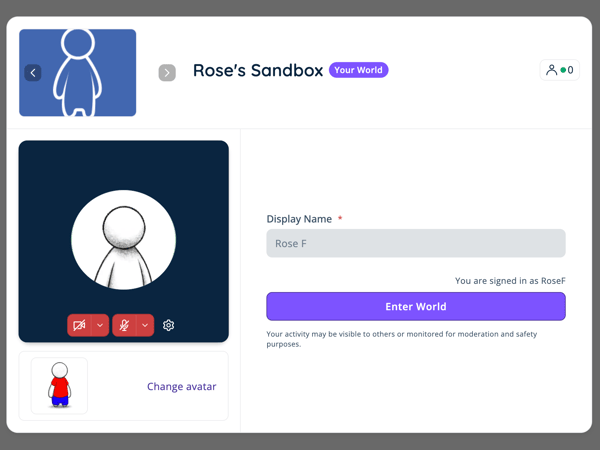
The Welcome modal is getting a redesign! In addition to the update in the design, now if a world is closed, “Available Worlds” that you have access to will be shown in the Welcome modal. This means students who try to enter a world when it's closed will easily be able to find worlds that are currently open. If no worlds a student has access to are open, no worlds will be listed in the Welcome modal.
 |
Update: Recording Transcription
In the Recordings table in Dashboard, admins will now have an option to download the Transcript from the call (in addition to still being able to download the .mp4 recording).
Transcriptions will not be available for past recordings, only recordings taken since this update.
Update: LTI 1.3 / Canvas
We have now released several updates to the Canvas integration. It now supports:
- Scheduling sessions in the same world for different sections
- Attendance
- Viewing Recordings (+ viewing the recording counting toward attendance)
March 11, 2026: Edit Display Name, Expanded iFrame, Gallery Mode Updates, and more!
Update: Edit Display Name on Available Worlds
Teachers can now be given the ability to edit their Display Name on the Available Worlds page in Dashboard. When a teachers makes an edit to their Display Name, their new Display Name will be shown every time they sign in. Previously teachers could only edit their display name in the Welcome modal when entering the world. For more information on giving your teachers this permission, please contact support@schoolspace.io.
Update: Expanded iFrame
By default, when a link is attached to an asset and set to open as a Modal iFrame, the popup will open as the larger, expanded view when the asset is clicked. This setting can be changed when configuring the asset.
Update: Gallery Mode
By default, student (or non-admin) video streams are excluded from a Gallery Mode recording. If your state allows student video streams to be recorded, SchoolSpace can now update your Gallery Mode settings to include student video streams in Gallery Mode recording. Reach out to support@schoolspace.io to implement this setting!
Gallery Mode analytics are now available upon request. Reach out to support@schoolspace.io to get data on Average Gallery Mode Session Length, Gallery Mode Session Counts, and Users Who Turned on Gallery Mode.
Update: My Worlds in Dashboard
Users with Moderator, Editor, Designer, or Manager in a world will now see those worlds included in the My Worlds page in Dashboard.
Update: Spawn Radius
The Spawn Radius field maximum has been updated to allow you to set the Spawn Radius to the full dimension of the world (e.g., if the height and width of the world are 10,000px, the spawn radius can be set to 10,000px maximum). The default value for the Spawn Radius is now 250px. Increasing the Spawn Radius changes how dense or spread out people are when they enter the world. Setting the Spawn Radius to the maximum size now means when people enter your world they can land in a random location anywhere in the world!
Resolved Issues
- Admins can now use their keyboard to move when Spotlight is on.
- Spatial Videos now play when Silent Mode is on.
- Welcome Videos have been fixed and now play the first time a user enters a world.
February 20, 2026: Gallery Mode, Poll
New Feature: Gallery Mode
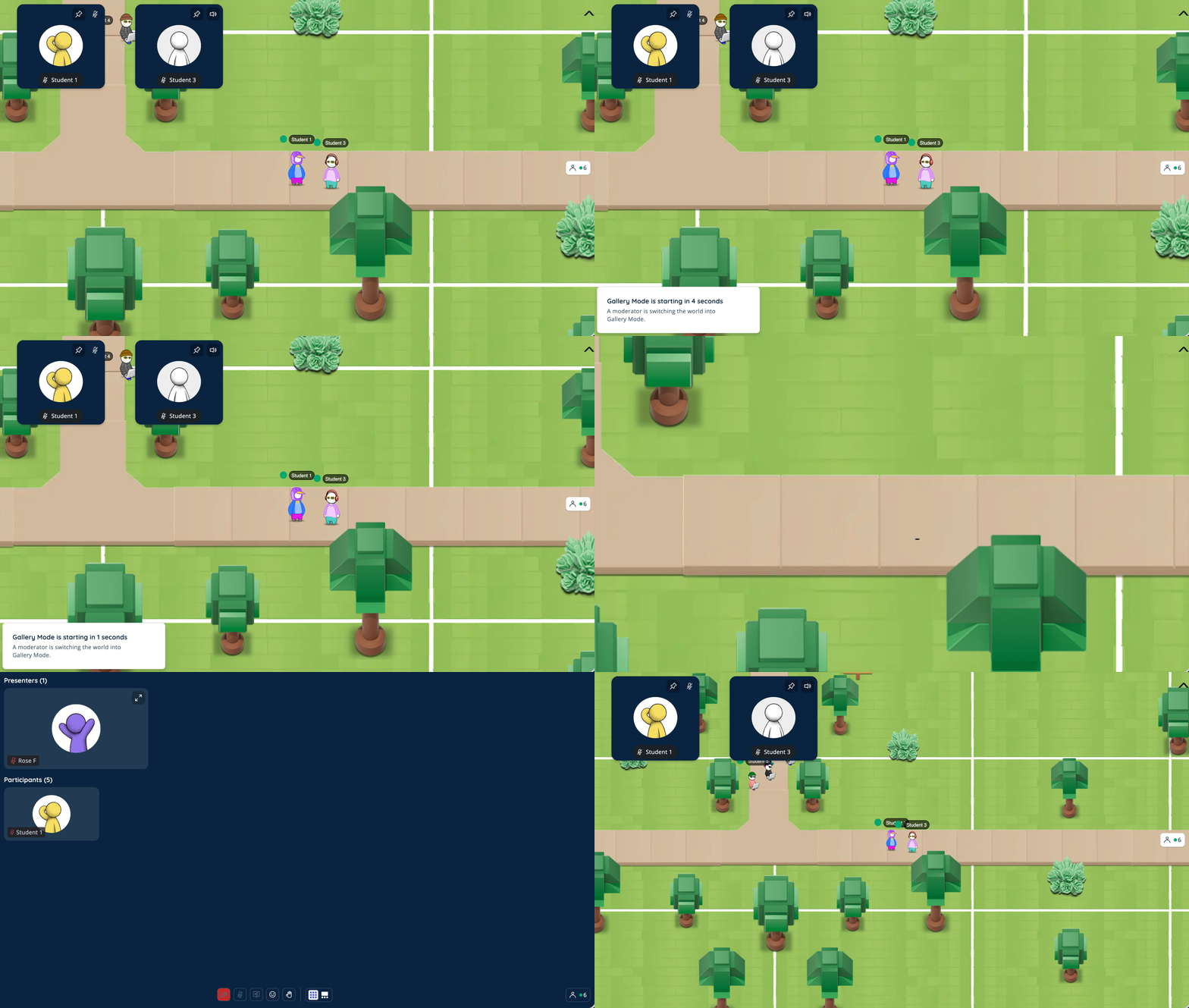 |
Gallery Mode is a moderator-controlled presentation mode that switches the entire world from proximity chat into a structured presenter + participants experience.
Gallery Mode is great for:
- Teaching a class.
- Presentations.
- Lectures.
- Panels.
- Large group moments where proximity video chat is not appropriate.
Learn how to use Gallery Mode.
To start using Gallery Mode in your SchoolSpace worlds, reach out to support@schoolspace.io.
New Feature: Polls
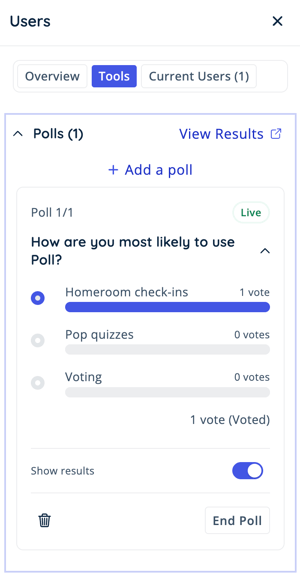 |
Polls are a new real-time engagement tool for Moderators, enabling them to create, launch, and manage polls directly from the Users Menu. Polls support live participation, configurable result visibility, and post-event analysis in the SchoolSpace Dashboard.
January 28, 2026: New Scenes, New Games and Apps, SSO Management, Inventory System
New Scene: Art Museum
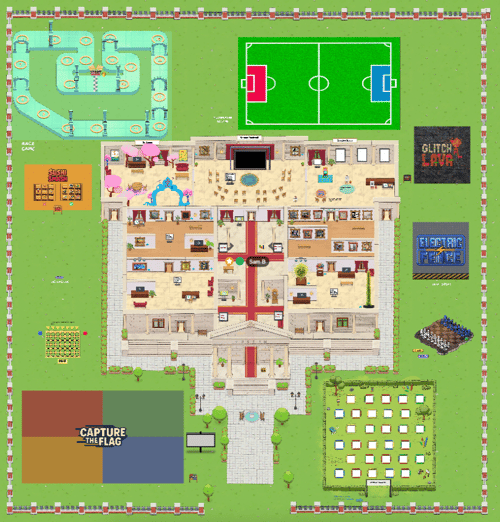 |
Explore an interactive Art Museum where students experience famous artists like Monet, Van Gogh, Rockwell, and more through virtual tours, videos, and hands-on art activities. Students can create and display their own artwork, collaborate in a creative studio, and jump into multiplayer games just outside the museum.
To use this scene, search for 'Art Museum Template' in the SchoolSpace Scene Library. For a full list of the activities available in this scene, check out our Art Museum Scene Guide.
New Scene: Museum Template
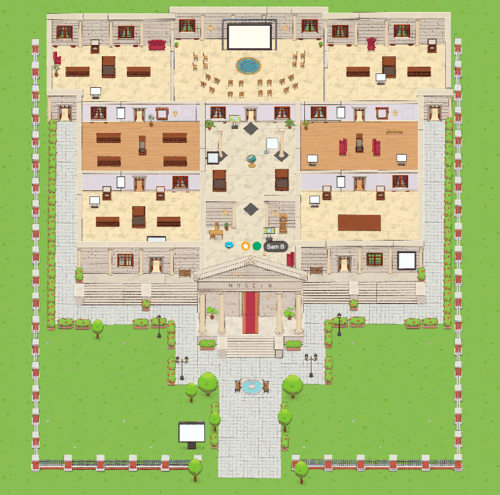 |
Create a museum that is uniquely yours with this blank museum template. The space includes seven customizable areas that schools can turn into exhibits of their choice, from student showcases to virtual field trip experiences. With plenty of open space to add games and interactive activities, this scene makes it easy to design an engaging experience that fits your school’s goals.
To use this scene, search for 'Museum Template' in the SchoolSpace Scene Library.
New Scene: Campground
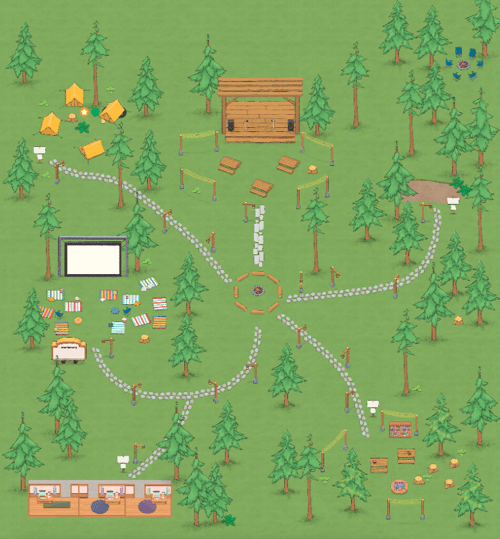 |
A flexible space designed for connection, creativity, and collaboration. Students can watch videos together, read and discuss books, or take the stage for talent shows and performances. With customizable meeting areas and small offices for focused conversations or resources, this scene is perfect for classes, clubs, and school events of all kinds.
To use this scene, search for 'Camping' in the SchoolSpace Scene Library.
New Game: Last Card
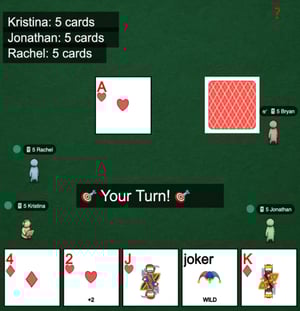 |
Last Card is a fast-paced card game for 2 - 4 players where the objective is simple: get rid of every card in your hand. Everyone starts with 5 cards and takes turns matching their card to the last played card by suit or rank. Watch out for wild Jokers! When a player uses a Joker they can choose a new suit and control the round. Learn more about playing Last Card.
To add this game to your world, search for 'Last Card App' in the SchoolSpace Scene Library.
New App: Student Gallery
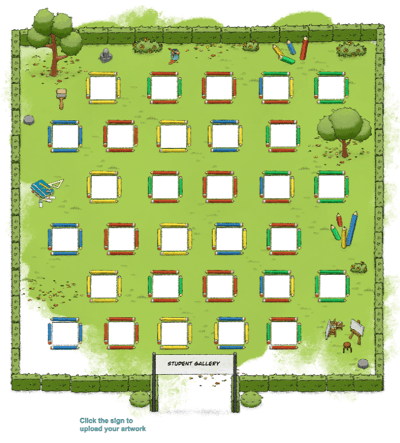 |
The Student Gallery lets students upload their artwork to a shared virtual exhibit. Once approved by an admin, submissions appear in the gallery for the school community to explore and celebrate student creativity.
To add this app to your world, search for 'Student Gallery App' in the SchoolSpace Scene Library.
Update: SSO Management
Our team has made some updates to SSO that will make troubleshooting access issues easier! When a student who should have access to a world gets an error message about SSO access, it can be hard for teachers to understand why this happened. The SchoolSpace team works hard to ensure the smoothest experience for your school that also protects your students. This update makes it easier for us to investigate why access was denied and support new schools with restricting access to worlds during onboarding. Reach out to support@schoolspace.io with any issues regarding SSO access.
Update: Inventory System
We've been expanding our SDK Inventory System and have added two new inventory types: Avatar Accessories and NPCs.
Including Avatar Accessories as an Inventory Type means developers can add the ability for people to unlock special clothing and accessories when a specific action is performed (e.g. I bought 4 chickens in Grow Together and unlocked a chicken suit). When a user chooses the Custom Avatar, they'll have access to any Avatar Accessories they've unlocked by playing games or using apps in SchoolSpace! If you're a developer and curious about building your own games or apps that include unlockable Avatar Accessories, reach out to support@schoolspace.io.
A frequent request from students is coming soon! The addition of NPCs as an Inventory Type means we can begin updating Virtual Pet so your pet can follow you around the world. Once Virtual Pet is updated we'll be sure to let you know. There are many ways NPCs can be used by developers to make SDK apps more dynamic. If you're a developer interested in building an SDK app that includes unlockable NPCs, reach out to support@schoolspace.io.