
|
Learn how to set up the Unlock app in SchoolSpace so students can earn emotes or avatar accessories by answering questions. This article explains how to create unlock challenges, choose question types, save configurations, and view engagement data to track student participation and successful unlocks. |
Keep reading to learn about:

What is the Unlock App?
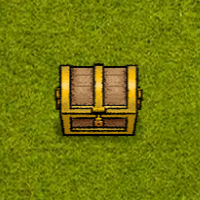
The Unlock app allows admins to create reward-based challenges where students can earn emotes or avatar accessories by answering questions. Admins can choose rewards, create custom questions using several question formats, and save configurations for students to interact with. The app also includes engagement tracking so admins can monitor unlock attempts and successful completions.
 |
Using Unlock App
Everyone can earn a new emote or avatar accessories with the Unlock App!
To Use Unlock App:
- Click the Unlock asset. A page will open on the left side of your screen.
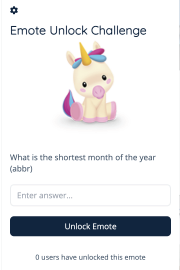
- Read the question and type your answer into the text box.
- Click the Unlock button to see if your answer was correct!
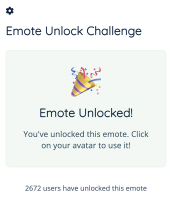
- When you've answered correctly, you'll unlock the emote or accessory!
Some schools leave hints around the world that you can use to figure out the correct answer. If you don't know what to look for, ask for help in the 'Everyone in World' chat channel or find an admin who can help you.
Unlock App for Admins
Editors, Designers, Managers, or world Owners can add Unlock App to a world, set up the challenge question and answer, and choose the emote or avatar accessory reward.
To Add Unlock:
- Click Builder Mode
 in the left sidebar or press B on your keyboard to enter Builder Mode.
 - Click Scenes
 .
. - Search for 'Unlock App' in the
 Filter Results search bar.
 - Hover over the thumbnail image and click Drop Scene
 .
.
- Click an area in the world to drop the Unlock app in that location.
To Set Up the Unlock App
- Click the Unlock asset. A page will open on the left side of your screen.
- Click the Settings
 icon in the upper left of this page.
 - Under Unlock Type, choose Emote or Avatar Accessory as the reward.
-
If You Select Emote:
Choose the emote you want students to unlock from the dropdown menu. -
If You Select Avatar Accessory:
First, choose an Avatar Accessory Pack. Then, select the individual accessories students can unlock by checking the boxes next to each item.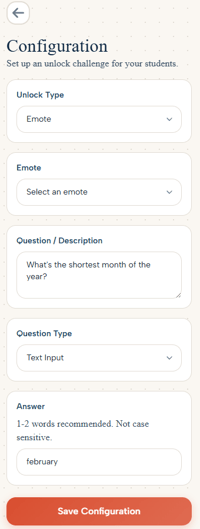
-
- In the Question/Description field, enter the challenge question or prompt.
- In the Question Type field, choose between:
- Open Response
Any response entered by the student will unlock the reward. - Multiple Choice
Students must select the correct answer from a list of options. - Text Input
Students must type the correct answer into the response field (1–2 words recommended, answers are not case sensitive). - All That Apply
Students must select all correct answers from the available choices.
- Open Response
- In the Password/Answer field, enter the correct answer.
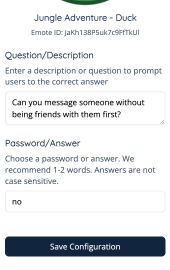
- Click Save Configuration.
You can include multiple accessories from the same pack in a single unlock challenge. For example, one challenge could unlock both a hat and a shirt from the same accessory pack. You can also create additional unlock challenges using other items from that same pack.
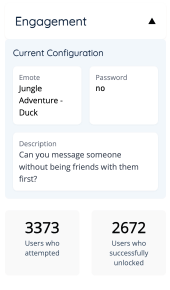
To View Unlock Engagement Analytics:
- Click the Unlock asset. A page will open on the left side of your screen.
- Click the Settings icon in the upper left of this page.
- Scroll down and click Engagement.
Tips for Unlock
-
Match the question to the reward! A holiday emote paired with a question about a class holiday lesson makes the reward feel earned.
-
Use Open Response for participation. Any answer unlocks the reward, which makes it a good fit for reflection prompts where there's no single right answer.
-
Place it somewhere worth walking to. Tucking the Unlock app into a corner of your world gives students a reason to explore.
-
Create a set. Build several challenges from the same accessory pack so students can collect a full outfit over a unit or a week.
-
Check your engagement data. If very few students are unlocking, the question may be harder — or harder to find — than you expected.