
|
This article explains what phrases are and how students can use them to communicate in SchoolSpace. |
Keep reading to learn how to:

Can Schools Create Their Own Phrases?
What Are Phrases?
Phrases are short, pre-approved messages that students can select instead of typing their own message.
Examples may include:
- Want to play a game?
- Yes
- No
- Follow me!
- Hello!
Students can use phrases in two ways:
1. In Chat
Students can choose a phrase and send it in a chat channel or a direct message without typing.
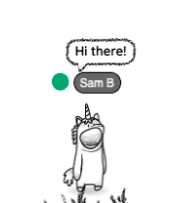
2. Above Their Avatar
Students can click on their avatar and select a phrase, similar to choosing an emote. The selected phrase will appear above their avatar for other users in the world to see.
|
Why Were Phrases Added?
Phrases help students communicate safely while reducing the need for free-form typing.
They are especially helpful for:
- Younger learners who may not be comfortable typing
- Students who need quick ways to communicate
- Worlds that use Silent Mode
- Encouraging positive social interaction and participation
Using Phrases in Silent Mode
Phrases continue to work even when a world is in Silent Mode and will appear in a bar along with emotes at the bottom of the screen.
This allows students to communicate basic information and participate in activities while maintaining the communication restrictions established by the world administrator.
For example, students can:
- Ask another student to play a game
- Respond with "Yes" or "No"
- Share simple reactions or greetings
This provides a safe way for students to interact while preserving the purpose of Silent Mode.
How to Use Phrases
Send a Phrase in Chat
- Open the Chat by clicking on the chat icon in the left sidebar.
- Click on the emote icon at the bottom of the drawer next to the text box
- Select phrases from the two tab options at the top
- Click on a phrase to send it
Display a Phrase Above Your Avatar
- Click on your avatar to open the Expressions menu.
- Click on the phrases tab.
- Select a phrase
- The phrase will appear above your avatar for other users to see.
Turning Phrases On or Off for a World
World administrators can enable or disable phrases on a per-world basis.
To update this setting:
- Click the World Settings ⚙️ icon.
- Select General User Controls.
- Locate the Phrases setting.
- Turn Phrases on or off for that world.
Changes to this setting will only apply to the current world.
Can Schools Create Their Own Phrases?
No. The phrase list is managed by the SchoolSpace team and cannot currently be customized by schools or staff members.
This helps ensure phrases remain safe, consistent, and appropriate for all learners.
Have an idea for a new phrase?
Email your suggestions to success@topia.io. Our team reviews customer feedback regularly when considering future improvements.
Keep Learning!
Sending and Receiving Chat Messages
Prevent Unsupervised Interactions with Chaperone Mode and Silent Mode