| This article explains what the Grow Together app is, how to play, and how admins can add Grow Together to a world. |
Keep reading to learn about:

What is Grow Together?
Grow Together is an interactive gardening experience where players create and tend their own garden. Players can plant crops, care for them as they grow, and harvest them to earn coins. These coins can be used to purchase new seeds, decorations, and tools to expand and enhance their garden.
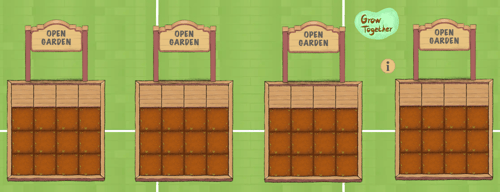
Players begin by claiming an open garden. From there, you can continuously grow crops, use tools, add decorations, and support other players by tending friends’ gardens.
 |
Playing Grow Together
Everyone can play Grow Together! Players start by claiming an open garden, then plant crops, care for them, and expand their garden using items purchased with earned coins.
Learn how to:
- Start a Garden
- Plant, Water, and Harvest Crops
- Buy Items in the Store
- View your Purchased Items
- Use Tools in your Garden
- Use Tools in a Friend's Garden
- Add Decorations to your Garden
To Start a Garden:
You'll need to start a garden before you can plant anything.
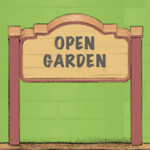
- Find an Open Garden sign and click it.
- The Grow Together app will open on the left side of your screen. Click Start Your Garden to claim this plot.

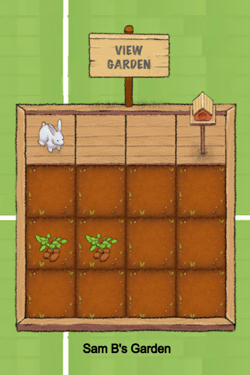
- Now you can start your garden! You'll be able to find it again because your name is shown below your plot. Follow the tips on the left side of your screen to start gardening or keep reading below for more instructions.
To Plant, Water and Harvest your Crops:
Harvesting crops earns coins that you can use in the store. Rarer crops earn more coins and XP when harvested.
- Find your garden (look for your name). Click the View Garden sign in the world.
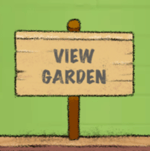
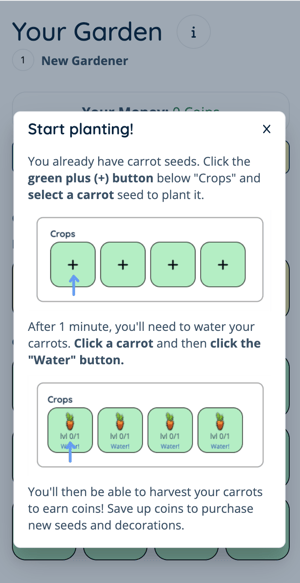
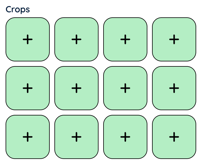
- The Grow Together app will open on the left side of your screen. In the Crops section, click a Plus
 button and select:
- Carrot seeds if it's your first time playing.
- Other seeds if you've played before an earned enough coins to buy more seeds.
- Note: Each seed shows how long it will take to grow before it's ready to harvest and the profit you'll earn when you harvest. Most crops need to be watered multiple times before they can be harvested.
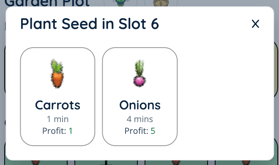
- Your seedlings will sprout in your garden! You can repeat step 2 until your garden is full.
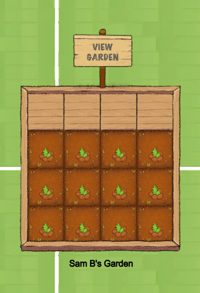
- Each crop has a waiting period before you can water.
To water a plant, either:- Click the plant in your garden in the world → click Water in the app to the left.
- Click View Garden → click a plant in the Crops section → select Water.
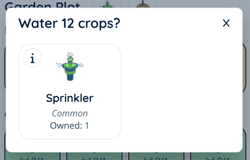
- Click View Garden → click the Sprinkler above Crops → select Sprinkler.
Note: The Sprinkler waters multiple crops at the same time. Sprinklers can be used a limited number of times. If you don't have a sprinkler, you can buy one in the store.
- Each crop shows it's growth level in the Crops section (lvl 0/3 means it needs to be watered 3 times before harvesting). When your plant has grown enough, you'll be able to harvest the crop and earn coins to use in the store.
To harvest a plant, either:- Click the plant in your garden in the world → click Harvest in the app to the left.
- Click View Garden → click a plant in the Crops section → select Harvest.
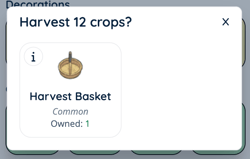
- Click View Garden → click the Harvest Basket above Crops → select Harvest Basket.
Note: The Harvest Basket harvests multiple crops at the same time. If you don't have a Harvest Basket, you can buy one in the store.
- Continue planting seeds, watering your plants, and harvesting your crops! As you progress you'll earn coins you can use in the store and XP to move up in gardening ranks!
To Buy Items in the Store:
You'll need coins to purchase items in the store. You earn coins by harvesting crops.
- Find your garden (look for your name). Click the View Garden sign in the world.
- The Grow Together app will open on the left side of your screen. Click the View Store button to open the store.

- Your coins are shown at the top. You can browse seeds, tools, decorations, and accessories to use with the custom avatar. For tools, hover over the Info
 icon to learn more about the tool.
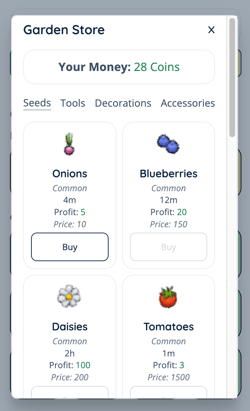
- To purchase an item, click Buy. Once you've purchased the item, you can use it in your garden (seeds, tools, and decorations), a friend's garden (some tools), or with the custom avatar (accessories).
- Rarer seeds earn more coins and XP when harvested.
- Some tools can increase the coins and XP you earn.
- Watering Cans can only be used on friends' crops.
If you purchase avatar accessories in the store, you may need to reload the world to see your new accessories. Make sure to select the custom avatar (look for the purple icon in the corner) before you enter the world!
To View your Purchased Items:
- Find your garden (look for your name). Click the View Garden sign in the world.
- The Grow Together app will open on the left side of your screen. Click View Backpack to see your items.

To Use Tools in your Garden:
You'll need to plant crops before you can use tools. You may need to purchase tools. Some tools can increase your profit and XP earned when harvesting.
- Find your garden (look for your name). Click the View Garden sign in the world.
- The Grow Together app will open on the left side of your screen.
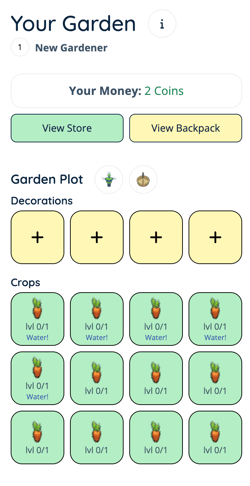
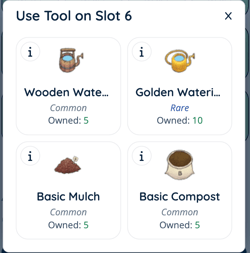
- To use Compost or Mulch:
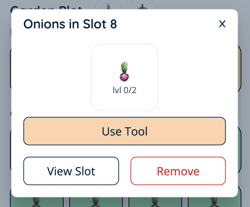
- Click a crop in your garden.
- Select Use Tool.
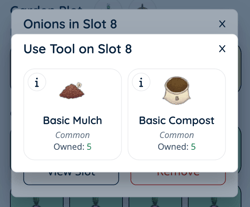
- Select the tool you want to use.
- Note: Compost and Mulch can only be used when a crop does not need water or harvesting.
- To use Sprinklers or Harvest Baskets:
- Select an action (Sprinkler or Harvest Basket) next to Garden Plot.
- Click the tool in the popup to use it.
- If you don't have the tool, you can purchase it in the store.
- Note: Sprinklers can only be used if your crops need water. Harvest Basket can only be used if your crops need harvesting.

To Use Tools in a Friend's Garden:
You'll need to own tools to use them in a friend's garden. You can buy tools in the store.
- Click the View Garden sign in a friend's garden (look for their name).
- The Grow Together app will open on the left side of your screen. Select a crop.
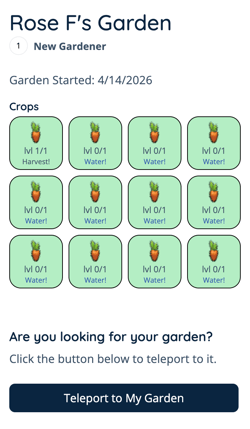
- Click Use Tool.
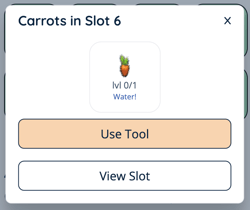
- Select a tool. Watering Cans, Mulch, and Compost can all be used in a friend's garden.
To Add Decorations to your Garden:
You'll need to buy decorations in the store before you can add them to your garden.
- Find your garden (look for your name). Click the View Garden sign in the world.
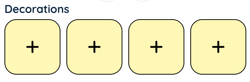
- The Grow Together app will open on the left side of your screen. In the Decorations section, click a Plus button.
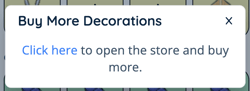
- If you don't have any decorations, you'll see an option to buy more in the store. Complete the purchase, then go back to step 2.
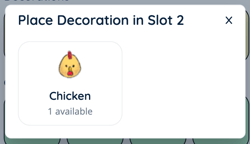
- If you have decorations, you'll see them in a popup. Select the decoration you want to place in your garden.
- Your decorations are shown in the top row of your garden in the world.
Grow Together for Admins
Editors, Designers, Managers, or world Owners can add and manage Grow Together in their world.
Learn how to:
To Add Grow Together:
- Click Builder Mode
 in the left sidebar or press B on your keyboard to enter Builder Mode.
 - Click Scenes
 in the left sidebar.
 - Search for 'Grow Together' in the
 Filter Results search bar.
 - Hover over the thumbnail image and click Drop Scene
 .
.
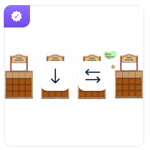
- Click an area in the world to drop the Grow Together app in that location.
- You can drop the Grow Together app multiple times at any point to add more plots to the world.
To Clear a Specific Plot:
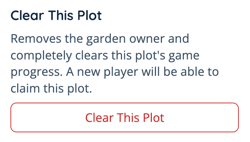
Removes the garden owner and completely clears this plot's game progress. A new player will be able to claim this plot.
- Find the plot you want to clear (look for the person's name). Click the View Garden sign in this plot.
- The Grow Together app will open on the left side of your screen. Click Settings
 in the upper left corner.
 - Click Clear This Plot to remove the owner and clear all game progress for this plot. A new player can now claim this plot.
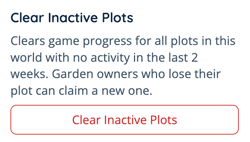
To Clear Inactive Plots:
Clears game progress for all plots in this world with no activity in the last 2 weeks. Garden owners who lose their plot can claim a new one.
- Click either:
- A View Garden sign.
- An Open Garden sign.
- The Grow Together asset.
- The Grow Together app will open on the left side of your screen. Click Settings in the upper left corner.
- Click Clear Inactive Plots to remove garden owners and clear game progress for all plots with no activity in the last 2 weeks.
To Clear All Plots:
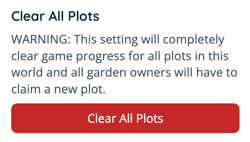
This setting will completely clear game progress for all plots in this world and all garden owners will have to claim a new plot.
- Click either:
- A View Garden sign.
- An Open Garden sign.
- The Grow Together asset.
- The Grow Together app will open on the left side of your screen. Click Settings in the upper left corner.
- Click Clear All Plots to remove all garden owners and clear all game progress for all garden plots in this world.