
| This article explains how to complete the SchoolSpace LTI 1.3 integration. Instructions for using Canvas to create new worlds, manage existing worlds, create events, and use SchoolSpace tools can be found in Using the LTI 1.3 Integration. |
SchoolSpace's LTI 1.3 integration makes it easy for teachers to create and manage SchoolSpace worlds via Canvas.
To complete the integration, you'll need to:
 Update the SchoolSpace Developer Key in Canvas
Update the SchoolSpace Dashboard
[Optional] Choose a Default Template for LTI Generated Worlds
Step 1: Update the SchoolSpace Developer Key in Canvas
-
In Canvas, click the Admin icon in the left sidebar.
-
Select an account (if applicable).
-
In the toolbar, click Developer Keys.
-
Click the blue + Developer Key button, then choose + LTI Key from the dropdown.
-
In the Method dropdown, change the option from Manual Entry to Paste JSON.
-
If necessary, delete the existing JSON in the LTI 1.3 Configuration box.
-
Open this URL in a new tab:
-
Copy the entire JSON configuration (all the text) from that page.
-
Paste it into the LTI 1.3 Configuration box in Canvas.
-
Click Save.
Step 2: Update Canvas Settings
-
Return to the Developer Keys page in Canvas.
-
Under the Details column, copy the Client ID for the SchoolSpace developer key.
-
In the left sidebar, click Settings.
-
Select the Apps tab at the top of the page.
-
Click View App Configurations.
-
Locate the current SchoolSpace app.
-
Click the Settings (gear) icon on the far right.
-
Click Delete to remove the existing app.
-
Click the + App button at the top of the page.
-
In the Configuration Type dropdown, select By Client ID.
-
Paste the copied Client ID into the Client ID field.
-
Click Submit.
-
The new SchoolSpace LTI integration will appear in the app list.
-
Enable the app so it appears in the Course Navigation Menu.
If the SchoolSpace option does NOT appear in the Course Navigation Menu, continue to Step 3: Update SchoolSpace Dashboard.
If the SchoolSpace option does appear, skip Step 3: Update SchoolSpace Dashboard.
Step 3: Update SchoolSpace Dashboard
-
Log in to any SchoolSpace world.
-
Click Settings
 in the left sidebar.
 -
Select World User Sessions (or any option that opens the SchoolSpace Dashboard in a new tab).
-
Switch to the SchoolSpace Dashboard tab in your browser.
-
In the purple sidebar, click
 Integrations.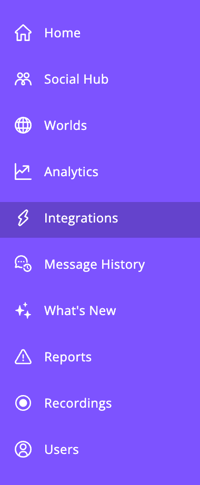
-
Scroll down to the LTI Integration section and select Add LTI Integration.
-
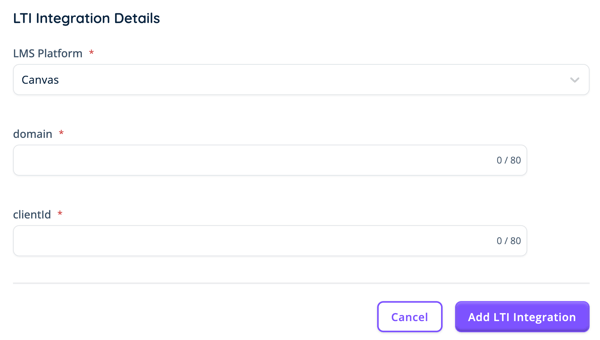
The LTI Integration Details page will open. Make the following updates:
-
In the LMS Platform dropdown, select Canvas.
-
In the Domain field, enter your Canvas domain
(example: topia.instructure.com).
-
Paste the SchoolSpace developer key Client ID from Step 2: Update Canvas Settings into the Client ID field.
-
-
Click Add LTI Integration to save.
Optional: Choose a Default Template for LTI Generated Worlds
This step is optional and can be completed or changed at any time. Updating the default template will not affect your Canvas setup.
-
Log in to any SchoolSpace world.
-
Click Settings
in the left sidebar. -
Select World User Sessions (or any option that opens the SchoolSpace Dashboard in a new tab).
-
Switch to the SchoolSpace Dashboard tab in your browser.
-
In the purple sidebar, click
Integrations. -
Scroll to the LTI Integration section.
-
Click the pencil
 icon next to the Canvas integration to edit it.
 -
Under Default Classroom Scene, select the scene you want to use as the default template. Every new world generated from Canvas will automatically start with this scene.
Your SchoolSpace LTI 1.3 integration has been successfully set up in Canvas! Continue to Using the LTI 1.3 Integration to learn how to create events, manage worlds, and use the SchoolSpace tools inside your course.