
| This article explains what the Bulletin Board app is, how to use it, and how admins can add Bulletin Board to a world. |
Keep reading to learn about:
 Adding Bulletin Board to a World
What is Bulletin Board?
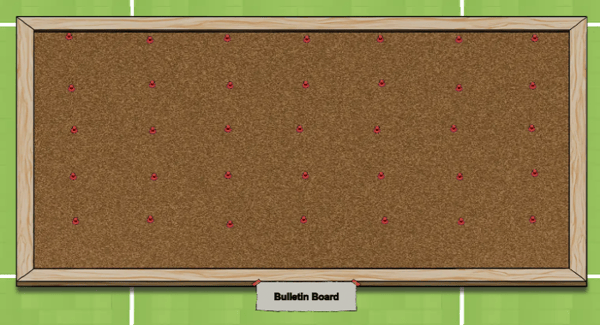
The Bulletin Board app is a simple tool that allows users to post short messages or images, depending on the selected theme, inside your world. Students (or any participant) can submit messages or images, but those will only appear publicly after an admin approves them.
This approval process helps schools maintain a safe and moderated communication space where students can share positive notes, announcements, community messages, or images.
This app supports three themes:
-
Bulletin Board: Text-based message board.
-
Bulletin Board – Sketch: Text-based message board.
-
Parking Lot: Image-based, users upload images instead of text.
 |
Using Bulletin Board
Everyone can use Bulletin Board to submit messages or images. Submissions must be approved by an admin before they appear in the world.
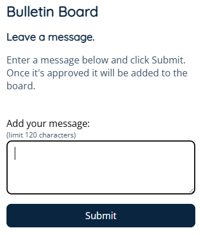
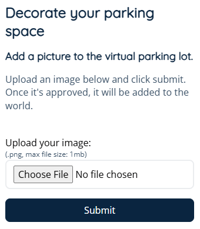
Messages are limited to 120 characters and images with max file size of 1mb. Each person can have up to 3 pending submissions at a time.
To Use Bulletin Board:
-
Click the Bulletin Board key asset. The Bulletin Board app will open on the left side of your screen.
Note: The key asset is typically at the bottom center of the app in the world. The text on the key asset may be different than the image below.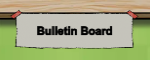

-
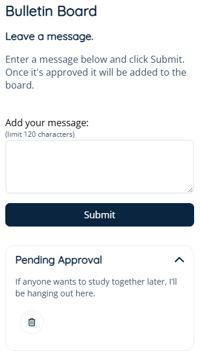
Add your submission:Type your message in the “Add your message” field (maximum 120 characters). For Parking Lot theme, click Choose File and select your image.
-
Click Submit.
-
Your submission will appear under Pending Approval until an admin reviews it.
-
If you change your mind, click Delete
 to delete your pending submission.
 -
You can repeat the process to submit up to 3 pending messages or images.
-
Once your submission is approved by an admin, it will appear on the Bulletin Board for everyone to see.
You can have up to three pending submissions at a time. If all three slots are filled, you must wait for an admin to approve your submissions before submitting again.
Bulletin Board for Admins
Editors, Designers, Managers, or world Owners can add the Bulletin Board to their world.
Admins can:
- Add Bulletin Board to a World
- Change the Bulletin Board Theme
- Update Bulletin Board Title, Subtitle and Description
- Approve or Delete Submissions
- Reset or Clear All Submissions from the Bulletin Board
To Add the Bulletin Board App:
-
Click Scenes
 in the left sidebar.
 -
Search for 'Bulletin Board App' in the
 Filter Results search bar.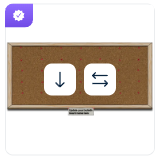
-
Hover over the thumbnail image and click Drop Scene
 .
. -
Click an area in the world to drop the Bulletin Board App in that location.
To Change the Bulletin Board Theme:
-
Click the Bulletin Board key asset. The key asset for each theme looks like:
-
"Bulletin Board' and 'Bulletin Board - Sketch': A grey banner in the bottom center of the board.
-
'Parking Lot': A grey rounded rectangle in the bottom center of the Parking Lot.
-
-
The app drawer will open on the left side of your screen. Click Settings
 in the upper left corner of this page.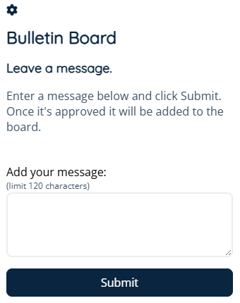
-
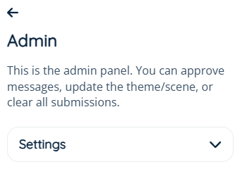
Click Settings to see all options.
-
Click Theme and select the option you want to use.
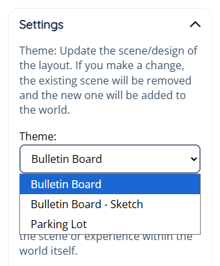
Theme Appearance Description 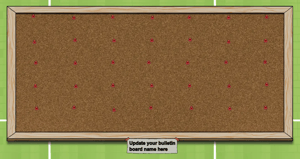
Bulletin Board
Text-based message board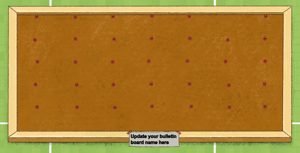
Bulletin Board - Sketch
Text-based message board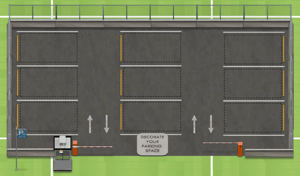
Parking Lot
Image-based board -
Click Submit, then click Replace to confirm.
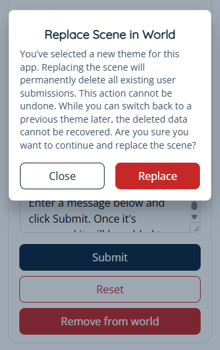
Changing the theme will permanently delete all existing user submissions. This action cannot be undone. While you can switch back to a previous theme later, the deleted message or image submissions cannot be recovered.
To Update the Bulletin Board Title, Subtitle and Description:
-
Click the Bulletin Board key asset. The key asset for each theme looks like:
-
-
"Bulletin Board' and 'Bulletin Board - Sketch': A grey banner in the bottom center of the board.
-
'Parking Lot': A grey rounded rectangle in the bottom center of the Parking Lot.
-
-
The Bulletin Board app will open on the left side of your screen. Click Settings
in the upper left corner of this page. -
Click Settings to see all options.
-
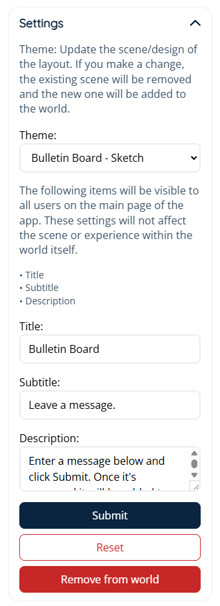
Update the Title, Subtitle, and Description fields.
-
Click Submit.
The changes above will be visible to all users on the main page of the app on the left side of their screen when they click the key asset.
The themes 'Bulletin Board' and 'Bulletin Board Sketch' have a custom text asset shown on top of the key asset in the world. This text can be modified to suit your needs.
To Approve or Delete Bulletin Board Submissions:
-
Click the Bulletin Board key asset. The key asset for each theme looks like:
-
"Bulletin Board' and 'Bulletin Board - Sketch': A grey banner in the bottom center of the board.
-
'Parking Lot': A grey rounded rectangle in the bottom center of the Parking Lot.
-
-
The Bulletin Board app will open on the left side of your screen. Click the Settings
 icon in the upper left of this page.
 -
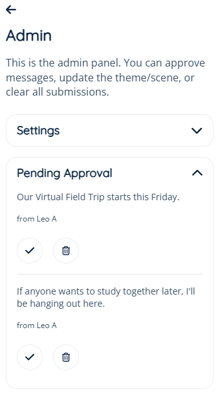
Click Pending Approval.
-
Click Approve
 to approve the message.
 -
Click Delete
to delete the message.
To Reset or Remove All Submissions from the Bulletin Board:
-
Click the Bulletin Board key asset. The key asset for each theme looks like:
-
"Bulletin Board' and 'Bulletin Board - Sketch': A grey banner in the bottom center of the board.
-
'Parking Lot': A grey rounded rectangle in the bottom center of the Parking Lot.
-
-
The Bulletin Board app will open on the left side of your screen. Click the Settings
icon in the upper left of this page. -
Click Settings to see all options.
-
Click Reset.
-
Select the 'Remove all user submissions?' checkbox and click Reset again to confirm.
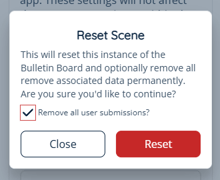
This will reset the entire Bulletin Board and permanently remove all messages or images.